
10 ways to open the System Information tool on Windows
You may have heard of Windows System Information Tools before. It's an incredible application that provides detailed information about your PC. But how do you access this application in the first place?
To answer this question, we will cover all the ways to access the System Information application on Windows.
recommend:How to reset Microsoft Edge browser
The Start menu search bar allows you to easily open almost any application on your device. You can use this tool to access system settings, built-in applications, and all third-party applications.
Let's explore how to open the "System Information" application using the search bar in the "Start" menu:
- according to win + S Or click Start Menu Search Bar Icon On the taskbar.
- type System Information Then select Best match result.

2. Use the address bar in File Explorer
You can also use the address bar in File Explorer to open various applications. In most cases, this tool will come in handy if the Start menu search bar doesn't work.
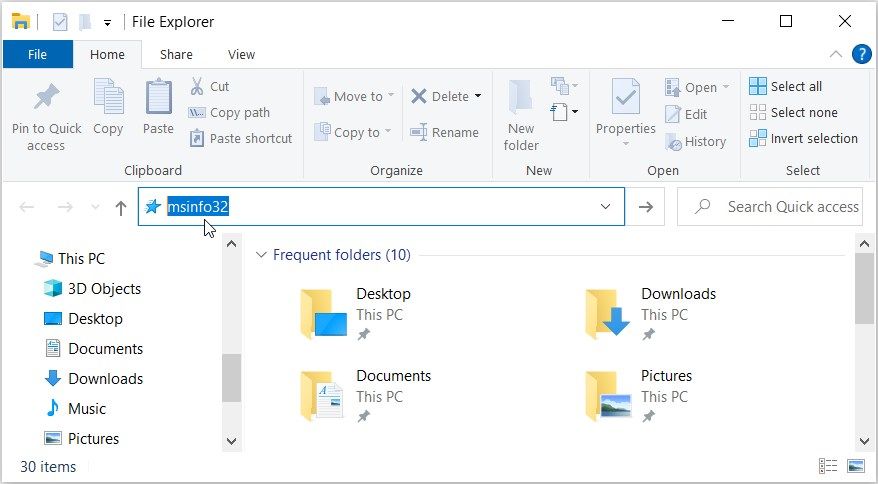
Here's how to open the System Information tool using the address bar in File Explorer:
- according to win And Open File Explorer.
- type msinfo32 In the address bar of File Explorer, then press Enter Open the System Information application.
3. Use the Run command dialog box
Alternatively, you can use the Run command dialog box to access the system information tool.
Interestingly, the Run command dialog box allows you to access almost any program on Windows. If you want to run third-party programs using the Run command dialog box, you'll need to adjust some registry settings first.
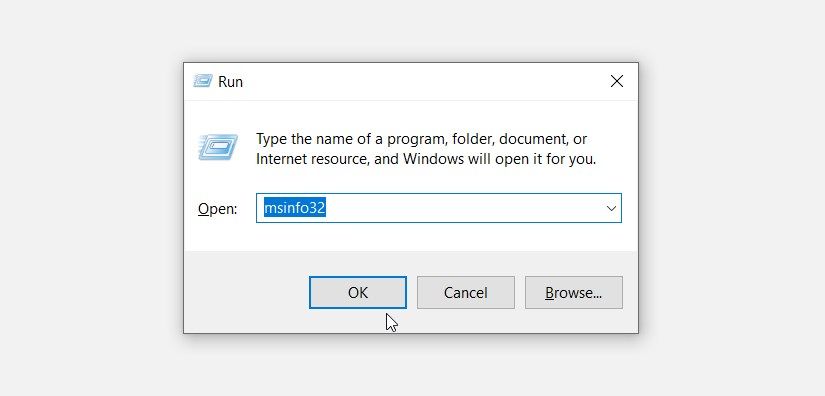
Now, let's see how to open the System Information tool using the Run command dialog box:
- according to win + R Open the Run command dialog box.
- type msinfo32 And press Enter Open the system information tool.
The Start Menu is a great place to access most of the apps on your device.
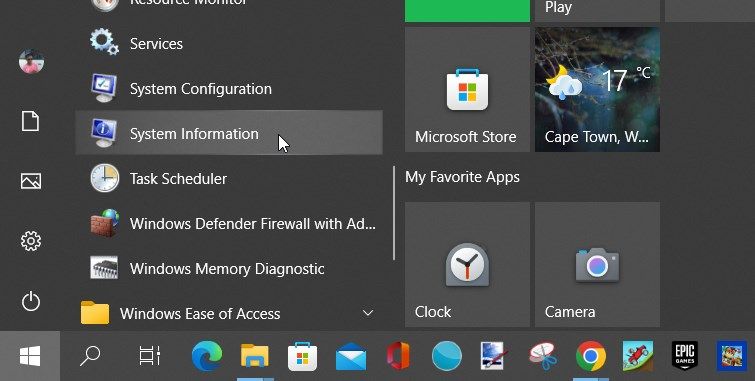
Let's see how to access the system information tool through the Start menu:
- Please press win key or click Start Menu icon On the taskbar.
- Scroll down the "Start" menu item on the left.
- Expand Windows Management Tools Options.
- Find and click System Information tool.
recommend:How to use an iPhone as a wireless mouse
5. Use system settings
You can always use system settings to customize or repair applications on your computer (see How to Repair Apps on Windows). But did you know you can use system settings to open various tools and applications?
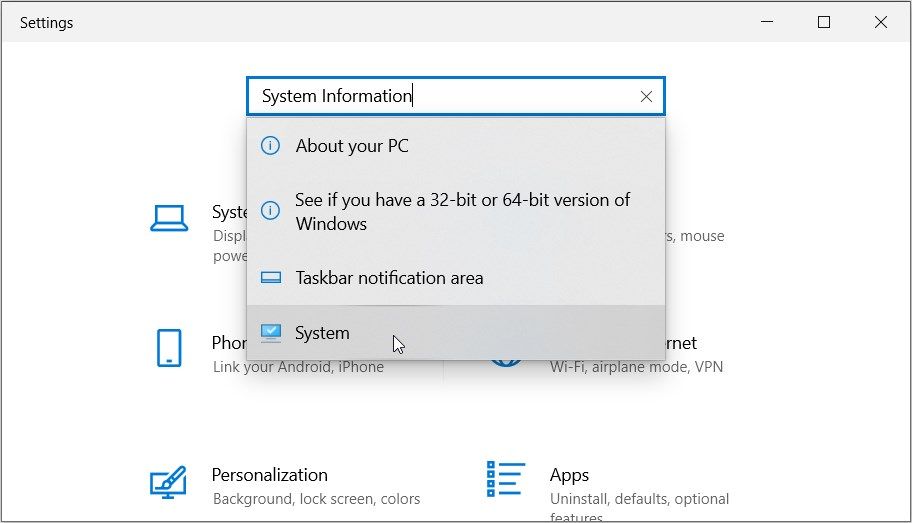
Here are the steps to open the System Information application using system settings:
- according to win + i Open system settings.
- type System Information In the search box, select the relevant option.
6. Use the control panel
The Control Panel is a reliable tool that can help you solve most PC problems. Now, the best part is that it also allows you to open a wide variety of applications.
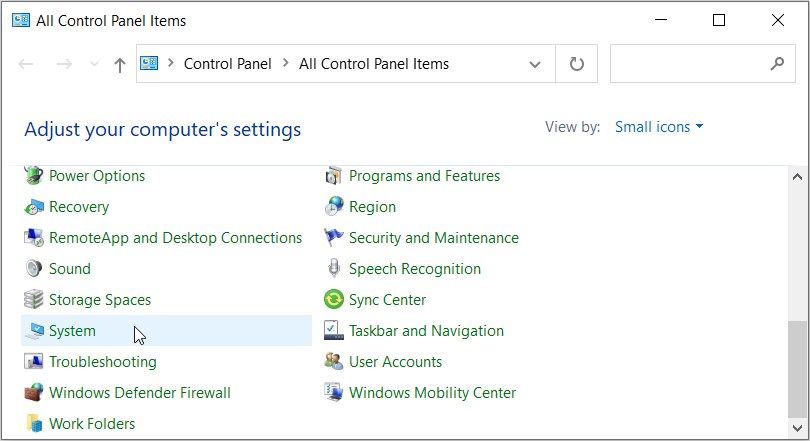
Here's how to open the System Information application using the Control Panel:
- type control Panel Select from the search bar in the Start menu Best match.
- Click Viewing method Drop-down menu and select Small icon.
- choose system From the list.
7. Use Task Manager
You may have used Task Manager before to close PC programs or analyze system performance. But did you know that this tool can give you easy access to a variety of applications?
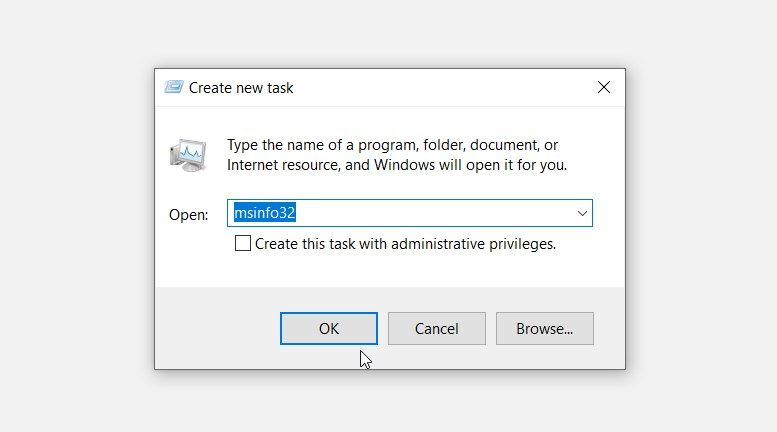
Let's see how to open the System Information tool using Task Manager:
- according to win + X Open the quick access menu.
- choose task manager From the options.
- Click document The tab is in the upper right corner and you can select it. Run a new task.
- type msinfo32 In the search box, then press OK Open the system information tool.
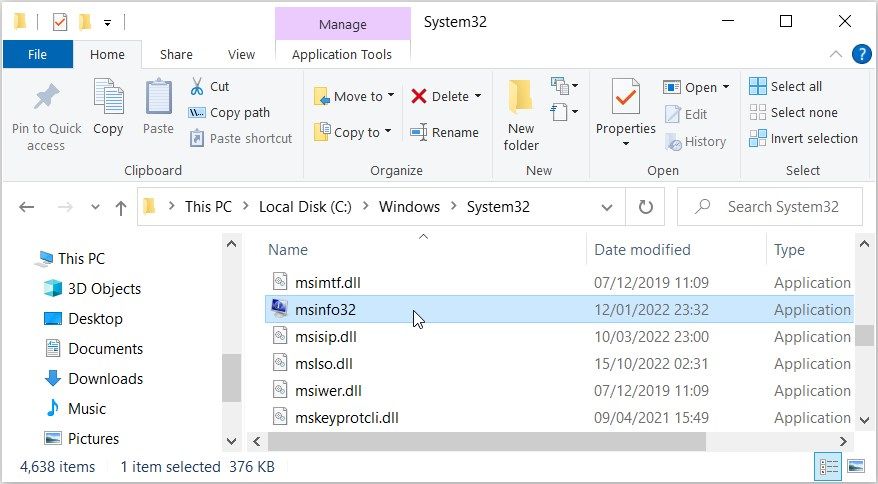
You can easily open various applications using the executable (.exe) files contained in the System32 folder.
The following are the steps to open the System Information tool from the System32 directory:
- type File Manager Select from the search bar in the Start menu Best match.
- Click This computer On the left, then double-click. Local disk (C:) The options on the right.
- double click Windows Folder.
- Scroll down in the Windows folder and double-click System 32 Folder.
- Find and double-click msinfo32 The option is to open the system information tool.
Want to make system information tools easy to access?
If so, please pin the msinfo32 EXE file to your taskbar. To do this, right-click the file. msinfo32 In the System32 folder, select the options, and then select... Pin to taskbar.
recommend:How to remove quick links and news feeds in the new tab of Microsoft Edge
9. Use the command prompt or PowerShell.

Command Prompt and PowerShell can help you configure various settings or troubleshoot system problems. Now you'll be happy to know that these tools can help you access applications on your Windows device.
Here's how to open the System Information application using the command prompt:
- according to win + R Open the Run command dialog box.
- type Command instructions In the search box of the command prompt, or Power supply casing For PowerShell.
- according to Ctrl + Shift + Type Open an elevated command prompt/PowerShell window.
- Enter the following command and press Enter. Enter Open the System Information application:
msinfo32
10. Use the system information desktop shortcut

You can also open the System Information application using its desktop shortcut. If you don't have a desktop shortcut for this application, you can create one using the following method:
- according to win + D Access the desktop.
- Right-click on an empty area of the desktop, and then select... New > Shortcut.
- type %windir%\system32\msinfo32 In the location box.
- Please press Next Press the "Continue" button.
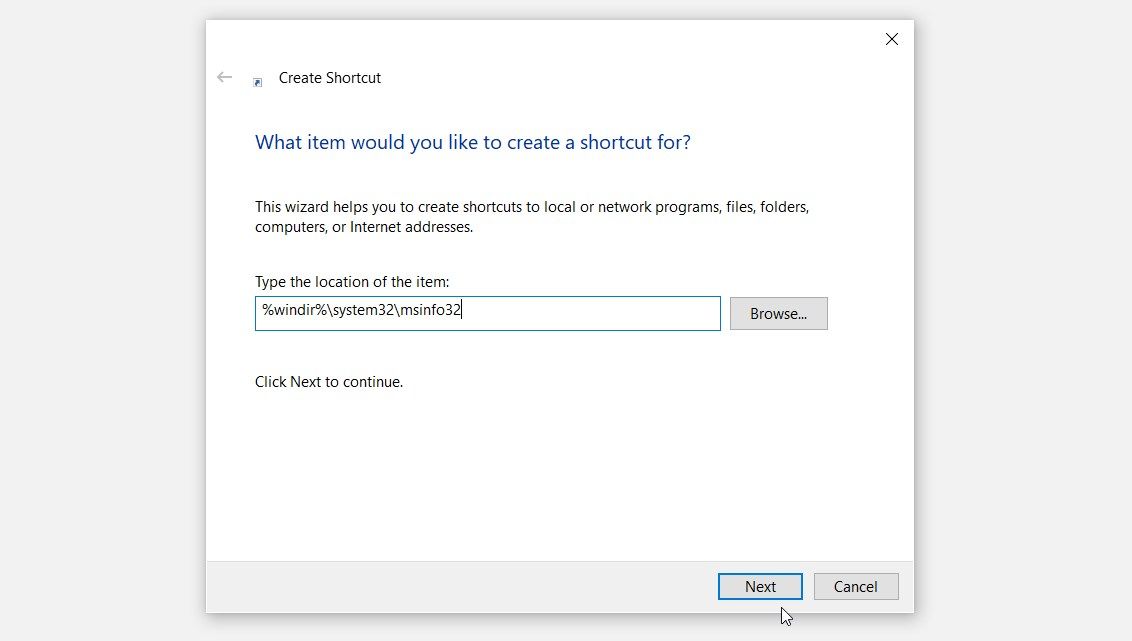
type System Information Application Inside Name Box. From there, press Finish Button.
From now on, you can easily access the System Information application by clicking the desktop shortcut. If you want to make things even simpler, you can pin the desktop shortcut to the taskbar.
If you want to quickly find some information about your PC, then you should check out the System Information tool. If this application causes you problems, you can use other tools to check your Windows PC specifications.

 Chinese (China)
  English
  Chinese (Taiwan)
  Russian
  Japanese