
How to turn on the flash on an iPhone camera
As iPhone cameras become increasingly feature-rich, the ever-growing number of icons and buttons in the camera app can be confusing for some. In low-light conditions, you might need to use the camera flash instead of Night mode. And since the icons no longer have labels, it can be difficult to figure out how to turn on the iPhone flash.
To help, we'll explain what the different flash icons mean and what steps you can take to quickly turn on your iPhone's flash.
You can schedule text message delivery on iPhone iOS 18
What does the iPhone camera flash icon mean?
You'll see various circular icons with lightning bolts in the Camera app on your iPhone. Generally, they follow these rules:
- When there is A diagonal line passes through the flash icon.This indicates that the flash is off.
- When there is There is no diagonal line, and the flash icon is white.This indicates that the camera flash is set to automatic. It will not flash in good lighting conditions, but will flash in low light conditions.
- When the iPhone camera The flash icon is highlighted in yellow.This means the camera will keep flashing when taking pictures. This could be because it's set to always on, or it's in automatic mode and your iPhone thinks it needs to use the flash.
How to turn on the flash on a newer iPhone
Instructions for turning on the iPhone camera flash vary depending on your model. Here are the steps to enable the camera flash on iPhone 11, 12, SE (2nd generation), 13, and other models:
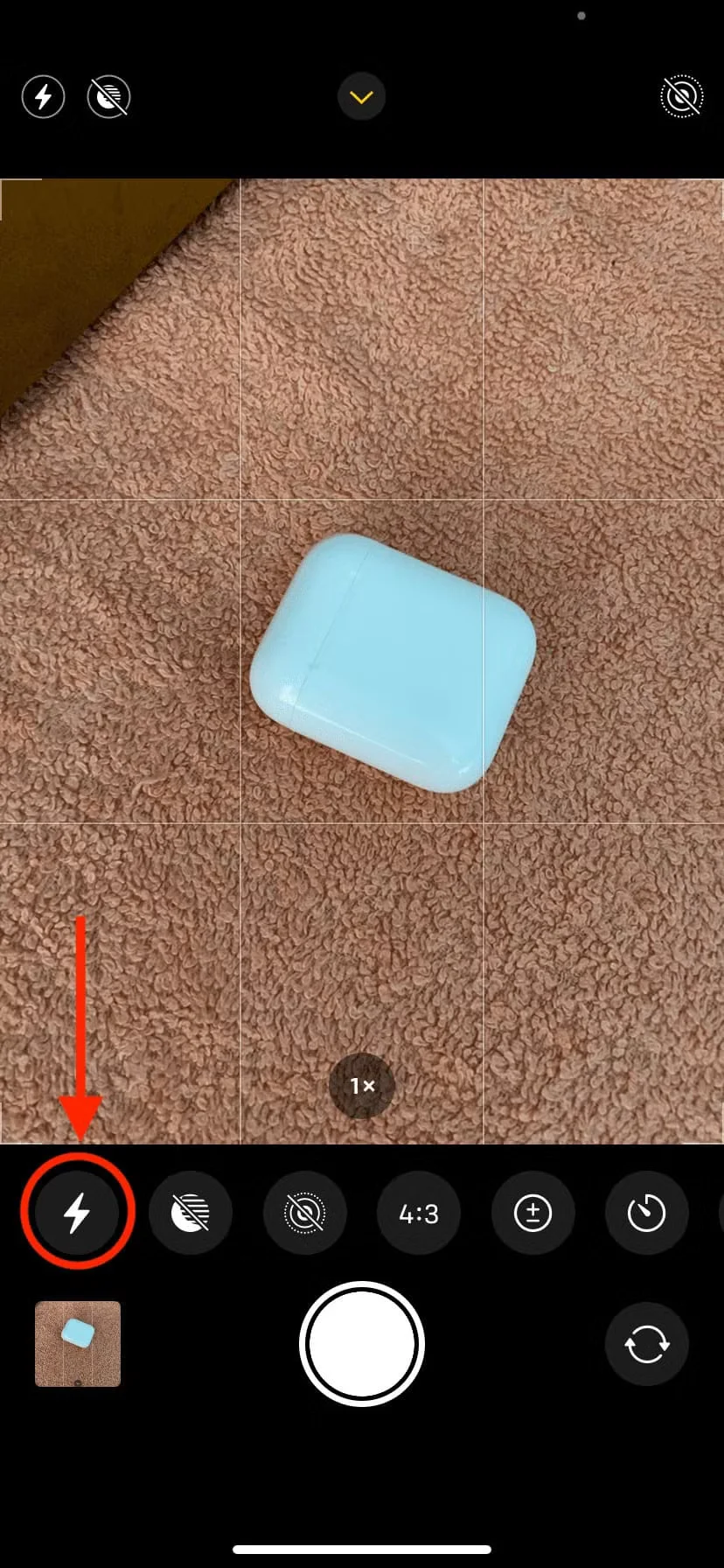
- Open camera The application can be swiped up or tapped. Arrow button At the top.
- Click flash icon.
- tap lightly superior Set the iPhone camera flash to always on.
Please note that you can also turn on the front screen flash when taking a selfie by following the steps above.
How to open an iPhone Flash video?
When you are in video, slow motion, or movie mode in the iPhone camera app, swipe up from the record button and tap. flash Tap the icon to enable it. It will turn on immediately even if you don't record. Once ready, tap the record button to start recording with the camera flash enabled.
When using panorama and time-lapse modes, the iPhone does not support the camera flash.
The steps above show you how to keep your iPhone camera flash on and prevent Night Mode from taking over. If you change your mind and enable Night Mode, it will disable the flash.
How to enable camera flash on an older iPhone
If you are using an older iPhone with a home button, such as the iPhone 6S, iPhone 8, or iPhone SE (1st generation), please open... camera Application, click flash The icon in the top left corner, then select superiorFollow these same steps to turn on the flash for video or slow motion mode.
On iPhone 6S and later models, this also allows the screen to flicker when you open the front-facing camera to take a selfie.
The camera flash is not working on my iPhone.
If the flash isn't working, make sure your iPhone isn't too hot. If it is, however, wait for the device to cool down.
Restarting your iPhone should usually help fix a grayed-out camera flash. Therefore, turn your iPhone off and on again before trying to take photos with the flash. However, if these solutions don't work, learn how to fix a non-functional iPhone flashlight.
An iPhone camera with flash, lights, and motion!
By now, you know how to set your iPhone camera flash to always on instead of automatically flashing. In low-light conditions, newer iPhones automatically start shooting in Night Mode, during which the flash and Live Photo mode are off. But now you know how to force the camera flash instead of shooting in Night Mode.

 Chinese (China)
  English
  Chinese (Taiwan)
  Russian
  Japanese