
How to get macOS features using Windows applications
You might think that the best macOS features are unique to macOS. In most cases, that's accurate, but Windows' core strength lies in its customizability and user control. So, what if we could integrate those macOS features into your Windows system?
Let's take a look at some of the best macOS features you can recreate on Windows.
recommend:How to install Microsoft Edge for Mac and iOS
How to get macOS features on Windows
In most cases, obtaining macOS features on Windows will involve downloading third-party programs and clients that attempt to recreate the macOS experience.
Apple has officially released some macOS programs on Windows, but these programs include options such as Apple TV, which are not features that define the macOS operating system.
Therefore, if you want a macOS experience on Windows, be prepared to download and configure some unofficial programs.
1. Use Feem to experience AirDrop
AirDrop is a macOS feature that many people take for granted. If you own a range of Apple devices, AirDrop allows you to easily share files.
Windows doesn't have the dominant device range that Apple does, making it harder to recreate AirDrop, though it's not impossible.
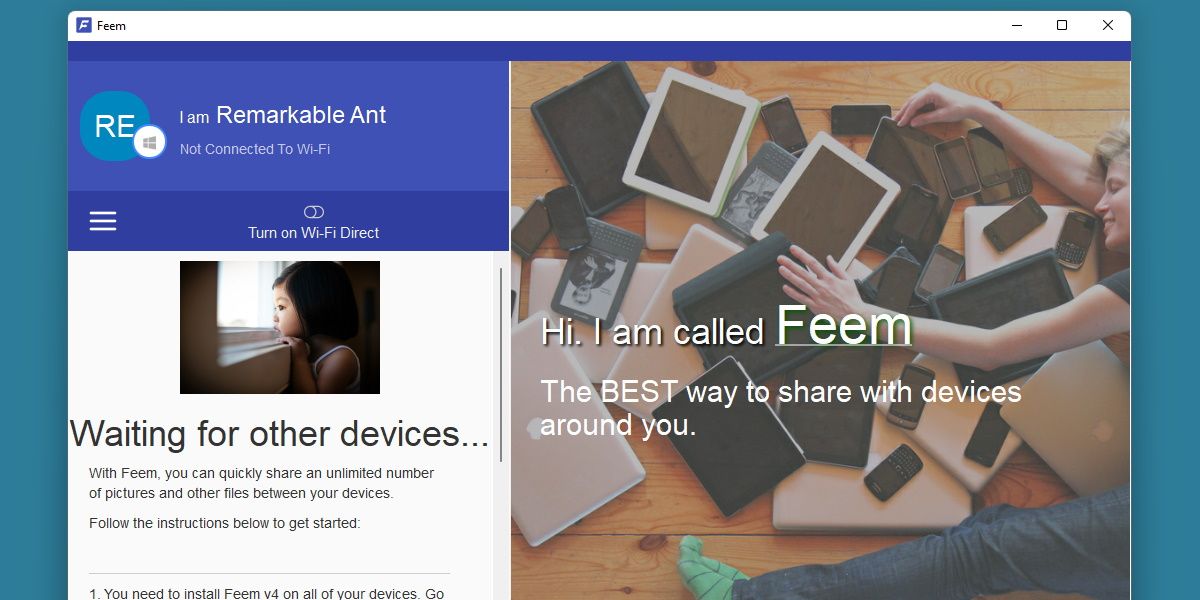
Part Feem is a lightweight solution that allows you to drag and drop files from one device to another. It's designed to simplify the process of transferring files from Windows devices to Android devices, but Feem works on virtually any device, including macOS.
The program is free, but signing up for an annual subscription will give you more features, such as the ability to choose the final folder where files are placed.
2. Use QuickLook to obtain QuickLook results
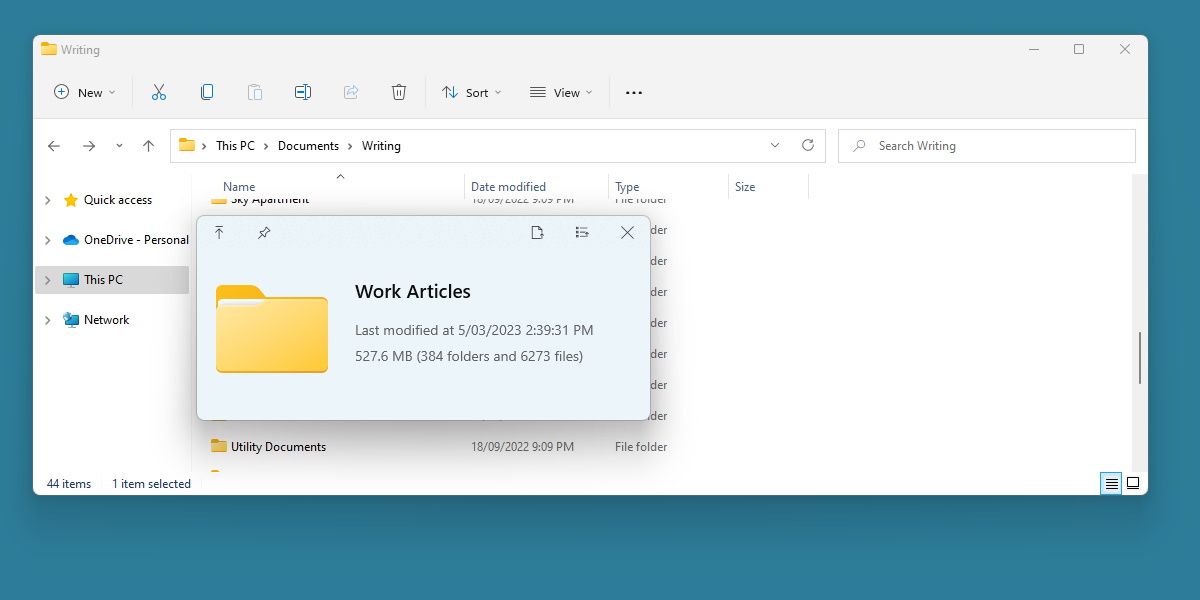
QuickLook It allows you to easily preview files by pressing the spacebar. You might expect a similar simple feature to already exist in Windows, but that's not the case.
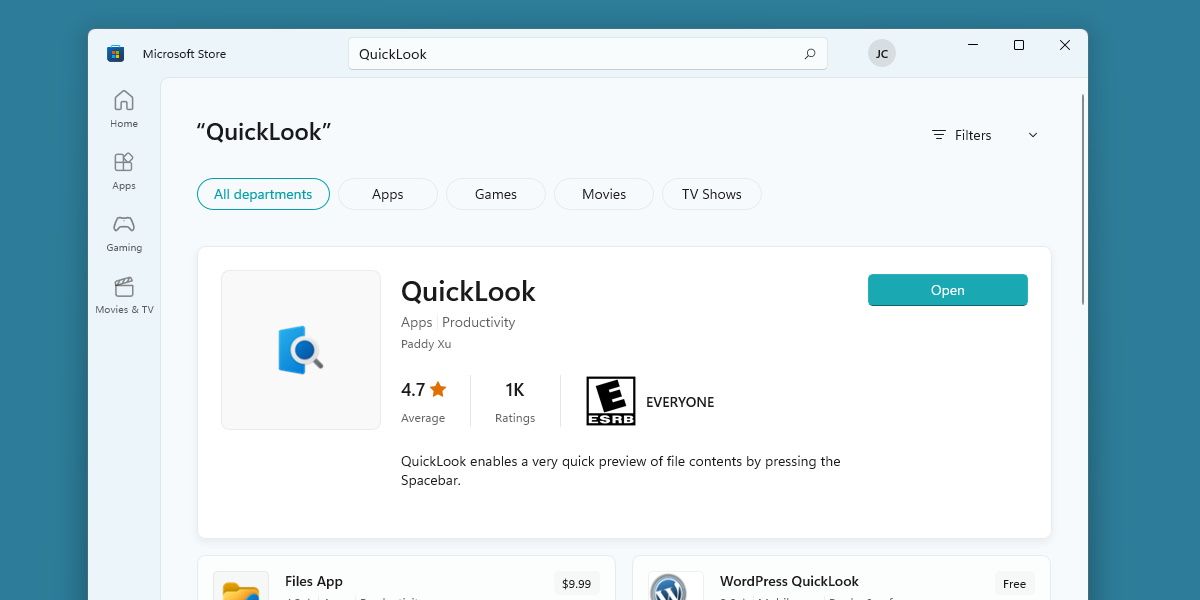
The Windows alternative, also known as QuickLook, is available for purchase on the Microsoft Store.
There's not much to say about this. Once installed and launched, you'll have the same instant preview functionality as macOS on your Windows system.
3. Spotlight's powerful search function
Spotlight is a powerful and versatile tool with near-instantaneous results and a wide range of features. macOS users may not even realize how different the search functions are between the two operating systems, and Windows' default search often falls short in comparison.
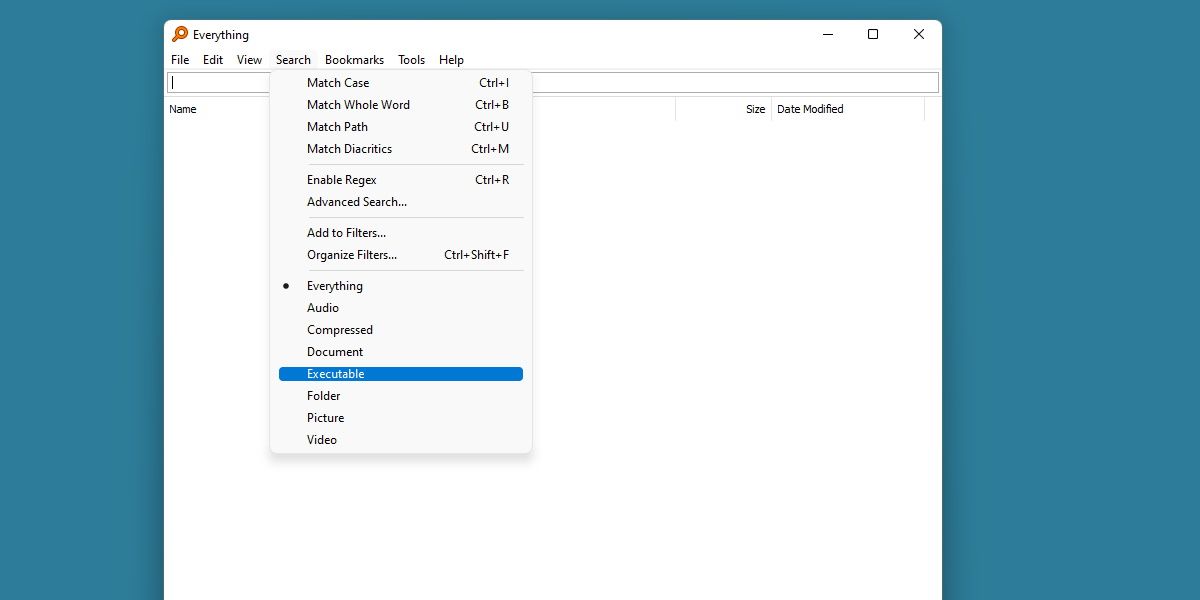
Fortunately, you can at least use a small program called Everything to reproduce near-instant search speeds on Windows.
Everything Leverage fast file indexing for a faster search experience than traditionally offered by Windows.
4. Sidecar Function Duet
Sidecar is another feature of macOS that leverages Apple's suite of interconnected devices. While Windows doesn't offer an easy way to use a separate device as a second display, you can add it using Duet.
Duet It's an advanced pack that allows you to connect additional PCs, tablets, or even other macOS systems as extra screens.
This means you can use your tablet as a drawing board, or extend your desktop with anything around you, just like you would with a Sidecar.
5. Use Synergy for general control on Windows
Universal Control allows macOS users to use a single keyboard and mouse on two different devices. This is a huge benefit for those in the Apple ecosystem, but its purpose on Windows might be a little unclear.
Nevertheless, there is still an option available for Windows users who need this feature. Synergy It is another high-end product, but it provides users with a fast and intuitive system for exchanging input hardware between different machines.
Privacy and customizability are Synergy's top priorities, which are especially important for Windows systems.
If you need to quickly replace your keyboard, consider using Synergy.
download: Synergy (Advanced)
Where there's a will, there's a way, especially for Windows.
macOS users can rest easy, as their system offers a powerful suite of features that will function perfectly. Windows users are slightly less relaxed on this assumption, but due to the customizability of the operating system, you can always be sure there's a way to mimic the functionality of other operating systems.
The next time you see something macOS can do that Windows can't, ask yourself if you really need to do it. There's a good chance there's a Windows alternative somewhere.

 Chinese (China)
  English
  Chinese (Taiwan)
  Russian
  Japanese