
How to rename Siri on iPhone in iOS 18
- Apple has introduced a new accessibility feature called "Vocal Shortcuts," which allows you to specify custom phrases that Siri can understand to launch shortcuts and complete complex tasks.
- You can rename Siri on your iPhone using Vocal Shortcuts in iOS 18.
- To do this, go to Settings -> Accessibility -> Set up a sound shortcut -> Siri.
Apple has completely revamped Siri with Apple Intelligence, adding a host of new features and a fresh look. The new Siri is more powerful, more robust, and more personalized. In addition to its gleaming new design and intelligent features, Apple now allows you to freely rename Siri in iOS 18. Yes, you read that right. In iOS 17, Apple removed the "Hey" prefix from "Hey Siri," and in iOS 18, Apple allows you to replace Siri's name with whatever you like. Finally, you can give Siri a nickname. In this quick guide, we'll show you how to rename Siri on your iPhone in iOS 18. Let's get started!
recommend:Pofily, a product filter for WooCommerce
How to change Siri's name in iOS 18
You won't find a direct option to rename Siri under Siri's settings. Instead, this new option is part of the Voice Shortcut Accessibility feature introduced in iOS 18. Essentially, this feature allows users to assign custom phrases that Siri can understand to launch shortcuts and complete "complex tasks." And one of the shortcuts you can set is an alternative to "Hey Siri."
Here's how to change Siri's name using the voice shortcut feature in iOS 18:
- First, make sure you have iOS 18 installed on your iPhone.
- Now, open"set up"Application and navigation toAccessibility featurespart.
- Scroll down and select“Vocal Shortcuts”Options.
- ClickSet a sound shortcutOptions, then clickcontinueButton.

- Next, scroll down and...systemPartial selectionSiriMake sure you don't select a Siri request from the top.
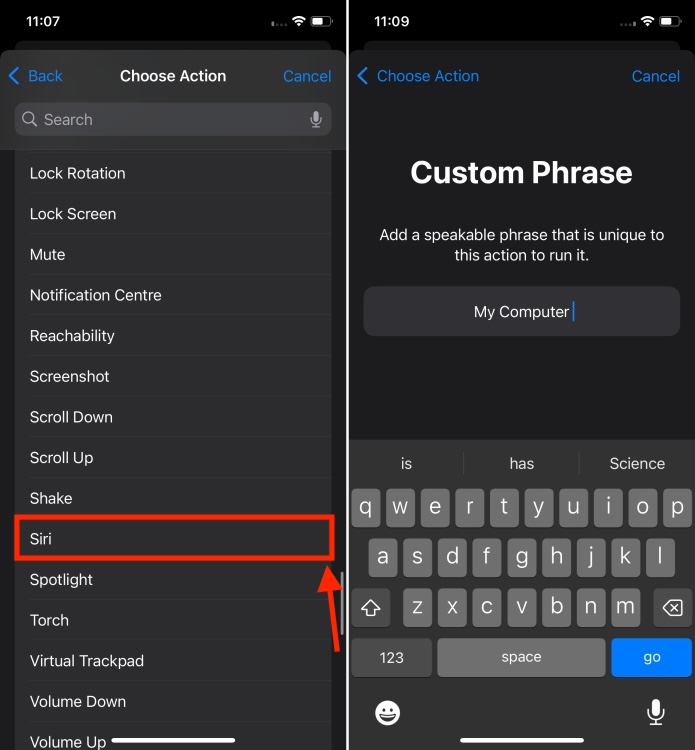
- You can now enter a custom phrase you want to use to activate Siri, such as "Jarvis" or "Computer".
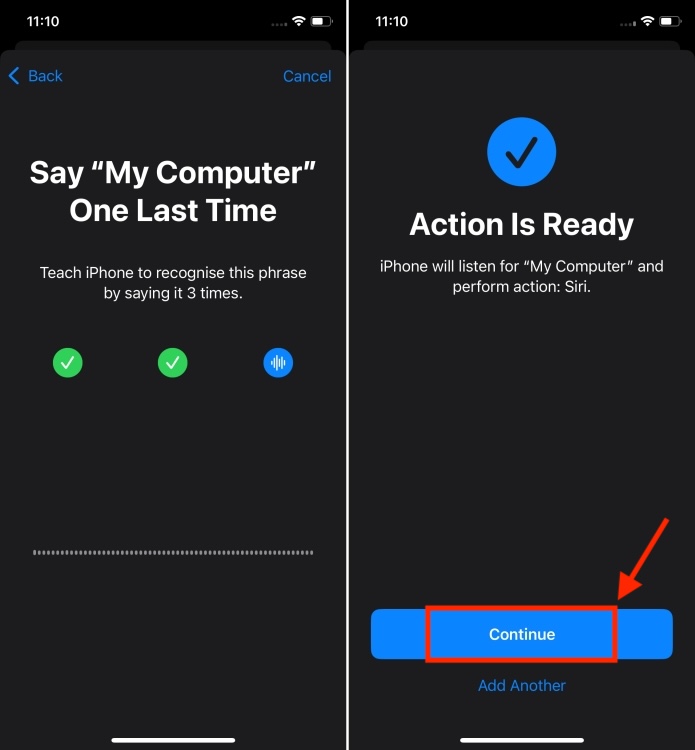
- Now, say the custom phrase three times to help your iPhone recognize it.
- Once the operation is ready, click"continue"The button allows you to activate Siri on your iPhone.
While renaming Siri on the iPhone is fun, there's a problem.After activating Siri with other commands, you must pause briefly.With Siri, everything flows seamlessly; you can speak the entire phrase in one breath, such as "Hey Siri, what's the weather like today?"
Unfortunately, this doesn't apply to voice shortcut settings. Instead, you have to use a new wake word, pause, and then issue the command after Siri is activated. This delay, even slightly, can disrupt the seamless interaction flow for some users.
Also, please remember that the new name will not sync with other devices such as HomePod. You will still need to use Siri on other devices.

 Chinese (China)
  English
  Chinese (Taiwan)
  Russian
  Japanese