
How to show or hide the Dim Display After option in the Windows Power Options menu?
Want to prevent people from adjusting the "Dim Display After" option in Windows? Or is it missing from your device? Here's how to fix it.
Sometimes you need to leave your PC, and if you're away for a long enough time, the screen will automatically dim. Windows does this to save battery power, and you can edit this setting in the "Power Options" menu. After dim display Options.
If you can't see it for some reason After dim display The option in the power options menu, or if it's there and you want to remove it, you can use PowerShell or the Registry Editor to show or hide it. That's it.
recommend:How to add a website as an app to the iPhone's home screen
How to show or hide the "Dim Display After" option using PowerShell
First, launch Windows PowerShell. There are many ways to open PowerShell on Windows, but the easiest way is to press [button name missing]. Win+S Open Windows Search. Then, type... Power supply casing Click in the search box Windows PowerShell When it appears in the search results.
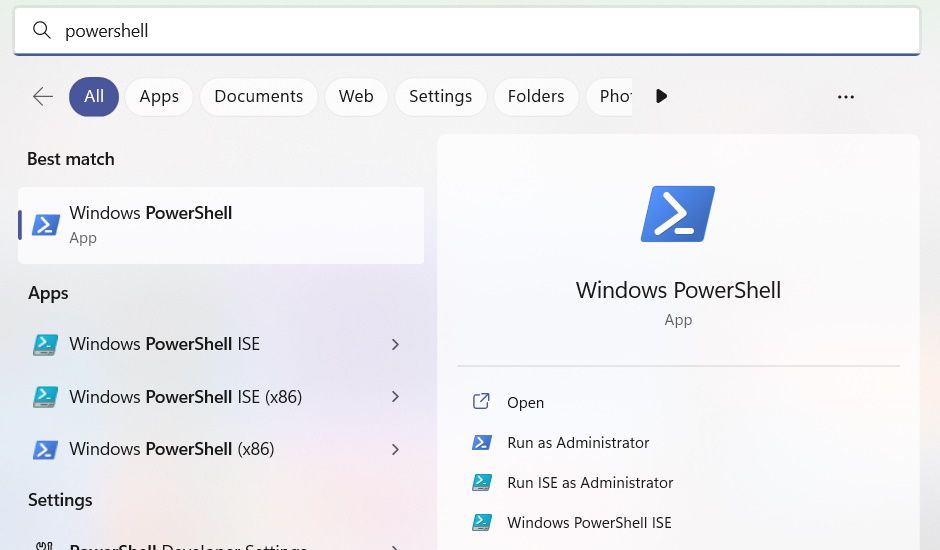
In PowerShell, type the following command to display... After dim display Options in the power options menu:
powercfg -attributes SUB_VIDEO 17aaa29b-8b43-4b94-aafe-35f64daaf1ee -ATTRIB_HIDE
To hide it, enter the following command:
powercfg -attributes SUB_VIDEO 17aaa29b-8b43-4b94-aafe-35f64daaf1ee +ATTRIB_HIDE
After entering the command you want, click Enter The key on the keyboard instructs PowerShell to execute it. Afterwards, After dim display The options should appear or disappear accordingly in the power options menu.
How to show or hide the "Dim display after" option using Registry Editor
Given that the Windows Registry is crucial for the smooth operation of Windows, you may want to back up the Registry before editing it. Then, click to open the Registry Editor. Win+ Rtype Registry In the text box, then click OK.
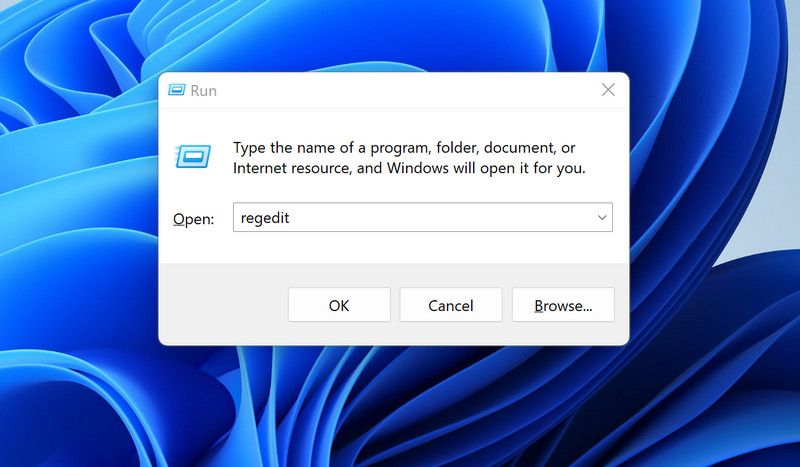
Click Yes Bypassing UAC prompts.
In the address bar of the Registry Editor, copy and paste the following text:
HKEY_LOCAL_MACHINE\SYSTEM\CurrentControlSet\Control\Power\PowerSettings\7516b95f-f776-4464-8c53-06167f40cc99\17aaa29b-8b43-4b94-aafe-35f64daaf1ee
In the right panel, double-click property Open the entry to edit it.
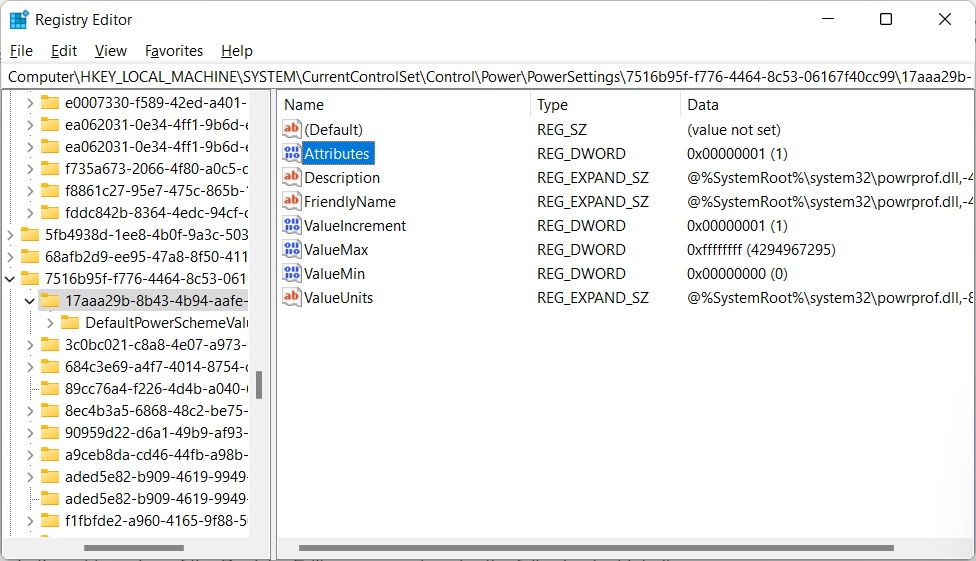
Then, in Value Data Text box, input 1 hide After dim display In the "Power Options" menu or 2 Show it.
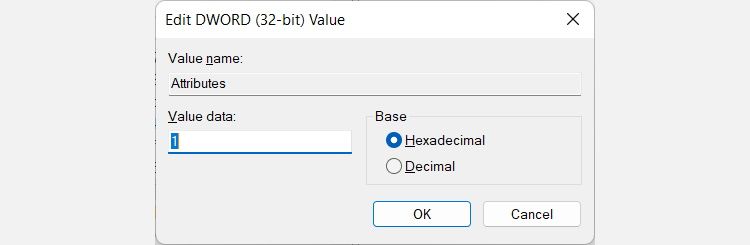
Now you can open the Power Options menu (see how to open Power Options on Windows 10) and check it out. exhibit See if After dim display Does the option exist?
Now you know how to show or hide After dim displayIf you can't find it in the Power Options menu or need to remove it, you know what to do. We recommend hiding it and bringing it out when needed. This will ensure that once you've got it all set up perfectly, no one will mess with this important display setting.

 Chinese (China)
  English
  Chinese (Taiwan)
  Russian
  Japanese