
How to fix the Netflix app when it stops working in Windows
Watching Netflix using the Windows app will provide the best audio and video quality for your favorite movies and TV shows. As long as you have a 15MB or higher internet speed, a suitable Netflix subscription plan, and a compatible device, nothing can stop you. That is, unless the Netflix app decides to stop running on your Windows computer.
If you don't want to affect your streaming experience, you can fix the issue of the Netflix app stopping working on Windows using the following methods.
recommend:How to fix Minecraft OpenGL errors on Windows
1. Check your internet connection.
Before blaming Netflix for ruining your movie marathon, take a quick look at your internet connection. Unless you've already downloaded your favorite TV shows from Netflix, you can't watch anything on Netflix without an internet connection.
Even if you use one of the best internet speed testing websites and everything looks fine, remember that the Netflix Help Center lists recommended Netflix connection speeds. If you don't meet these recommendations, Netflix may buffer or stop playing completely.
2. Restart the application
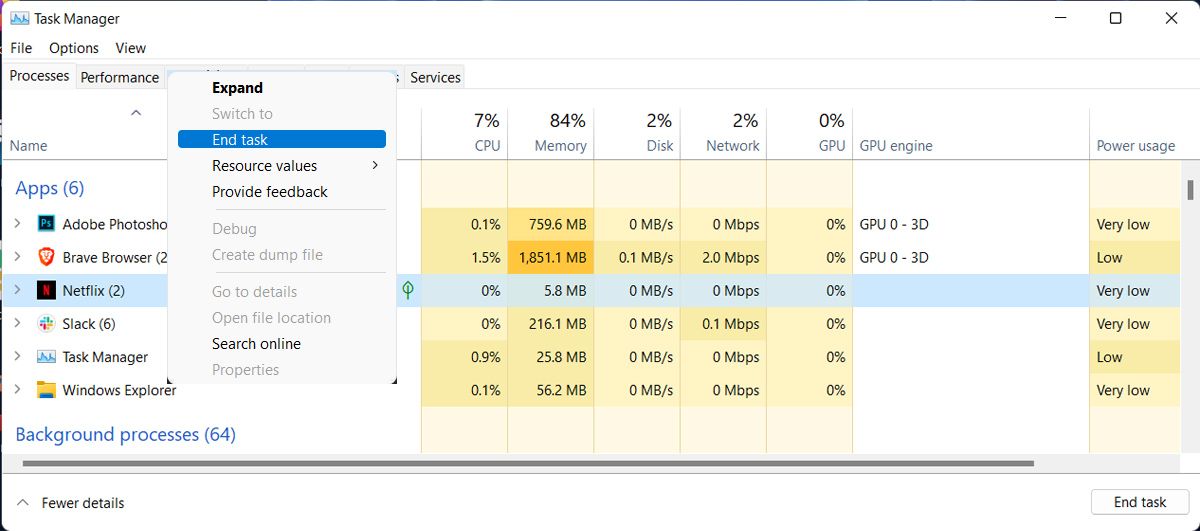
Please restart the application before attempting more complex solutions. (Press [button] after closing.) Ctrl + Shift + Esc Open task managerThen, right-click. Netflix And select End of missionThis way, Netflix-related processes that might affect application functionality will not run in the background.
3. Check if Netflix is turned off.
Sometimes, if an application stops working on your computer, you can blame Netflix. Even large streaming platforms like Netflix can be affected by service outages.
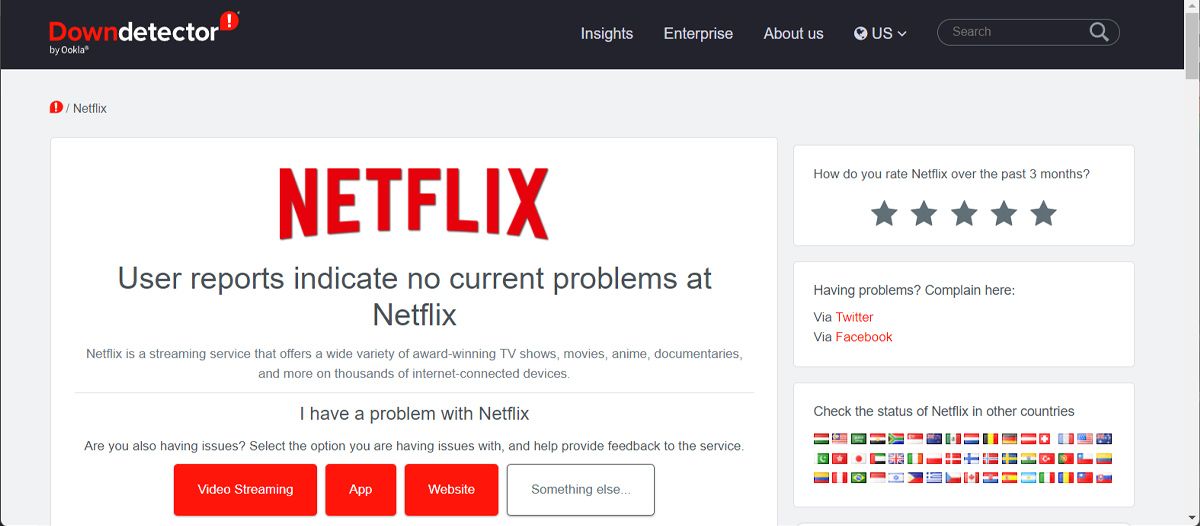
You can go to DownDetector to check if Netflix has reported an issue. Additionally, you can check Netflix's status in your area.
4. Update Netflix
Netflix developers are constantly releasing new updates to fix any bugs or glitches. Normally, the app should be updated when you launch it so it runs without any issues. However, you can manually update it to ensure you're using the latest available version.
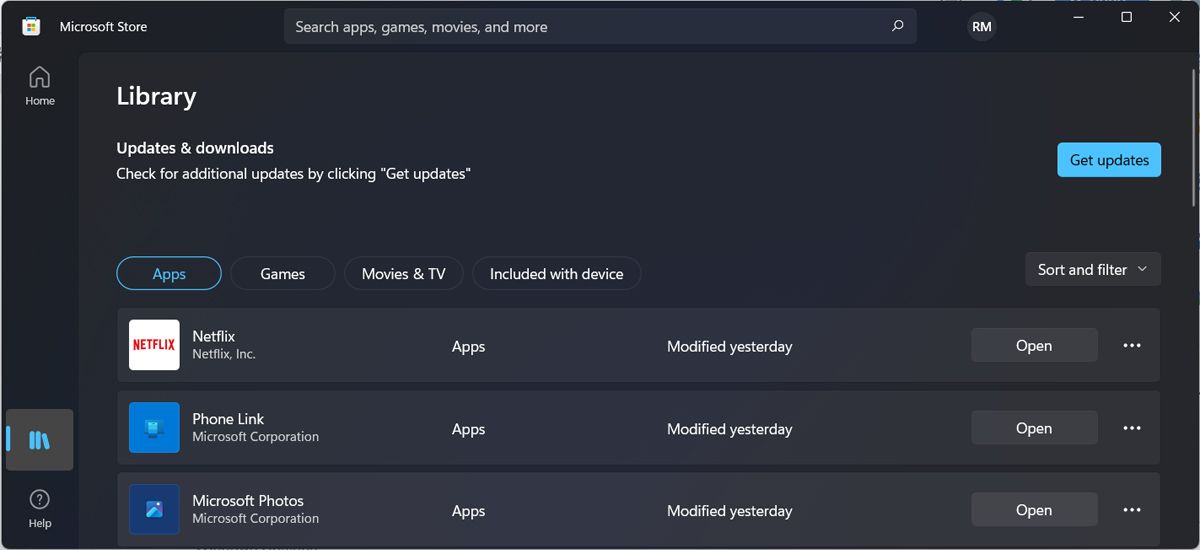
Launch the Microsoft Store and select libraryThen, click Get Updates Click the button to install any pending updates.
recommend:How to create a single-product Shopify store
5. Troubleshooting Windows Store apps
If the Netflix app stops working, Windows also provides a tool you can use to fix it. Follow these steps to run the Windows Store app troubleshooter:
- Right-click start Button and go to set up.
- go System > Troubleshooting > Other Troubleshooting.
- From other List, click run beside Windows Store Apps.
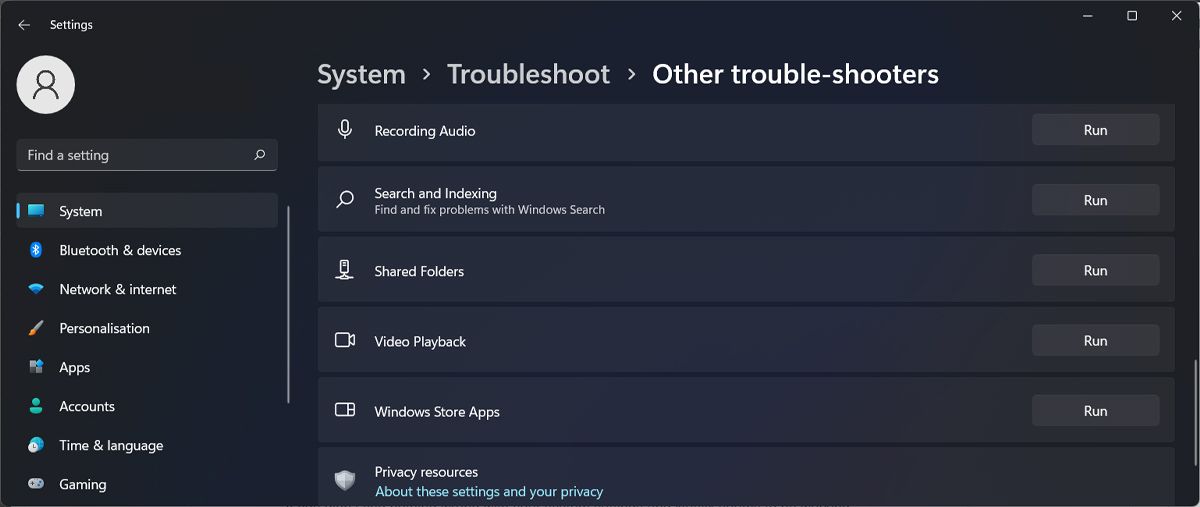
Windows will now scan the applications you install from the Microsoft Store and automatically fix any problems detected.
6. Repair the application
If the Netflix app still malfunctions, you can fix it through Windows settings.
- according to win + i Open set up.
- go Applications > Applications and Features.
- Click Three points The icon next to it Netflix And select Advanced Options.
- Click repair Button.
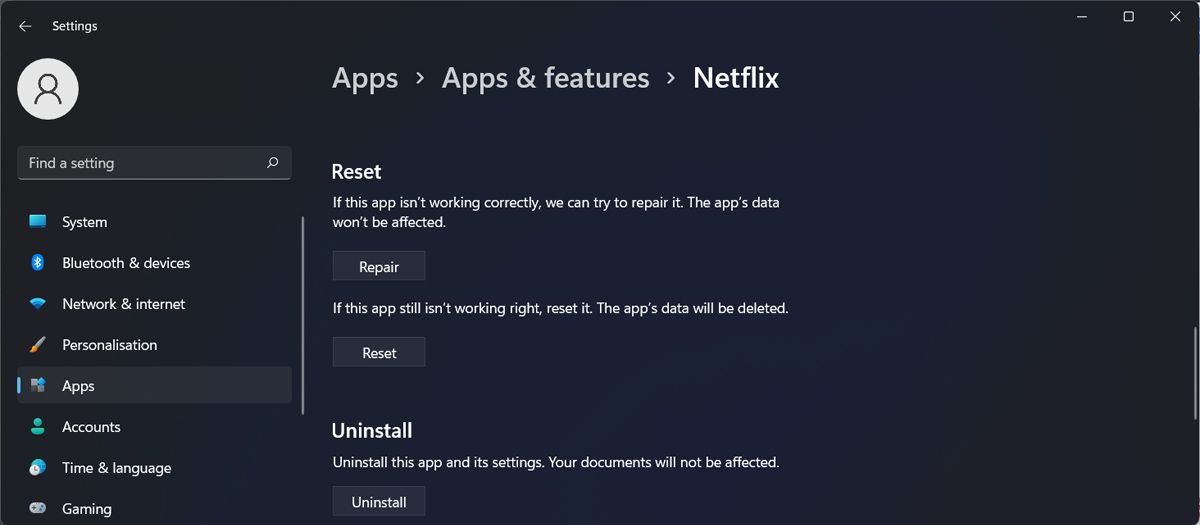
If repairing the application doesn't solve the problem, you can try resetting it. Follow the instructions above again, and then select... Reset.
7. Update your display adapter.
If Netflix isn't the only media playback application malfunctioning on your computer, the problem might be with your display adapter. Here's how to update it.
- Right-click start Button and select device Manager.
- extend Display adapter drop-down menu.
- Right-click the driver and select renew.
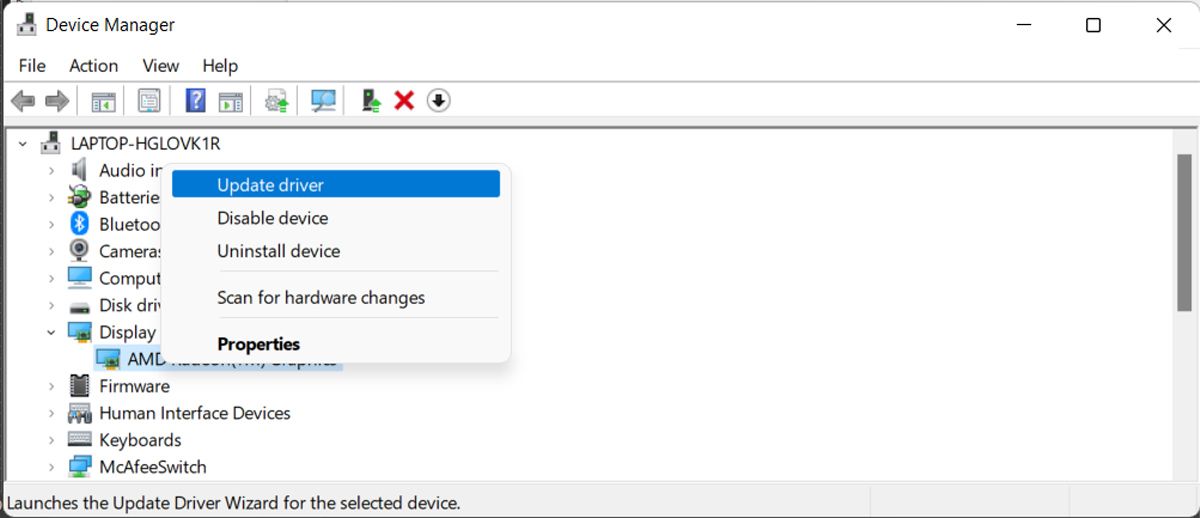
If you have updated your drivers but are still experiencing problems watching Netflix or any other media content on your computer, this could be one of the signs that your graphics card needs an upgrade.
recommend:How to add image annotation URLs to Excel using VBA and Office scripts
8. Adjust the system's graphics settings
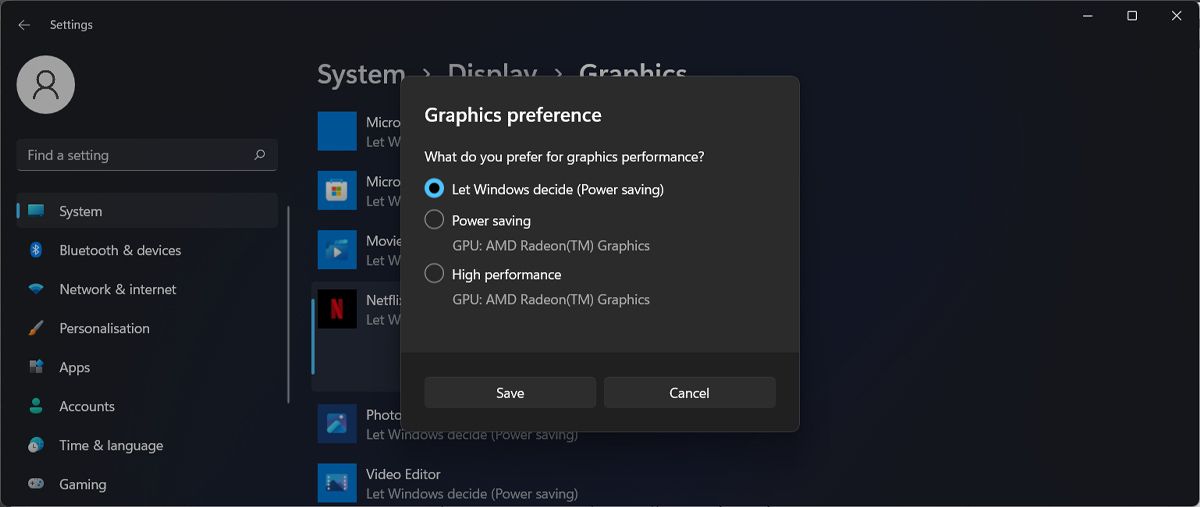
By default, Windows decides which GPU Netflix uses. While this can be an effective way to extend laptop battery life, it can affect application functionality. Therefore, if your computer has a dedicated graphics card, you should allow Netflix to use it.
- according to win + i Bring up the settings menu.
- go System > Display.
- Scroll down to Related settings And select Graphics.
- Select from the list of applications Netflix Then click Options.
- In the pop-up window, select the graphics card used by Netflix.
9. Reset the Microsoft Store
Generally, if you can't open the Netflix app, it's because your Microsoft Store files are corrupted. If this happens, try resetting your Microsoft Store.
- according to win + R Launch the Run dialog box.
- type Order And press Shift + Type Open the command prompt with administrative privileges.
- type wsreset.exe And press Enter Run the command.
- Launch the Microsoft Store and reinstall Netflix.
10. Delete DNS cache
Windows stores IP addresses in its cached data and uses DNS to speed up network performance. However, misconfigured DNS can cause the Netflix app to malfunction. In this case, you should clear the DNS cache.
Start the command prompt with administrative privileges and type: ipconfig/flushdns Command line. Then, press Enter.
Restart your computer and check if Netflix is running.
recommend:5 Quick Ways to Password Protect Your Microsoft Excel Files
11. Delete the MSPR.HDS file
When using Netflix or similar applications, Windows creates a... MSPR.HDS This file is used by Netflix for DRM (or Digital Rights Management). Deleting it may allow the Netflix app to start running again.
This file is typically stored in "C:\ProgramData\Microsoft\PlayReady". If you can't find it there, you can use File Explorer's search function or one of the best free search tools for Windows to find it. If you find multiple... MSPR.HDS Delete the files and restart your computer. Then, check if the Netflix app is working properly.
Windows will automatically create a new file after you delete it, so you don't need to worry about damaging your PC.
12. Reinstall the Netflix app
If you don't find any problems with your system settings and Netflix seems to work fine on your browser, you should reinstall the app. Uninstall the software from Windows using one of several methods to get rid of it, then re-download the application and try again.
When you download the application again, please make sure you obtain it from a trusted source. We recommend using the Microsoft Store.
13. Watch Netflix in your browser
If nothing works and you still can't watch your favorite shows using the Netflix app, then you have no choice but to watch Netflix on your browser.
However, you should know that not every browser will provide you with the same 4K image quality as the application. Therefore, you should check which browser is best suited for watching Netflix and then choose the one that best suits your needs. [perfectbrowserforyourneeds]
Get Netflix running again on Windows
Sometimes, it can be difficult to pinpoint what's causing the Netflix app to stop working. It could be a network problem, incorrect system settings, or the app itself. However, with a little patience, you can usually resolve the issue, unless Netflix is malfunctioning, in which case all you can do is wait.
But if this happens, you can try other streaming services. Some are even free and don't require registration.

 Chinese (China)
  English
  Chinese (Taiwan)
  Russian
  Japanese