
Disable or enable virtual memory file encryption in Windows 11
Encrypting the paging file is a good way to prevent users from reading data on a second disk. However, it increases file system operations, thus increasing the load on system resources. Therefore, you can decide whether to enable or disable this feature depending on your needs. In this article, we will discuss how to... Enable or disable virtual memory paging file encryption in Windows 11.
recommend:How to fix Windows 11 excessive battery drain?
Enable virtual memory paging file encryption
The paging file, also known as the "page file" and "virtual memory," is crucial for efficient memory management by the system. It removes modified data that is rarely accessed from physical memory, allowing for better utilization of physical memory for frequently accessed data. Furthermore, Windows relies on the page file to store data when physical memory (RAM) reaches its capacity. To enable or disable virtual memory file encryption, you can follow one of the following methods.
- Use command prompt
- Use the Group Policy Editor
- Use Registry Editor
Let's discuss them in detail.
1] Use the command prompt to enable or disable virtual memory file encryption.
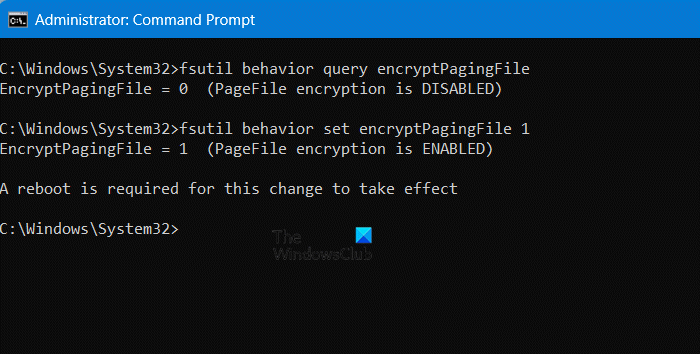
First, let's use the command prompt to allow or disable the virtual memory paging file. To do this, the first time you open it, type... “ CMD”, Press Ctrl + Shift + Enter. When the UAC prompt appears, click "Yes".
Run the following command to check if the pagination file is encrypted immediately.
fsutil behavior query encryptPagingFile
You will see a message saying – PAGEFILE encryption is disabled. or Page file encryption has been enabled.
To enable PageFile encryption, you need to run the following command.
fsutil behavior set encryptPagingFile 1
To disable PageFile encryption, run the following command.
fsutil behavior set encryptPagingFile 0
After enabling or disabling encryption, you must restart your system and then run the first command again to check if the encryption was successful.
notes: The commands mentioned above are case-sensitive, so do not change anything before executing them. If the shell is different, the commands will not run; in this case, you can run "FSUTIL Behavior Set" and check the PC for the correct commands.
2] Use the Group Policy Editor to enable or disable virtual memory paging file encryption.
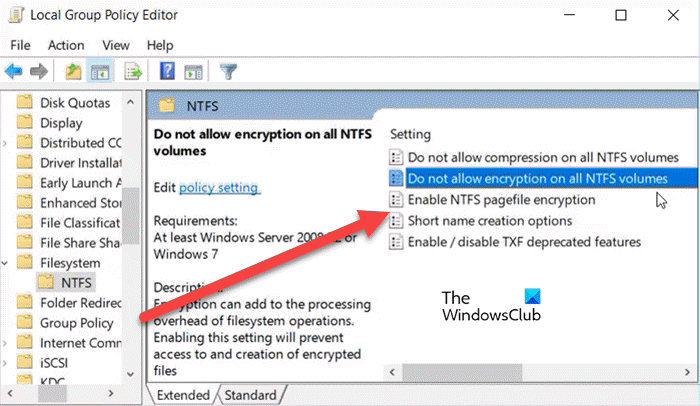
To enable or disable virtual memory paging file encryption, we can use the Group Policy Editor. This will apply the changes to all users connected to the domain network.
Please note that the Local Group Policy Editor is only available in Windows 11/10 Pro, Enterprise, and Education editions. If you are a home user and do not have the Group Policy Editor, please proceed to the next method.
Open the Group Policy Editor on your computer and navigate to the following location.
User Configuration > Administrative Templates > System > File System > NTFS
When you click NTFS In the folder, you will see Enable NTFS Pagefile encryption Double-click to open the policy.
To disable pagination file encryption, set the policy to [policy settings]. Not configured or DisableThen click Application > Good. However, to disable this feature, please select... Enabled, Then click Application > GoodAfter making the changes, restart your computer and the problem should be resolved.
3] Use the Registry Editor to enable or disable virtual memory paging file encryption.
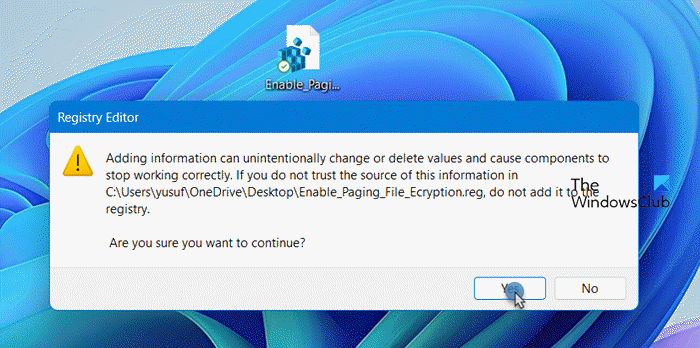
If you don't have the Group Policy Editor, try doing this using the Registry Editor. However, before proceeding, make sure to create a backup of your registry. You will use this backup if problems arise.
Now, open Notepad and paste the following lines of code into two separate files.
Enable pagination file encryption
Windows Registry Editor Version 5.00

[HKEY_LOCAL_MACHINE\SYSTEM\CurrentControlSet\Control\FileSystem]
"NtfsEncryptPagingFile"=dword:00000001

[HKEY_LOCAL_MACHINE\SYSTEM\CurrentControlSet\Policies]
"NtfsEncryptPagingFile"=dword:00000001
Disable pagination file encryption
Windows Registry Editor Version 5.00

[HKEY_LOCAL_MACHINE\SYSTEM\CurrentControlSet\Control\FileSystem]
"NtfsEncryptPagingFile"=dword:00000000

[HKEY_LOCAL_MACHINE\SYSTEM\CurrentControlSet\Policies]
"NtfsEncryptPagingFile"=-
When saving, give the following script any name, but be sure to add it. .reg expand.
After creating the file, navigate to its location and double-click it. A UAC prompt will ask you to confirm your action; click "Yes" when prompted, and the script will make the necessary changes.
After running the file, restart your computer and check if the problem is resolved.
Should I disable virtual memory in Windows 11?
Unless you need a large amount of memory and your physical RAM cannot accommodate it, disabling virtual memory will not cause harm. Otherwise, you may experience problems running applications and using various features of Windows 11. Therefore, I recommend against disabling virtual memory in Windows 11 unless you know what you are doing.
How do I enable file encryption on Windows 11?
To encrypt any file you choose, open File Explorer and navigate to the folder hosting the file. Now, right-click the folder and select Properties. Security > Advanced Selected options "Encrypted data" Then click OK.

 Chinese (China)
  English
  Chinese (Taiwan)
  Russian
  Japanese