
How to remove the OneDrive icon from Windows 11 File Explorer
How to remove the OneDrive icon from Windows 11 File Explorer: If you want to remove the OneDrive icon from Windows 11 File Explorer but don't want to delete the application itself, follow these steps.
The OneDrive cloud storage client comes pre-installed on your Windows 11 computer. By default, you'll notice a OneDrive shortcut in the left pane of File Explorer, allowing quick access to your OneDrive files and folders.
However, if you find the shortcuts cluttering or disrupting your File Explorer experience, you can remove them using registry hacks. Below is how to remove the OneDrive icon from File Explorer without uninstalling OneDrive.
recommend:How to fix Battlefield 2042's inability to save settings in Windows 11 and 10
How to remove a OneDrive shortcut from File Explorer using the Registry Editor
You can use a registry hack to remove the OneDrive icon from File Explorer. This allows you to get rid of the icon in File Explorer without uninstalling the OneDrive client. If you wish to completely remove the application, please follow our guide on removing OneDrive on Windows 11.
Please note that modifying the Windows Registry carries risks. We recommend that you create a system restore point on Windows before continuing with the following steps. A restore point will help you restore your computer in case of problems.
Once complete, please follow these steps to delete the OneDrive shortcut from File Explorer:
- according to win + R Open run.
- type Registry Then click OK Open the Registry Editor. Click... Yes If prompt User Account Control (UAC).
- Next, in the Registry Editor, navigate to the following location. Copy and paste the registry path into the editor to speed up navigation:
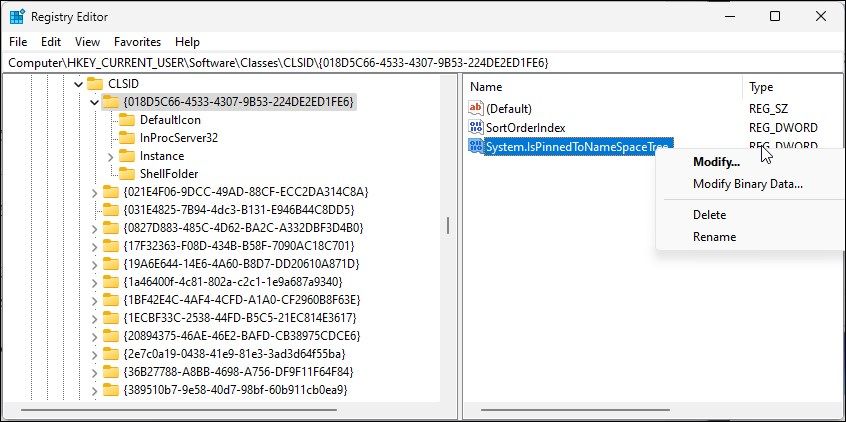
HKEY_CURRENT_USER\Software\Classes\CLSID\{018D5C66-4533-4307-9B53-224DE2ED1FE6} - In the right pane, right-click System.IsPinnedToNameSpaceTree DWORD value and select Adjustment.
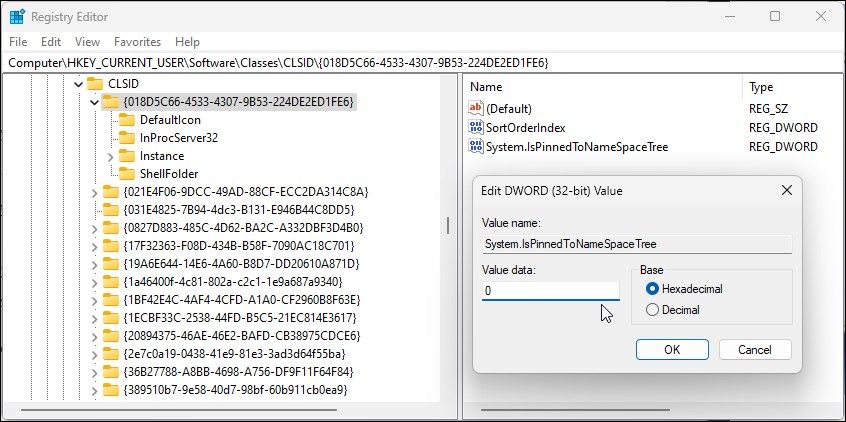
- Inside Value Data Domain, type 0 Then click OK.
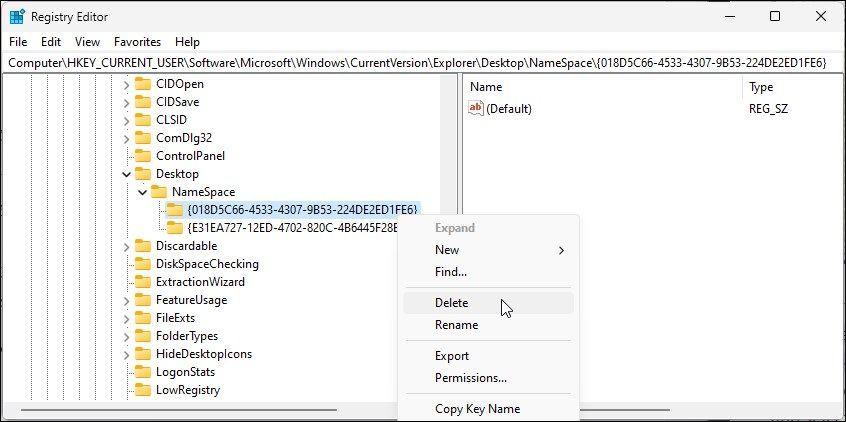
- Next, navigate to the following location in the Registry Editor:
HKEY_CURRENT_USER\Software\Microsoft\Windows\CurrentVersion\Explorer\Desktop\NameSpace - In the left pane, right-click {018D5C66-4533-4307-9B53-224DE2ED1FE6} And select delete Delete the entry.
- Once finished, close the Registry Editor.
- The OneDrive icon will no longer be visible when you open File Explorer.
How to make the OneDrive icon reappear in File Explorer?
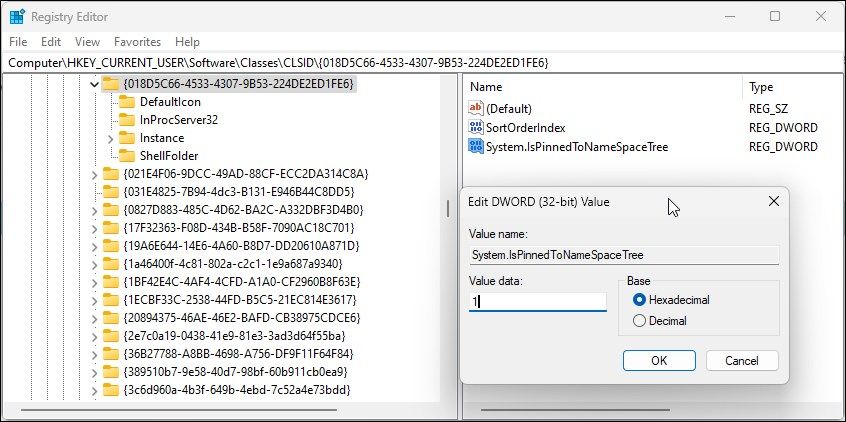
To display the OneDrive icon in File Explorer, you need to modify the registry key again. Here's how.
- according to Win+ R Open Registry Editor.
- Next, navigate to the following location:
HKEY_CURRENT_USER\Software\Classes\CLSID\{018D5C66-4533-4307-9B53-224DE2ED1FE6} - In the right pane, double-click System.IsPinnedToNameSpaceTree Double-character value.
- Next, type 1 Inside Numerical data fField and click OK Save your changes.
- Restart File Explorer to see the changes.
Remove the OneDrive icon without uninstalling OneDrive.
This registry hack is a convenient way to make the OneDrive icon disappear without completely removing the application from your PC. Alternatively, if you don't use the service, you can completely remove OneDrive on Windows 11 or disable the service using the Group Policy Editor.

 Chinese (China)
  English
  Chinese (Taiwan)
  Russian
  Japanese