
How to fix Windows 11 excessive battery drain?
Poor battery performance has been a problem that has plagued Windows since its inception. From Windows XP to the latest Windows 11, battery performance has been a focal point of debate surrounding Windows systems. The issue has become even more prevalent after downloading the latest Windows updates.
Therefore, you can make some changes to resolve the battery drain issue on Windows 11.
recommend:How to remove the OneDrive icon from Windows 11 File Explorer
What causes the battery drain problem on Windows 11?
Battery discharge problems are primarily caused by old or damaged batteries. But there are other reasons behind battery depletion. Let's examine them one by one.
- Windows will consume more battery if Fast Startup is enabled on your system.
- Unnecessary background applications are often the main cause of battery drain problems.
- If set to display the maximum possible refresh rate, the system will consume more battery power.
Fortunately, configuring the system to reduce battery consumption is very easy. Here are the changes you can make in this situation.
1. Download the latest Windows update.
Sometimes, your current version of Windows may cause poor battery performance. You must update your system to the latest version to resolve the issue.
Here are the steps to update Windows 11.
- Open set up use win + i.
- choose Windows Update From the left pane.
- Click Check for updates.
- Windows will look for and download any available updates.
After downloading the update, check if there are any improvements in battery performance.
2. Turn off Fast Startup
Windows 11 comes with a Fast Startup feature. You can enable it to reduce system startup time. However, the downside is that this feature consumes a significant amount of battery resources to enable Fast Startup. You can try disabling this feature to improve battery performance.
This is how to disable Fast Startup on Windows 11.
- Open the Control Panel by clicking the Start icon and searching for Control Panel.
- Click Hardware and sound.
- choose Power Options.
- Click Select the function of the power button The options in the left pane.
- Unselect Enable Fast Startup Box.
- Click Save Changes.
Restart the system and check if battery performance has improved.
3. Close unnecessary background applications.
Unnecessary background applications have a long history of consuming system and battery resources. Therefore, try closing all such applications and see if this improves battery performance.
How was this done?
- Open task manager use Ctrl + Shift + Esc Hotkeys.
- In the Processes tab, right-click all unnecessary applications running in the background, and then select... End of mission From the context menu.
4. Switch to dark theme
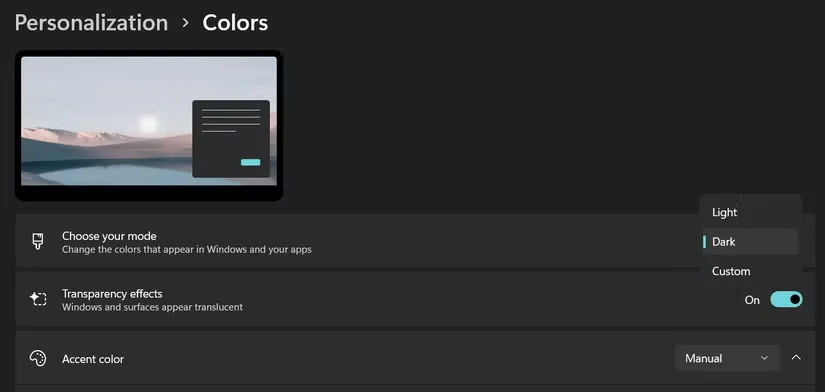
Windows 11 offers light and dark themes. However, the light theme consumes more power than the dark theme.
Therefore, it is recommended to use a dark theme on Windows 11 to reduce battery consumption. You can enable it by following these steps.
- Open the system settings.
- choose Personalization From the left panel.
- Click color.
- Click the dropdown icon next to it. Choose your mode And select Dark.
5. Troubleshooting Power Supply Issues
Windows 11 comes with many built-in troubleshooting features. You can use Power Troubleshooter to find and resolve any battery-related issues.
Here are the steps to run the power troubleshooter on Windows 11.
- Open settings.
- Inside system Tab, click troubleshooting.
- Click Other questions and answers.
- Click run Next to the powerstrength.
A power troubleshooting window will pop up; locate the problem. Follow the on-screen instructions to resolve the issue. Once complete, restart your system and monitor battery life.
6. Change the refresh rate
The system refresh rate indicates how fast the screen refreshes. If the system is configured to provide a higher refresh rate, it will consume more power.
Therefore, if it doesn't serve any purpose, you can lower the refresh rate to improve battery performance.
- driving towards set up > system > exhibit.
- Click Advanced display Below Related settings.
- Click the dropdown icon next to it. Select refresh rate.
- If you have 60 Hz Monitor, set the refresh rate to 48 HzAnd, if you have one 90 Hz Monitor, set the refresh rate to 60 Hz.
Restart your system and you will see a significant change in battery performance.
7. Change the power plan
Windows 11 allows you to configure battery performance based on the tasks you want to perform. You must set your power plan to efficiency mode to get the best battery performance from your system.
This is how to change your power plan on Windows 11.
- Open settings, then select Power supply and battery.
- Click the dropdown icon next to it. Power mode.
- choose Optimal power efficiency.
This system will provide a relatively better backup battery by sacrificing overall system performance.
8. Enable power saving mode
Windows 11 has a power-saving feature that you can enable to limit battery consumption. You can enable this feature by following these steps.
- Open set up > system > Power supply and battery.
- Click the dropdown icon next to it. Energy saving.
- Click Start Now.
- You can click the drop-down icon next to it. Automatically turn on power saving mode And select the battery percentage at which the battery protection program will automatically start running.
9. Change video playback settings
You can change video playback settings to improve battery performance. Here are the changes you need to make in the video playback settings.
- Open settings.
- Click application On the left panel.
- choose Video playback.
- Click the dropdown icon next to it. Battery Options.
- choose Optimize battery life.
Now, restart your system, and you'll notice that it consumes relatively little battery power.
The Windows 11 battery drain issue has been fixed.
The battery drain issue on Windows 11 is primarily caused by a damaged battery. However, if it's related to certain system settings, you can try the solutions in the article above for fixing excessive battery drain in Windows 11 to resolve the problem.

 Chinese (China)
  English
  Chinese (Taiwan)
  Russian
  Japanese