
How to downgrade from iOS 18 to iOS 17 without losing data.
The new iOS 18 is coming soon, and Apple will soon allow people to install beta versions to experience the full new operating system. But before installing, you need to know that beta versions are not known for their stability. Beta versions may contain several deal-breaking vulnerabilities that could render your iPhone unusable. However, if you know how to downgrade from iOS 18 to iOS 17 without data loss, you don't need to worry about these issues.
Now, when you want to remove the iOS 18 beta from your iPhone/iPad, there are several methods you can follow. Some methods allow you to downgrade without any complicated steps, while others require some technical expertise. Some methods may not even allow you to downgrade from the iOS 18 beta to 17 without losing data.
So, how do you safely revert from iOS 18 to iOS 17? Well, that's exactly what this guide is all about. It will walk you through some of the most effective methods.
recommend:Uomo, a multi-purpose WooCommerce WordPress theme
Can you downgrade your iPhone and iPad from iOS 18 to iOS 17?
Yes, you can uninstall the iOS 18 beta from your iPhone/iPad. However, be aware that downgrading can be tricky if you follow the correct steps. With that in mind, this guide will walk you through several methods. Here's a quick breakdown of each method:
| method | efficacy | Time requirement |
| Tenorshare ReiBoot | Very effective | quickly |
| iTunes | Effective | long |
| Remove profile | Moderate effectiveness | Short |
Back up your data before downgrading from iOS 18 to 17.
Before we dive into how to downgrade from the iOS 18 beta to 17, protecting your data is crucial. Downgrading can sometimes go wrong, so creating a backup ensures you don't lose any precious photos, messages, or apps. There are three easy ways to back up your iPhone:
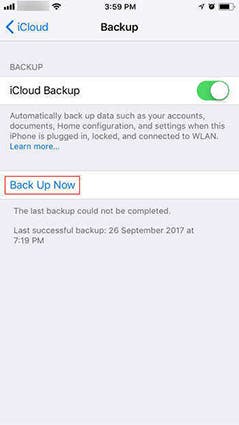
Backup via iCloud
Your iPhone can be automatically backed up to iCloud storage. Go to Settings > tap your name > iCloud > iCloud Backup, and make sure the switch is turned on. Tap "Back Up Now" to start a new backup.
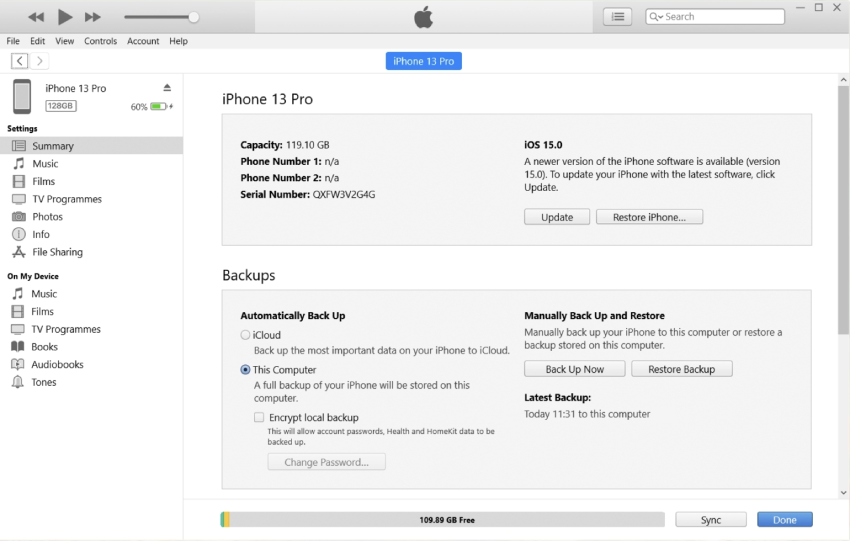
Use iTunes (Windows) or Finder (Mac)
Connect your iPhone to your computer and open iTunes/Finder. Select your device, and then click "Back Up Now" under the "Back Up" tab.
How do I downgrade from iOS 18 to iOS 17 using a computer?
Putting everything else aside, let's now dive into how to revert from iOS 18 to iOS 17. First, let's talk about the method that requires a computer.
One-click downgrade to iOS 17 with no data loss.
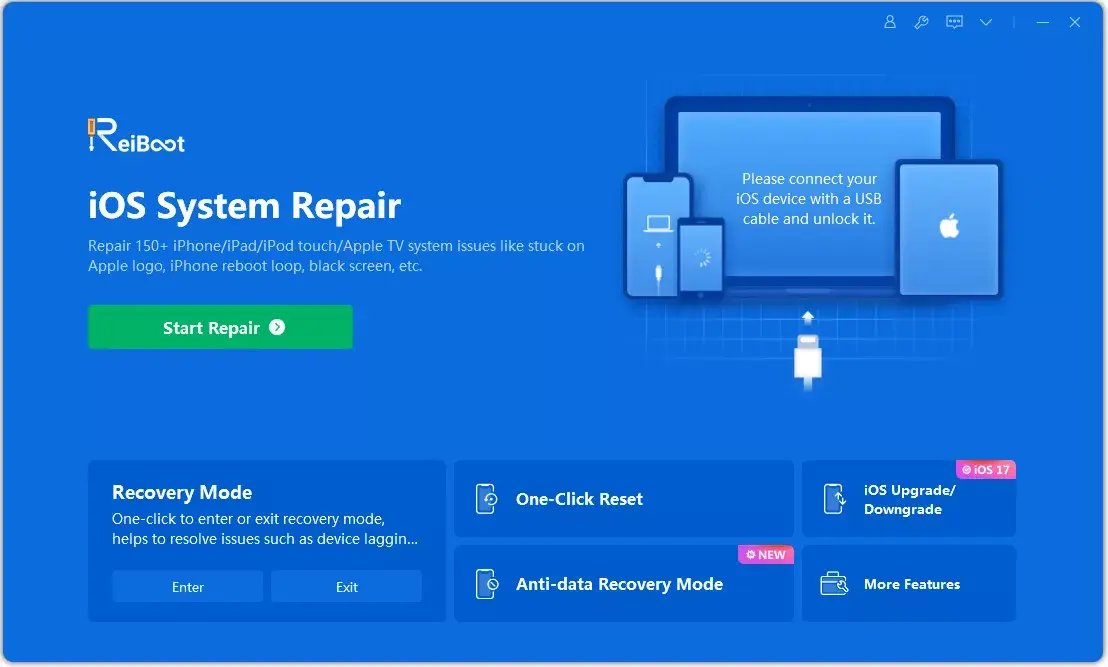
If you want to revert to iOS 17 without iTunes and have a computer, then ReiBoot is the best downgrade tool. It's a reliable iOS management tool that makes iOS downgrades a breeze. Please see the following steps:
- Connect your iPhone to your computer and run ReiBoot. On the main screen, select "iOS Upgrade/Downgrade".
- Since you want to downgrade to the beta version, please select the "Downgrade" option.
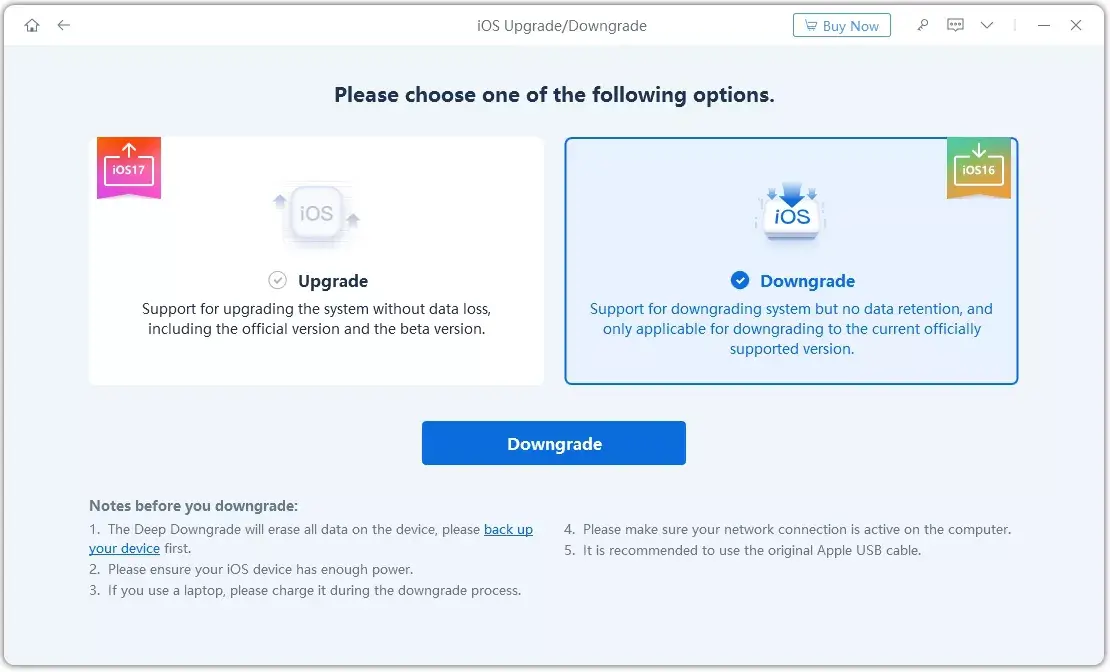
- ReiBoot will automatically detect compatible firmware for downgrading. Click "Download" to obtain the software package.
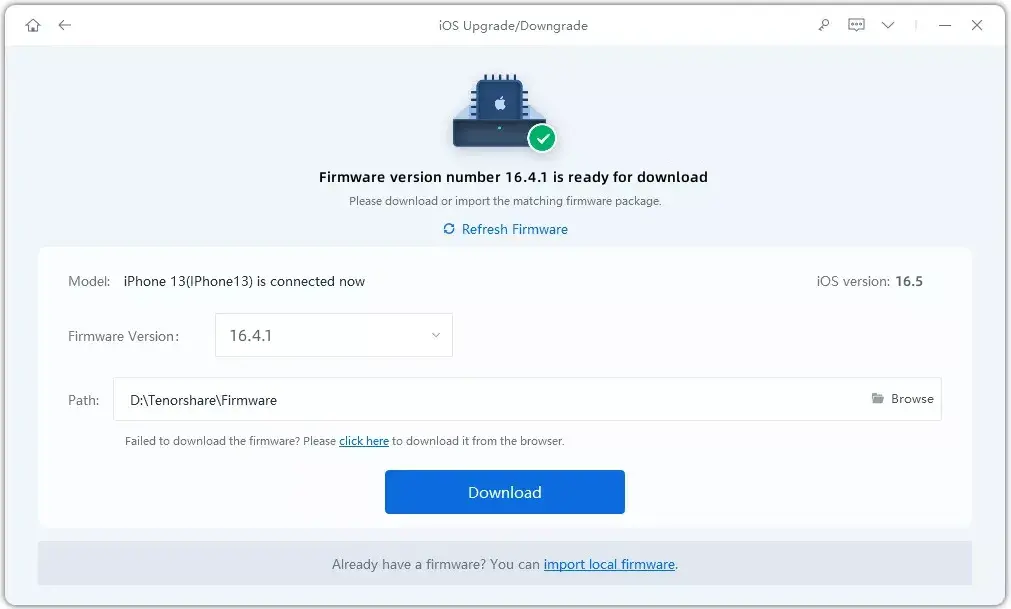
- After the download is complete, click "Start Downgrade". Make sure you have a backup, as this process may delete data.
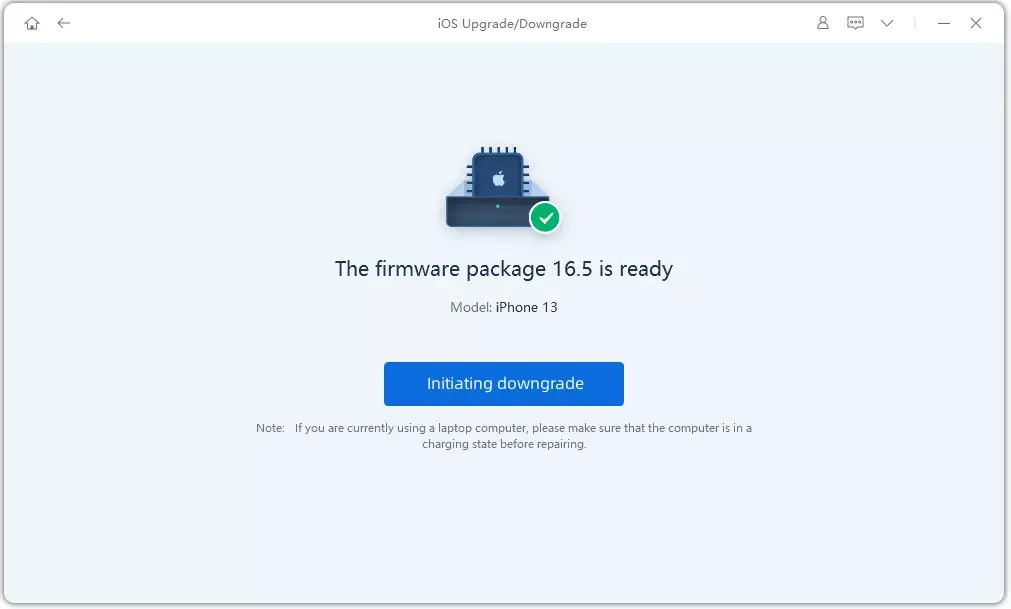
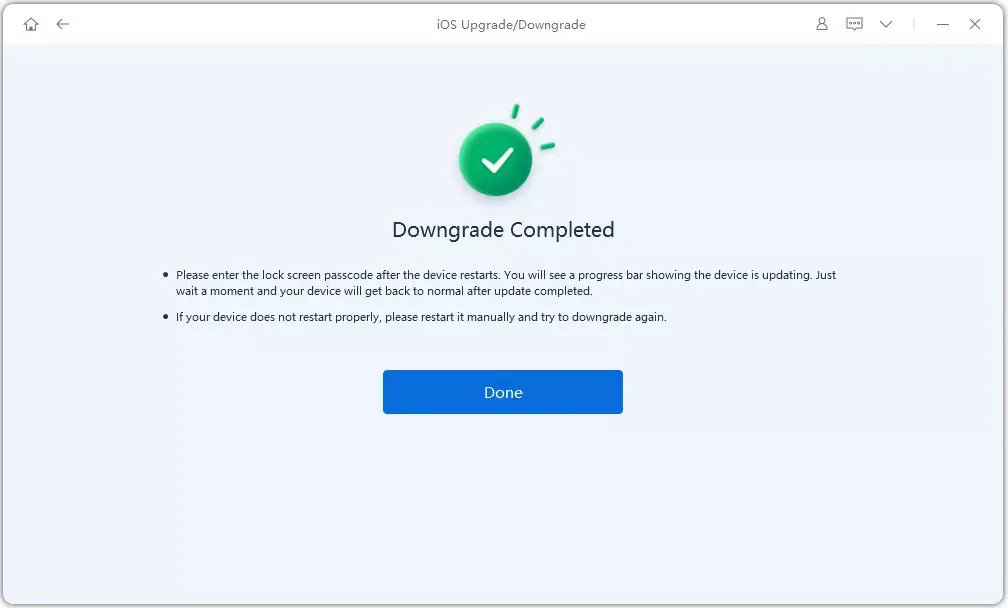
- The process will begin downgrading your iPhone. Do not disconnect the device during this stage.
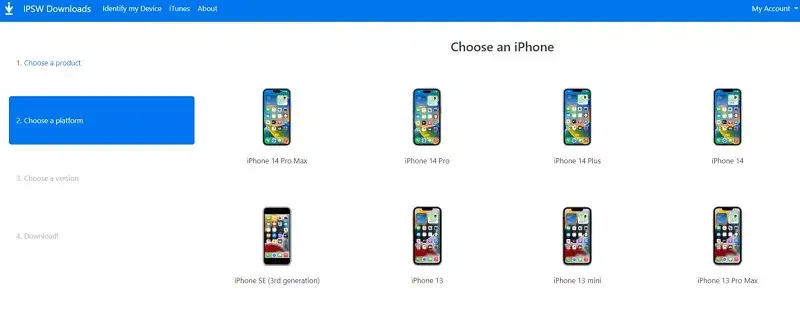
Make sure Apple is still signing the iOS 17 version you want to downgrade to. You can check its signing status on the IPSW website. If it's not signed, you cannot use this method to downgrade.
Once completed, your iPhone will be running iOS 17, and you can restore data from the backup you created earlier.
recommend:How to transfer data from iOS to Android
Remove iOS 18 from your iPhone or iPad using iTunes
You can use iTunes to downgrade from iOS 18 to iOS 17. The steps are as follows:
- Head to the IPSW download website and download the signed iOS 17 firmware compatible with your iPhone model.
- On your iPhone, go to Settings > tap your iCloud profile > Find My > Find My iPhone, and then turn it off.
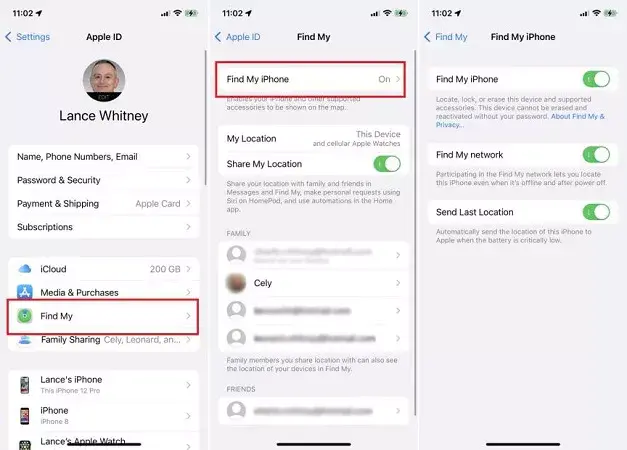
- Connect your iPhone to your computer and launch iTunes/Finder. Click the device icon and follow the on-screen prompts to trust your computer.
- Hold down the Shift key (Windows) or the Option key (Mac), and then click Restore iPhone (iTunes) or Restore Backup (Finder).

- A window will appear. Locate and select the downloaded iOS 17 IPSW file.
- Once the downgrade process is confirmed, iTunes/Finder will begin restoring your iPhone to iOS 17. Do not disconnect your device during this stage.
Once the process is complete, your iPhone will be running iOS 17. You can then restore your data from the backup you created earlier.
recommend:If-So Dynamic Content, a WordPress customization plugin to improve conversion rates.
How to remove iOS 18 from iPhone/iPad without a computer
Want to know how to downgrade from iOS 18 to 17 without a computer? If you haven't upgraded to the official iOS 18 version but are running an iOS 18 beta, you can delete the beta configuration file and restore to the latest stable version of iOS 17 without using a computer. Here's how:
- Launch the Settings app on your iPhone.
- Scroll down and click "General".
- Locate "VPN and Device Management" and click on it.
- Locate the configuration file labeled "iOS 17/iOS 18 beta software configuration file" and tap it.
- Select "Delete Profile" and click again to confirm your choice when prompted.
- Restart your iPhone.

After completing these steps, your iPhone will no longer be running the iOS 18 beta and should revert to the latest stable iOS version.
How to restore a backup after downgrading from iOS 18 to 17
After successfully downgrading to iOS 17, you can restore your data from a previously created backup. The process depends on whether you used iTunes or iCloud for backup.
Restore using iTunes
- Connect your iPhone to your computer and open iTunes.
- Click the iPhone icon in iTunes.
- Navigate to the "Summary" page.
- Under the "Backup" section, click "Restore iPhone".
- Choose the latest iOS 17 compatible backup you want to restore.
- Click "Restore" and confirm your selection. Wait for the restore process to complete.

Restore iOS backup using iCloud
- On your iPhone, go to Settings > General > Reset > Erase All Content and Settings. This will completely erase your iPhone.
- Follow the on-screen prompts to set up your iPhone as a new device.
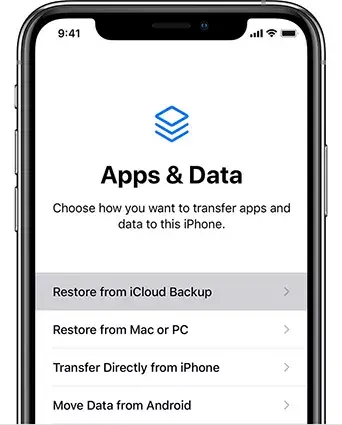
- During setup, select the "Restore from iCloud Backup" option.
- Sign in to your iCloud account and select the latest backup created before the downgrade.
- The recovery process will begin. Please wait patiently, as this may take some time, depending on the size of the backup.
Frequently Asked Questions about Downgrading iOS 18 to 17 on iPhone/iPad
How do I uninstall iOS 18?
You can uninstall iOS 18 by downgrading to iOS 17. While there are many different methods, try ReiBoot first, as it simplifies the whole process.
Can ReiBoot safely downgrade iOS 17 to 16?
Yes, ReiBoot is safe to use when downgrading from iOS 18 to iOS 17. More importantly, it's easy to use.
Is there any risk in downgrading from the iOS 18 beta?
There is no risk in downgrading from the iOS 18 beta if you backed up your data beforehand. However, if you don't want to brick your iPhone, be sure to follow the correct procedure.
Summarize
If you encounter bugs or performance issues while using new software, downgrading your iPhone from iOS 18 to iOS 17 can be a useful solution. However, please remember that this is not a risk-free process. Always back up your data before proceeding. Now, when it comes to what to use for downgrading, we recommend Tenorshare ReiBoot, as this versatile tool makes the downgrading process incredibly easy.

 Chinese (China)
  English
  Chinese (Taiwan)
  Russian
  Japanese