
How to copy text anywhere on your iPhone, iPad, or Mac
The webpage doesn't allow you to copy text? No problem!

Quick Links
- How to copy any text from an iPhone or iPad
- How to copy any text on a Mac
- Why this is so useful
- More useful iPhone tips
Key Points
- Tap the "Show Text" icon that appears in Apple Photos or Previews to select and copy text from any image or video on your iPhone, iPad, or Mac.
- As long as you can take a clear photo with your iPhone, you can copy text from any content, making it very useful for copying recipes, page text, or logos.
- This feature also works in Safari, allowing you to select text on both iPhone and Mac, just like selecting text on a standard webpage. Alternatively, you can take a screenshot.
Use your iPhone, iPad, or Mac to select text from anywhere, copy, and paste it into notes, emails, or documents. This trick can help you circumvent various annoying restrictions and even get "IRL" text by taking a picture.
How to copy any text from an iPhone or iPad
You can copy text directly from images or videos on your iPhone and iPad. The only limitation is that your device must be able to recognize it as text, so messy handwriting and fancy fonts may not work.
This can be achieved through Apple's built-in text recognition, which automatically works across the operating system using videos and images. You can invoke this function using many applications, but the simplest implementation is likely in the Photos app.
Select a photo from your camera roll, and then look for the "Show Text" icon in the bottom right corner of the image (as shown below).
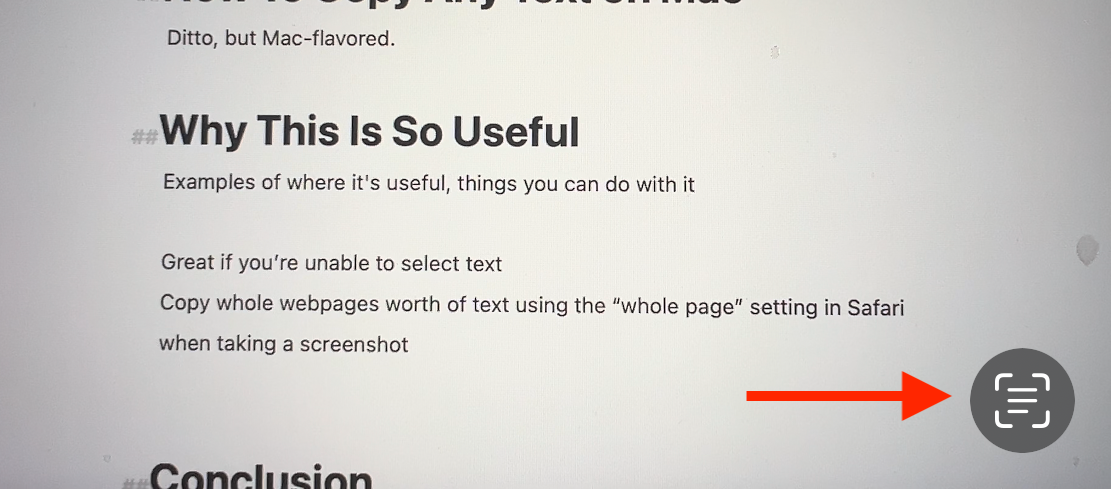
Click this button, and the text in the image should be highlighted immediately. Now you can select this text just like any other text by clicking and holding your finger until the text selection tool appears. Drag the start and end points to your desired locations, or click "Select All" to grab everything.
You can now use "Copy" to copy the text to the clipboard. Now open a comment, email, or message conversation, or a text document of your choice, and paste the text by clicking and holding and then selecting "Paste" from the context menu.
This also applies to videos, simply by pausing the video over the text you want to copy. Now repeat the process using the "Show Text" icon and select the content you want to copy.
This trick also works in Safari; simply click and hold the image, then select "Show Text".
How to copy any text on a Mac
This trick also works on Mac. When viewing an image using the Photos app, click the "Show Text" icon in the bottom right corner. If you pause on the relevant frame, you can do the same while watching a video.
This feature works in the preview when viewing locally saved images (but not in Quick View, so make sure to click "Open in Preview" first). It also works when viewing images in Safari, but you don't need to click "Show Text" first, as your Mac will automatically detect the text.

Click and drag to select text, just like anywhere else on your Mac, then use the Command-Click menu or the Command+C keyboard shortcut to copy.
Why this is so useful
This clever trick avoids the problem of not being able to select and copy text on some websites.Take a screenshot using your iPhone, iPad, or Mac.Then copy the text as usual. For example, I've used this technique to copy recipes from the YouTube description box in iPhone apps.
It also allows you to copy text from anything, as long as you can take a decent photo with your iPhone. So if you want to copy text from a page or sign, simply take a picture and then use this trick to copy and paste as needed.

If you go down this path, you might end up with a ton of junk screenshots clogging your camera roll (or Mac desktop). You canDelete screenshots on your iPhone or iPad.The method is to find them under the "Media Types" section in the "Albums" tab of Apple Photos.
More useful iPhone tips
There are many otheriPhone screenshot tips you may not have usedFor example, capturing the entire webpage and using gestures instead of the usual button presses.
Other productivity-enhancing techniques includeSearch for the emoji you want to enter.Use Apple's built-in toolsLimit the time you spend on social media andCreate powerful workflows using shortcut applications.。

 Chinese (China)
  English
  Chinese (Taiwan)
  Russian
  Japanese