
How to enable or disable Secure Boot and TPM support in VirtualBox 7.0
Windows 11 runs best in VirtualBox 7.0 with Secure Boot and TPM 2.0 enabled. Here’s how to get them working properly.

VirtualBox released version 7.0 in October 2022. It was the first hypervisor to support emulating TPM chips and all other system components. VirtualBox also provides secure boot functionality for virtual machines in EFI mode. The main reason behind these two features is the detailed list of system requirements that Microsoft set for Windows 11.
Without a simulated TPM 2.0 chip, users cannot install Windows 11 on a virtual machine. However, VirtualBox 7.0 allows enabling Secure Boot and TPM for any Windows virtual machine. This article details how to enable or disable TPM and Secure Boot for any VirtualBox virtual machine.
recommend:How to remove TPM on Windows 11
Why does Windows 11 require TPM and Secure Boot?
Windows 11 requires a TPM chip and Secure Boot to provide robust threat protection and prevent any malware from running at system startup. Secure Boot only allows signed drivers to be loaded, and the TPM chip helps protect BitLocker drive data. Therefore, both features are crucial from a security perspective. Check out our guide to learn more about what Secure Boot is and how it works.
While Windows 11 can run without Secure Boot and the TPM 2.0 chip, it lacks an additional layer of system protection. Many features, such as kernel isolation and data encryption, will be unavailable. To enable or disable these features for a Windows 10 or 11 virtual machine, you can do so in VirtualBox 7.0.
How to enable or disable Secure Boot and TPM support in VirtualBox 7.0
Repeat the following steps to enable TPM 2.0 and Secure Boot in VirtualBox.
- Please press win Type the key and search for VirtualBox. Click the first relevant search result to launch the application.
- Click Windows Virtual Machine, and then click... set up icon.
- Navigate to system Settings options.
- Find TPM Options. If set to None, click arrow The icon opens the drop-down menu.
- Select TPM v2.0 The options in the list. Windows 11 is not compatible with any earlier versions, but if you are using Windows 10, then you can choose... v1.2 From the list.
- Scroll down and find Extended functionality Partial. Click Enable EFI (specific operating systems only) Option checkbox.
- Then click Enable Secure Boot Option checkbox.

- Now, click OK Click the button. The settings window will close automatically.
- Go to the top area and then click start The button starts the Windows virtual machine.
- Now, press the Win key and search for Security. Open it. Windows Security app.
- Navigate to the left-hand menu and then click Equipment safety Options. Here, all Windows security features will be enabled.
- To disable TPM and Secure Boot, reopen the virtual machine settings and set the TPM version to [version number]. NoUncheck the box Enable EFI (specific operating systems only) Option checkbox. Click. OK Save your changes.
Alternative methods to check if TPM is active in a Windows virtual machine
Here's how to check TPM on a Windows 11 virtual machine:
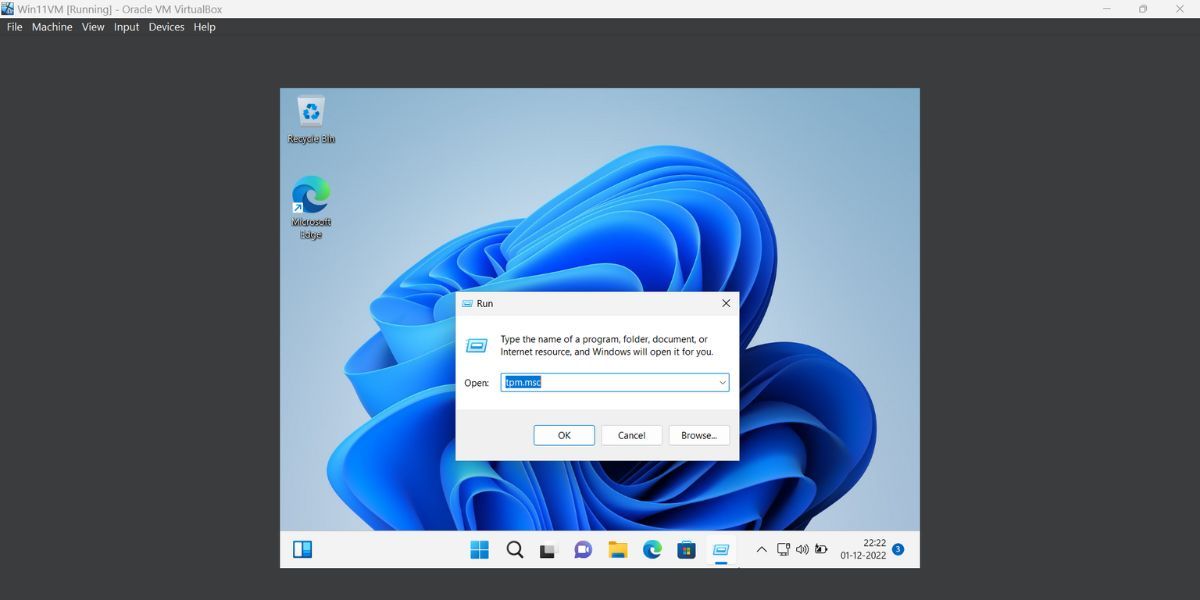
- Please press win + R The key that launches the Run command box (see How to open Windows Run for more information). Type TPM.msc And press Enter key.
- The TPM utility will launch. Navigate to the "Manufacturer Information" section.
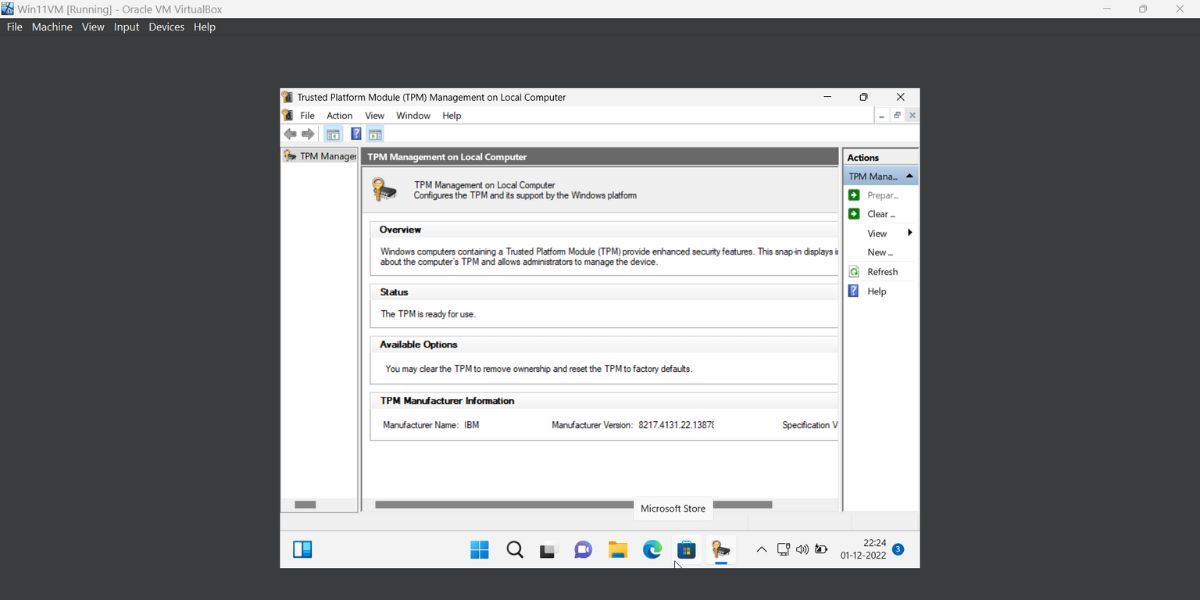
- If the Specification version entry shows 2.0, it means that the TPM chip simulation was successful.
Easily manage TPM and Secure Boot features in VirtualBox.
You can choose whether to keep these two features active. After installing Windows 11 as a virtual machine, you can disable TPM and Secure Boot without any issues with the operating system. However, please remember that these are important from a security perspective.

 Chinese (China)
  English
  Chinese (Taiwan)
  Russian
  Japanese