
Why is my iPhone displaying a "charging paused" message?
Have you ever seen a "Charging" notification message on your iPhone screen when it's plugged in? Generally, this message clearly indicates that charging has stopped due to overheating. However, if your iPhone isn't overheating, there could be many reasons why this warning appears. Let's explore all the possible causes of this message and what you can do to resolve it.
recommend:WordPress plugin JobSearch
Charge retention message
The message, as shown below, states that "charging will resume when the iPhone returns to normal temperature." Because it won't be charging, the battery percentage won't increase for an extended period.
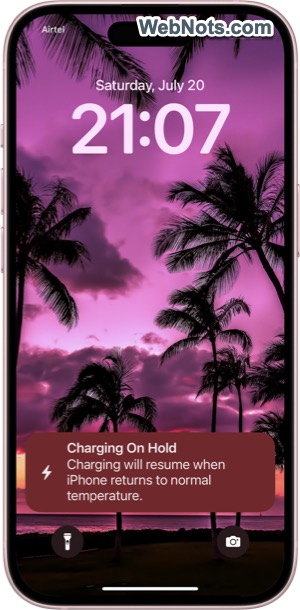
1. Temperature control: Overheat protection
Overheating is the most common reason why an iPhone displays a "Charging" message. If you refer to the technical specifications on Apple's website, iPhones are designed to operate efficiently within a specific temperature range of 0°C to 35°C (32°F to 95°F).
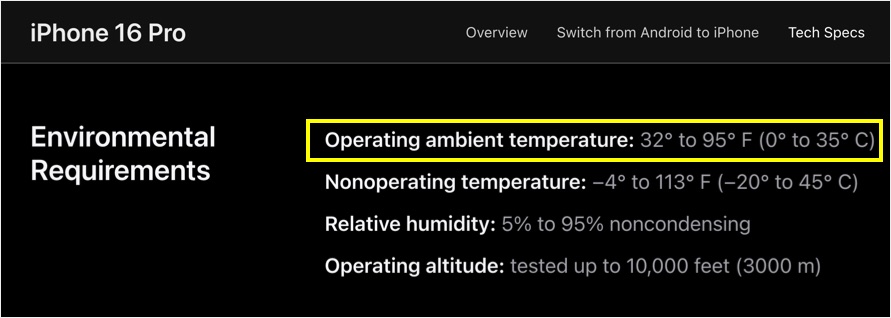
When a device gets too hot or too cold, it can cause performance issues or hardware damage. Apple has a built-in protection mechanism that can temporarily stop charging when the phone reaches a high temperature, as charging generates additional heat.
Now the question is, why does your iPhone overheat?
- Older models Overheating is a common problem in older models, such as the iPhone 6, due to its obsolescence.
- Reusable charging cables Repeated cables can not only cause overheating, but also damage your iPhone.
- direct sunlight – Exposing your iPhone to direct sunlight for extended periods (especially while charging) may cause it to overheat.
- Extensive use of applications Running processor-intensive applications (such as HD video games, live video streaming, or location sharing) while charging generates more heat.
- Wireless charging Wireless charging may generate more heat than wired charging, especially when using a non-Apple charger.
You can avoid all of the above problems by using an older iPhone. Since most apps don't support older iPhone models (and older versions of iOS), you'll need to consider buying a new iPhone in this case.
2. Optimize battery charging
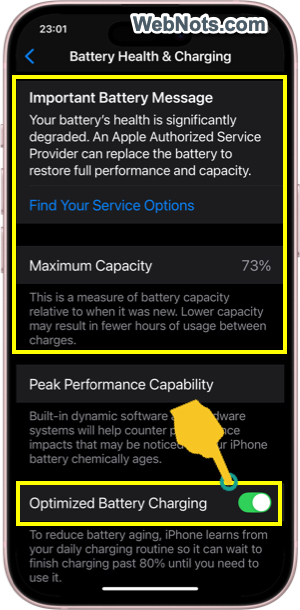
iOS has a feature called "Optimized Battery Charging." When enabled, it monitors your charging habits and helps extend battery life accordingly. Its function is to stop charging at 80% and avoid charging to 100% too quickly, which can degrade battery performance over time. If your phone has been charging overnight and you receive a "Charging Paused" message, this may be because the Optimized Battery Charging feature has temporarily paused the process.
It automatically resumes charging before you normally unplug your phone (depending on your charging habits), ensuring it reaches 100% battery when you need it. While this is the recommended feature, you can disable it if it bothers you.
- Open the Settings app and go to the Battery section.
- Click the "Battery Health and Charging" option.
- Turn off the "Optimize battery charging" option.
Also, do not confuse low-power mode with battery issues.
3. Battery health issues
Over time, the health of your iPhone battery can deteriorate due to frequent use and charging cycles. Once the battery's health drops below a certain threshold, your iPhone may be more prone to overheating, slow charging, or even temporary charging issues. You can check your battery health in your iPhone's settings to see if you need to replace the battery.
- Go to Settings > Battery > Battery Health & Charging.
- Check the "Maximum Capacity" displayed as a percentage.
- If the battery level is below 80%, it is best to consider replacing the battery.
If the battery needs to be replaced, Apple will also display a warning message at the top of the settings page.
recommend:How to fix Google Chrome not working on Windows 11
4. Using uncertified accessories
Apple devices work best with accessories that meet specific standards, such as MFi (Made for iPhone) certification. Using cheap or uncertified chargers and cables can cause charging problems, including overheating, which may trigger a "charging pause" warning.
It's funny if you end up using the same charging cable after spending a lot of money on your iPhone. Always use Apple-certified chargers, cables, and accessories to ensure safe and efficient charging.
5. Disable background processes and power-consuming applications.
Your iPhone may temporarily stop charging if many background processes and apps are consuming a lot of power while it's charging. This could be the reason if you're using the latest iPhone model but are still experiencing overheating issues. Avoid watching videos and playing HD games while your phone is charging. You can also swipe up from the bottom edge to open the app switcher and close any unnecessary apps.
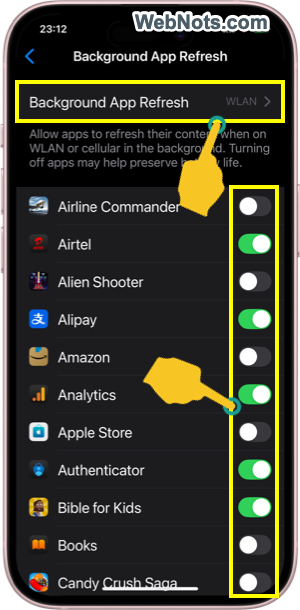
Some applications (such as news apps) will refresh content in the background to get updates. You can disable this feature in the following ways:
- Go to "Settings > General > Background app refresh".
- Click the "Background application refresh" option and select "Close".
- Alternatively, browsing the list of applications and selectively disabling them would be the best option.
If you use your phone while charging, especially when performing demanding tasks, consider taking a break and letting the device cool down.
6. Poor ventilation during charging
Slight warmth of the battery area (back) during charging is common for any device. Obviously, poor ventilation can cause this heat to build up and lead to overheating. In this situation, the iPhone will stop charging and display a "Charging Paused" message to protect the battery and other components.
- Place your iPhone on a hard, flat surface while charging.
- Consider removing all bulky casings for better heat dissipation.
Final thoughts
The "charging paused" message can be inconvenient and confusing. However, it's actually how your iPhone protects itself from potential damage. By managing your phone's temperature, using appropriate accessories, and paying attention to apps running while charging, you can prevent this message from recurring. Regular maintenance, such as checking battery health and developing good charging habits, will also keep your iPhone running smoothly for longer.

 Chinese (China)
  English
  Chinese (Taiwan)
  Russian
  Japanese