
How to check successful or failed login attempts on a Windows computer
Windows allows you to create multiple user accounts, letting multiple users use a single computer. But what if you suspect someone has accessed your PC or user account without your knowledge?
While physically monitoring your computer all the time is impractical for most people, the built-in Windows Logs utility, Event Viewer, can reveal recent activity on your computer, including login attempts. Here, we show you how to use Event Viewer and other methods to audit failed and successful login attempts in Windows.
recommend:10 ways to open the System Information tool on Windows
How to enable login auditing using the Group Policy Editor
You need to enable login auditing in the Group Policy Editor to view login auditing in the Event Viewer. While this feature may be enabled by default on some computers, you can also manually enable login auditing by following these steps.
Please note that the Group Policy Editor is only available for Windows Professional, Education, and Enterprise editions. If you are using the Home edition, please follow our guide to enable gpedit in Windows Home.
Please note that if you have not configured a group policy for login auditing, you can only see successful login attempts in the Event Viewer.
After enabling the Group Policy Editor, please follow these steps to enable login auditing:
- according to win + R Open run.
- type gpedit.msc Then click OK Open Group Policy Editor.
- Next, navigate to the following location:
Computer Configuration > Windows Settings > Security Settings > Local Policies > Audit Policy - In the right pane, right-click Review login event And select characteristic.
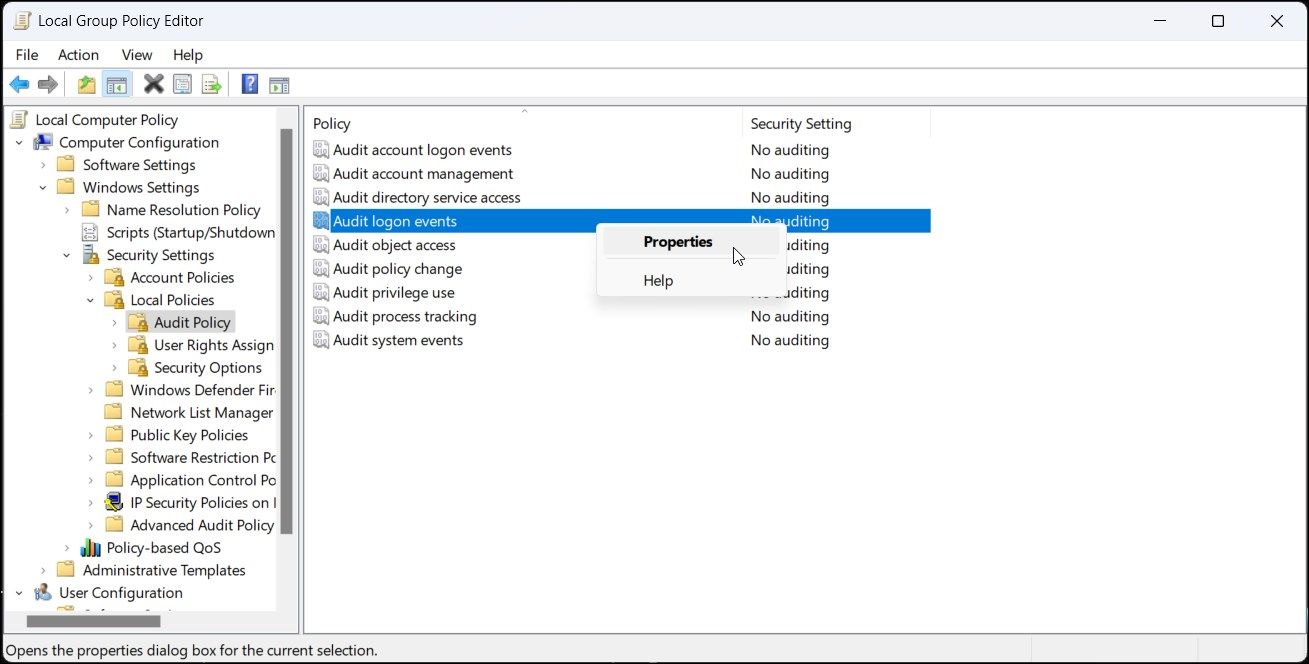
How to check successful or failed login attempts on a Windows computer
- Inside characteristic In the dialog box, select success and fail The following options Review these attempts part.
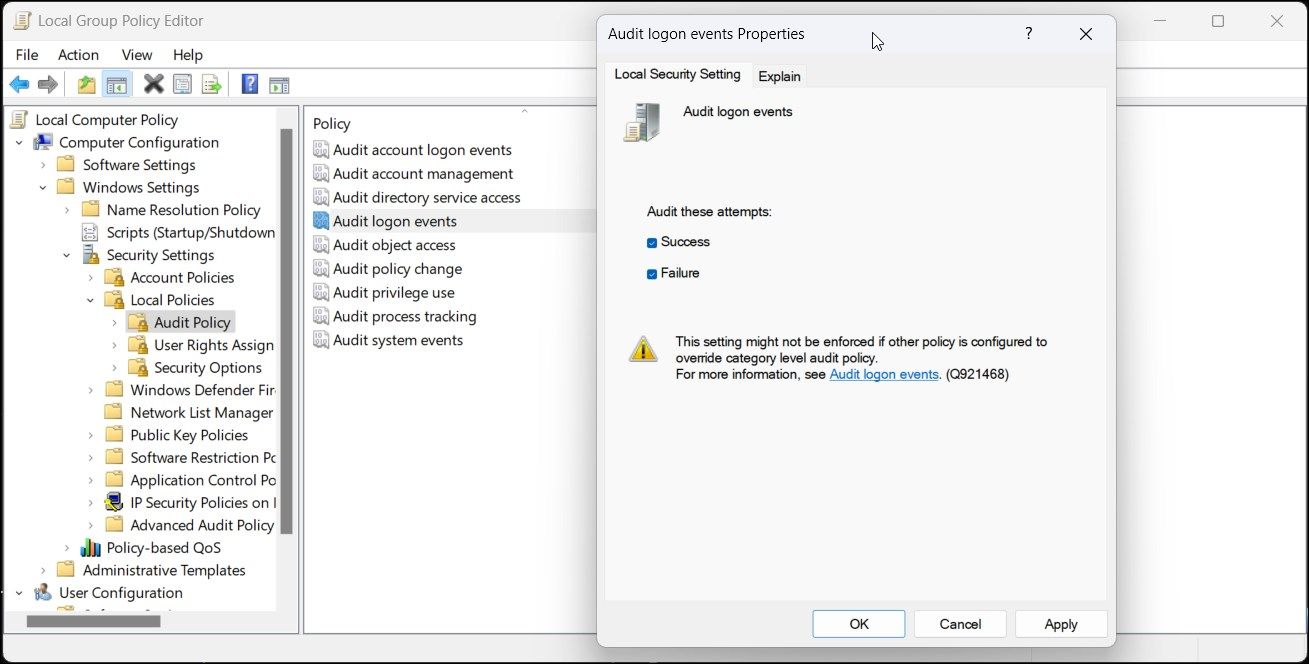
- Click Apply and OK Save your changes.
Close the Group Policy Editor and proceed to the next set of steps to view the login attempt in the Event Viewer.
How can I view failed and successful login attempts in the Event Viewer?
Event Viewer allows you to view Windows logs of application, security, system, and other events. While it's a useful application for troubleshooting system problems, you can also use it to audit logon events on your Windows PC.
Follow these steps to view failed and successful login attempts in Windows:
- Please press Win Key And input Event Viewer. Or, click search Type in the taskbar Event Viewer.
- Click Event Viewer Open it from the search results.
- In the left pane, expand Windows Logs part.
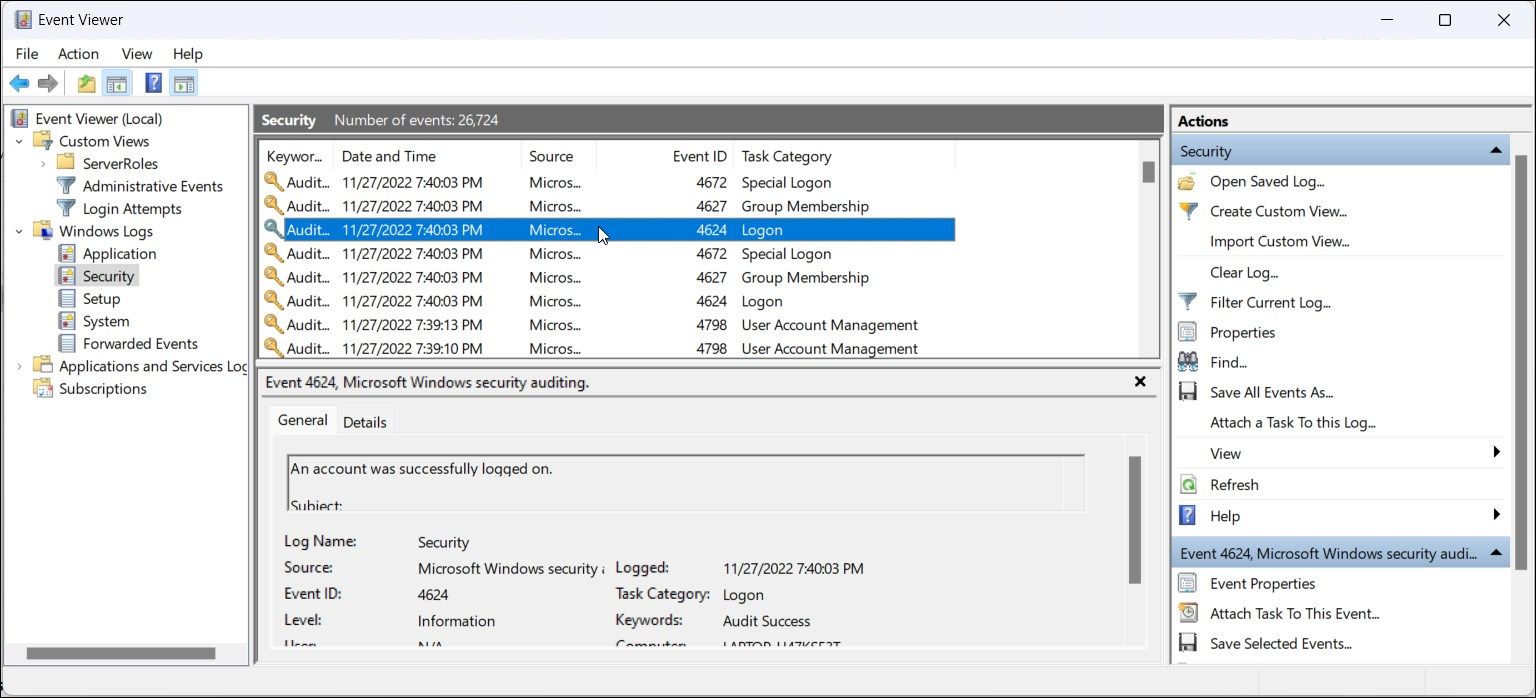
- Next, select Safety.
- In the right pane, find Event 4624 Entry point. It is a user login event ID, and you may find multiple instances of this ID in the event log.
- To find failed login attempts, please find Event ID 2625 Entries replaced.
- Next, select Event 4624 The Event Viewer will display all relevant information at the bottom of the page for the entry you want to view. Alternatively, right-click the event entry and select... characteristic View details in a new window.
recommend:How to create a winter wonderland on Linux using GNOME extensions
How to decipher login entries in Event Viewer
Although event ID 4624 is associated with a login event, you might find multiple instances of this entry in the logs every few minutes. This is because Event Viewer uses the same event ID to log every login event (whether it's from a local user account or a system service like Windows Security). (Event 4624)).
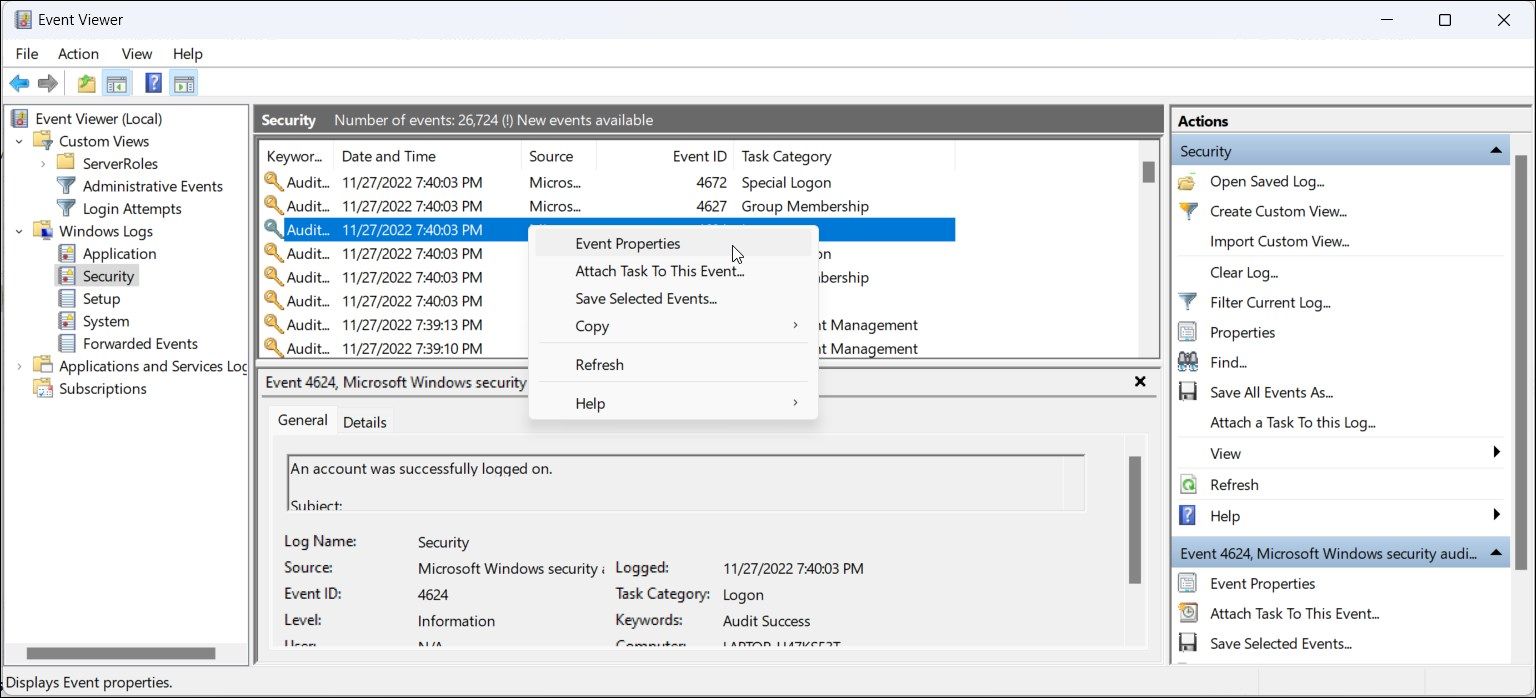
To identify the login source, right-click the event log and select... characteristicInside General Tabs, scroll down and find Login information Part. Here, Login type The field indicates the type of login that occurred.
For example, Login type 5 This indicates service-based login, while Login type 2 This indicates login based on the user. See the table below for more information on the different login types.
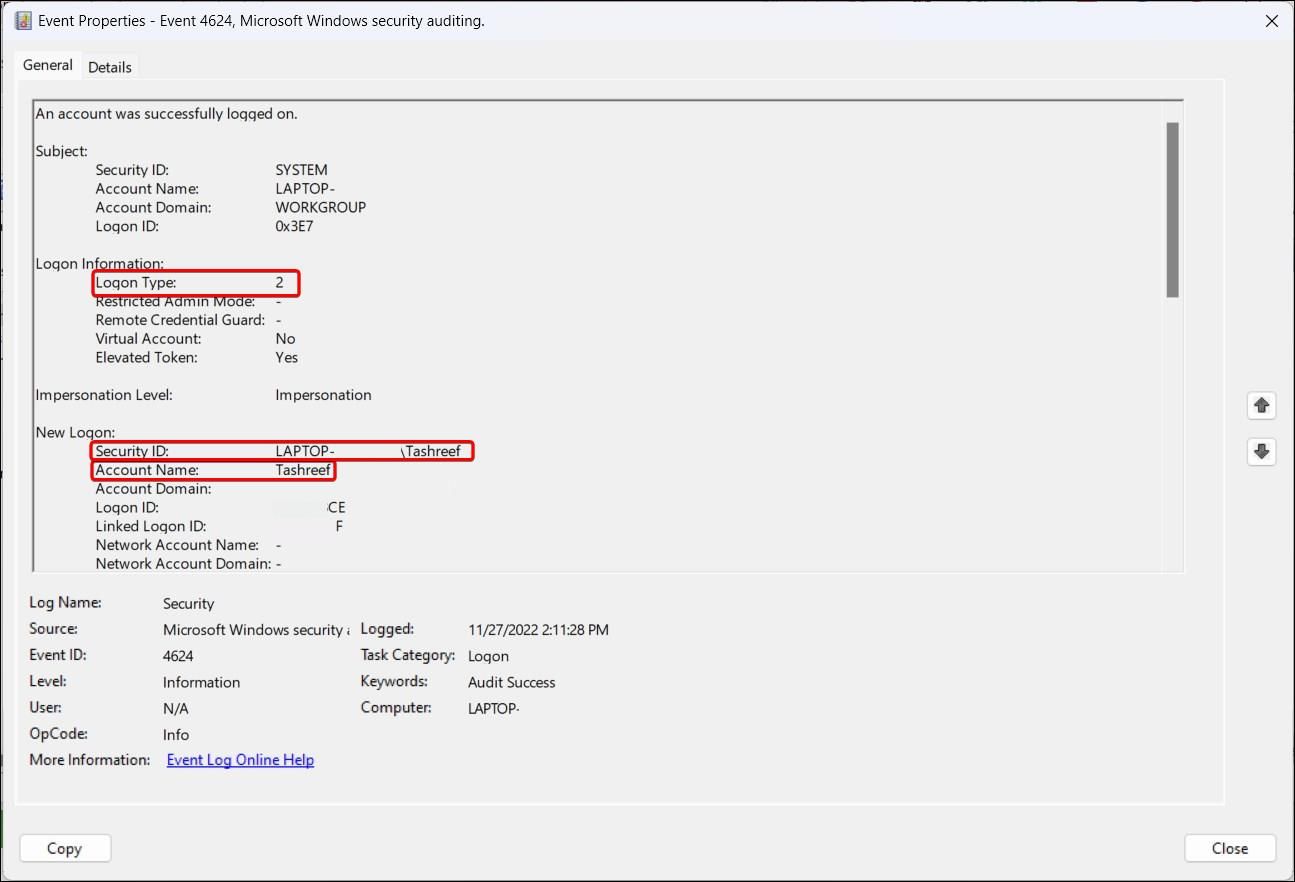
Next, scroll down to New Login Partial and found Security NumberThis will display the user accounts affected by the login.
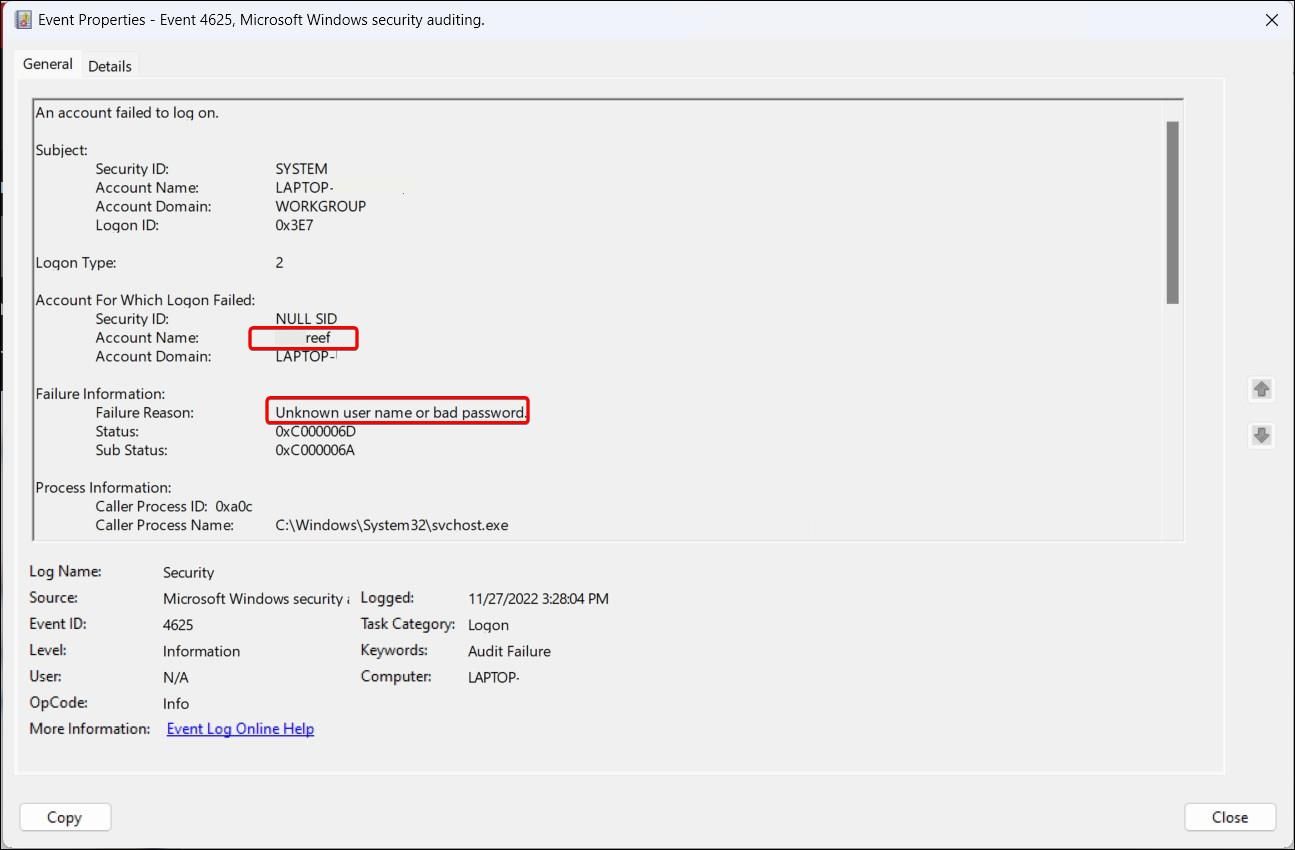
Similarly, for failed login attempts, please see... Event ID 4625Inside characteristic The dialog box will show you the reason for the failed login attempt and the affected user accounts. If you find multiple instances of failed login attempts, consider learning how to limit the number of failed login attempts to protect your Windows PC.
Here are all nine lists. Login type For login events you may encounter, please view the login event in the Event Viewer:
| Login type | describe |
| Login type 2 | Local users log on to this computer. |
| Login type 3 | Users log in to this computer from the network. |
| Login type 4 | Batch login types that require no user intervention—such as scheduled tasks. |
| Login type 5 | Login to system services started via Service Control Manager – the most common type |
| Login type 7 | System unlocked by local account user |
| Login type 8 | NetworkClearText – Attempts to log in via the network by sending the password in plaintext. |
| Login type 9 | NewCredentials – Triggered when a user launches a program using the RunAs command with the /netonly option. |
| Login type 10 | RemoteInteractive – is generated when accessing the computer via a remote access tool such as Remote Desktop Connection. |
| Login type 11 | CachedInteractive – Uses cached credentials to log in to a computer via the console when the domain controller is unavailable. |
How to view the last login history using the command prompt?
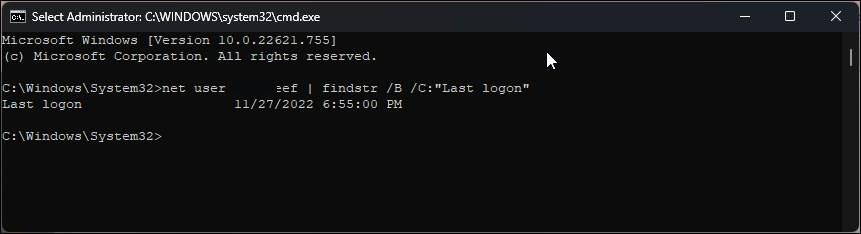
You can use the command prompt to view the last login attempt. This is a convenient way to find login attempts based on a user without having to view all login events in the event viewer.
To view a specific user's login history using the command prompt:
- according to Win+ R Open run.
- type OrderSimultaneously holding Ctrl + Shift keysClick OKThis will open. Command Prompt As an administrator.
- In the command prompt window, type the following command and press Enter:
net user administrator | findstr /B /C:"Last logon" - In the command above, replace "administrator" with the username to view the login history.
- The output will display the last login time and date of the specified user.
Viewing failed and successful login attempts in Windows
If you suspect someone has logged into your PC, Event Viewer may capture and log the attempt. To do this, you must enable a login auditing policy in the Group Policy Editor. You can also use the command prompt to view the login history of a specific user.
In other words, anyone familiar with Event Viewer can easily clear the logs. Therefore, if possible, strengthening the security of your Windows computer is the best way to prevent unauthorized access. You can start by limiting the number of failed login attempts on your Windows PC.

 Chinese (China)
  English
  Chinese (Taiwan)
  Russian
  Japanese