
How to change the default browser on an iPhone
- You can easily change the default browser on your iPhone in the Settings app.
- Simply click on your browser (such as Firefox or Chrome) and then select the default browser option.
- Choose whichever browser you want to use as the default option.
On Apple devices, Safari is the default browser. However, many people prefer to use other browsers instead of Safari. Having to constantly and manually switch browsers when opening links on an iPhone is frustrating, but you can change your iPhone's default web browser to your preferred one. This article will show you how to set your default browser so that your preferred browser opens when you click on a link. This is especially useful if you use a different browser on your MacBook than on your iPhone, or if you find other browsers easier to use.
recommend:How to set the default Finder folder on macOS
How to change the default browser on an iPhone
Interested in changing your default browser on your iPhone? Having a default browser makes things much easier, so you don't have to remember what features your current browser has, like that annoying search function on the back button of your iPhone. If you're wondering how to make Google Chrome your default browser on your iPhone, or simply don't like having Safari as your default browser, follow this step-by-step guide on how to change your default browser.
- Open Settings applicationThen scroll down to the list of applications. Find your preferred browser, such as Firefox, and click on it.
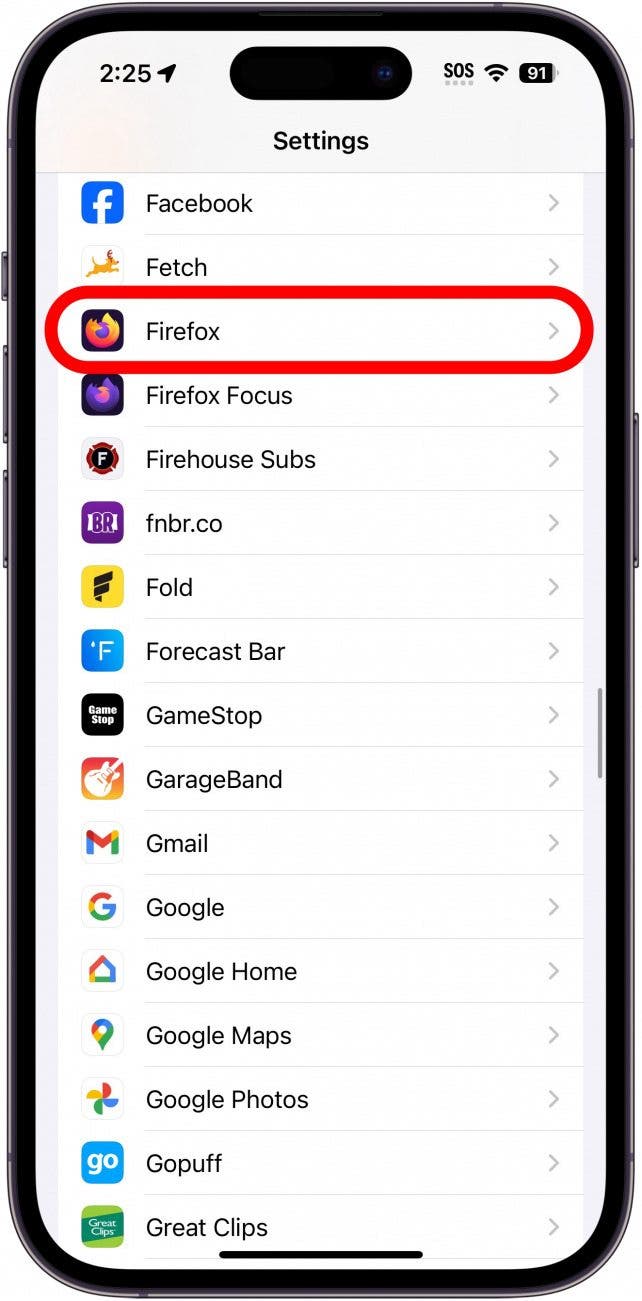
How to change the default browser on your iPhone
- Open Settings applicationThen scroll down to the list of applications. Find your preferred browser, such as Firefox, and click on it.
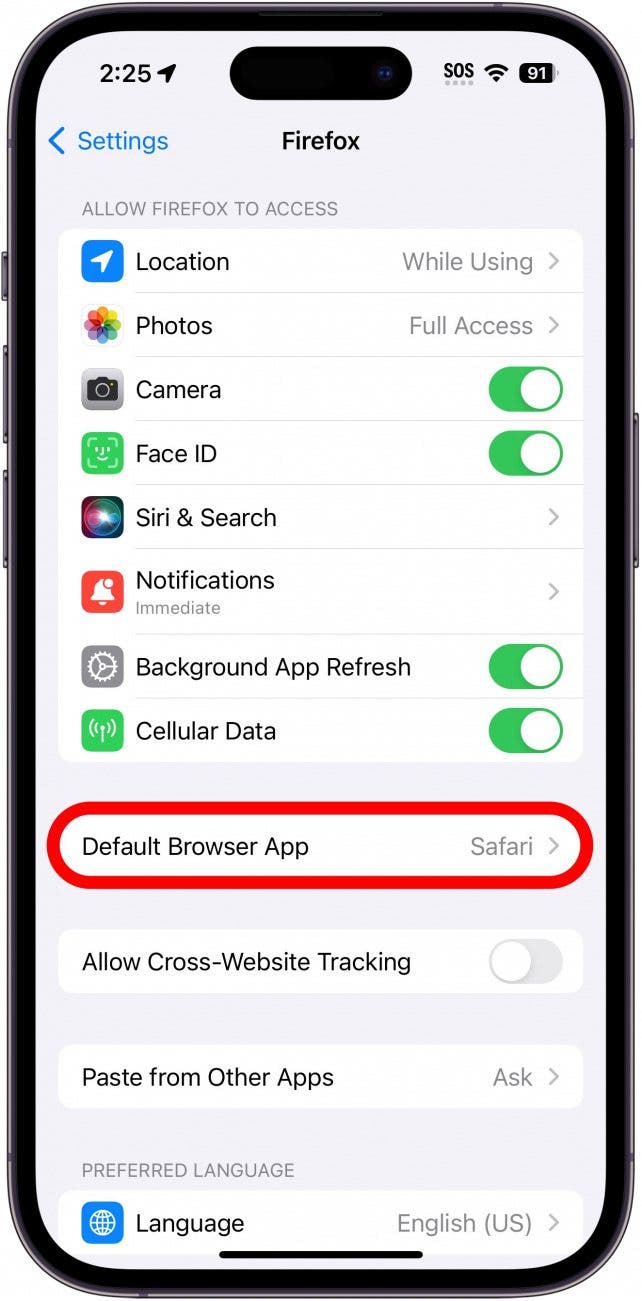
- Click on any browser you want to use as your default browser.
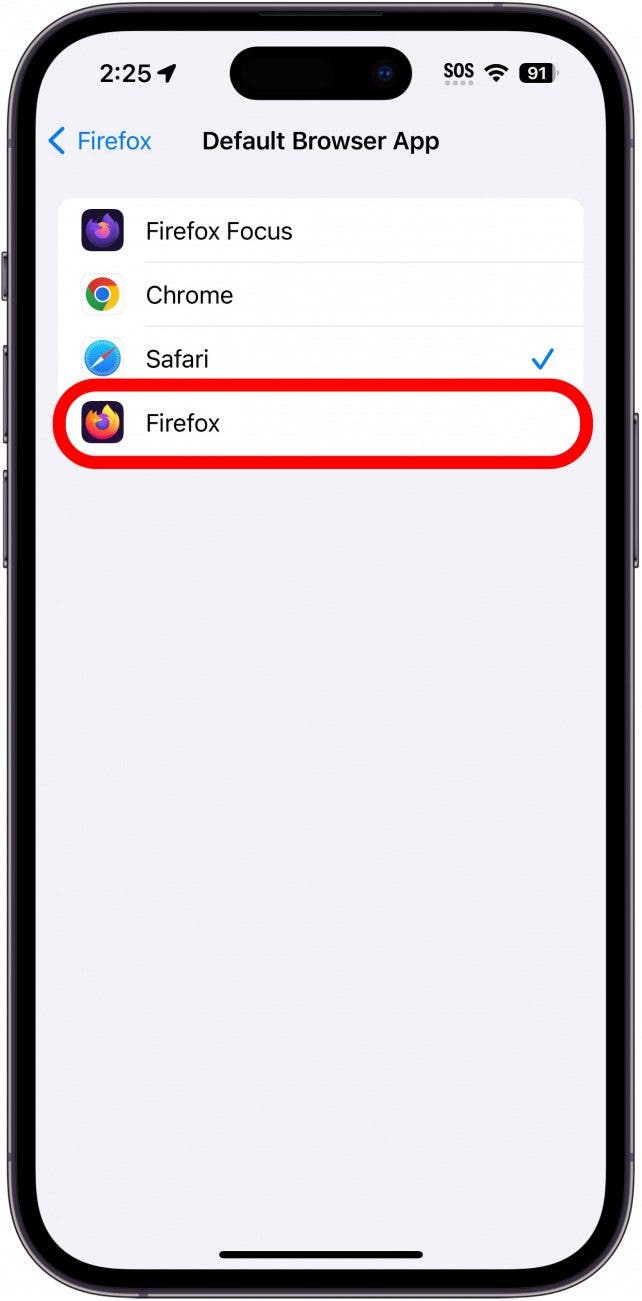
- Click on any browser you want to use as your default browser.
- When you select a new default browser, you will see a blue check mark next to it.
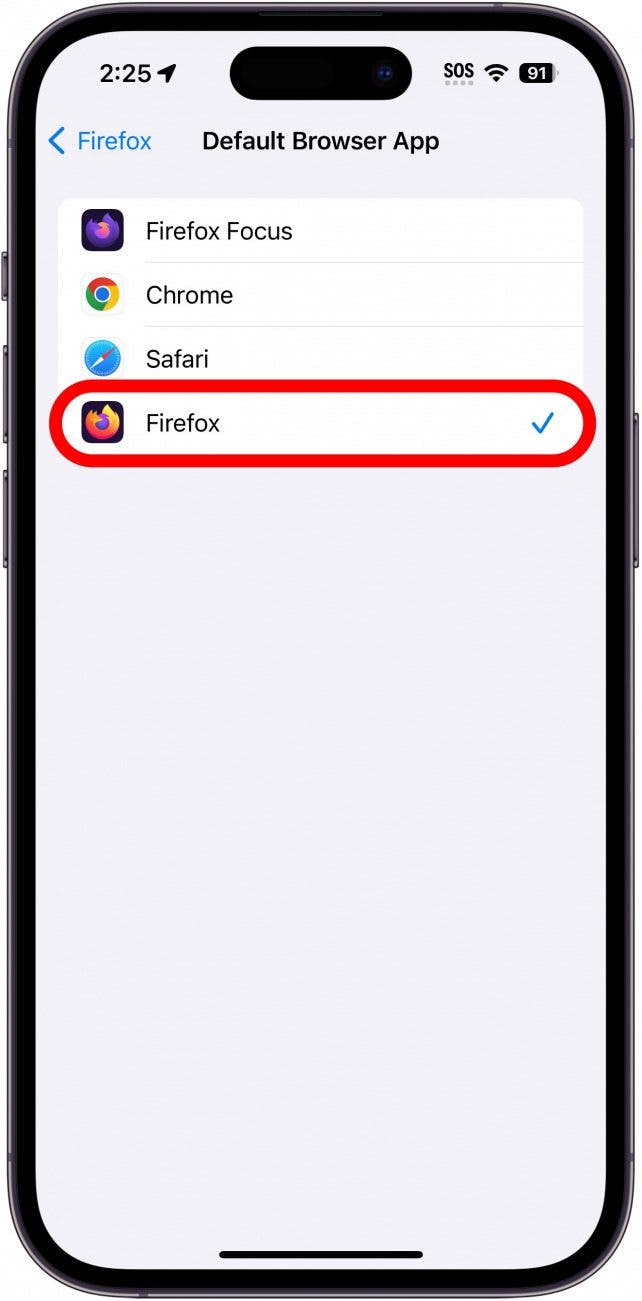
- When you select a new default browser, you will see a blue check mark next to it.
You're done! Now you know how to change your iPhone's default browser—whether it's Safari, Chrome, Firefox, or another—and more easily open links in your preferred web browser. Having trouble determining which browser is best?
Frequently Asked Questions
- How do I access browser settings on an iPhone? To change Safari's settings, you must go to the Settings app and tap Safari. To change the settings of another browser, simply find it in the list of apps at the bottom of the Settings app. Most browsers also have more advanced options within the app itself.
- How can I make Safari the default browser again? You can follow the same steps as above and then select Safari. Alternatively, if you have the browser app installed as the default, your iPhone will automatically switch back to Safari.

 Chinese (China)
  English
  Chinese (Taiwan)
  Russian
  Japanese