
How to fix photo file system errors in Windows 10 and 11
Many Windows users use the Photos app to view and edit images in Windows 10 and 11. However, some users have reported file system errors in the Photos app on Microsoft's support forums. These users say that when they try to launch Photos, a "File system error (-2147219196)" message pops up.
This system error can be caused by photos, but it can also occur when you launch other Windows applications. Unfortunately, you cannot fix this startup problem with photos, so here are some fixes that can effectively resolve file system errors in Windows 10 and 11.
recommend:How to fix the "Access denied" error in the NVIDIA Control Panel on Windows 11/10?
1. Check for Windows updates.
Microsoft frequently releases patches to fix various Windows bugs. Since this file system error has been widely reported, it likely didn't escape Big M's notice. Therefore, it is recommended that you check, download, and install all other Windows updates as follows:
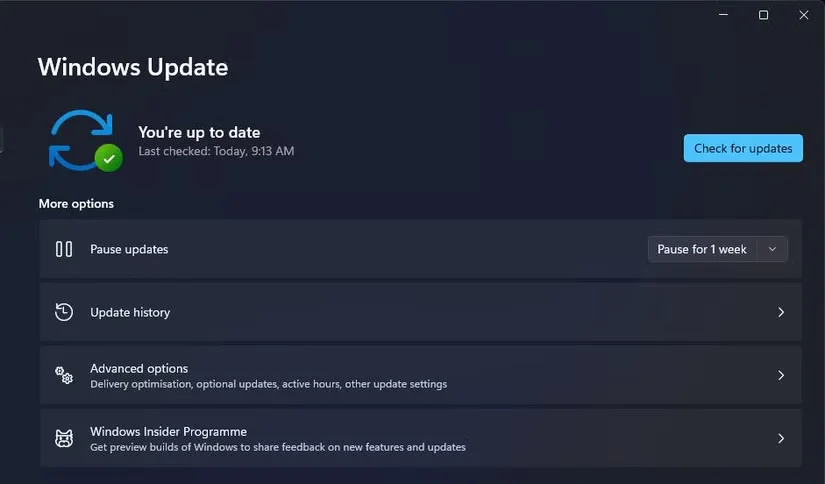
- Launch the settings configuration application. You can use it. win + i Use the keyboard shortcut to quickly open it.
- choose Windows Update Along the left side of the setting.
- Click Check for updates The option to initiate a search will allow Windows to automatically download and install any available patch updates found.
- If you see any of the optional updates listed below Check for updates Button, click Download and install Their choice.
The steps to check for updates in the Windows 10 Settings app are slightly different. You need to select... Updates and security The settings category in Windows 10. Then you can select the same... Check for updates Choose from there.
2. Troubleshooting Windows Store applications
The Windows Store App Troubleshooter can resolve various UWP (Universal Windows Platform) app issues. This troubleshooter isn't always effective, but it's always worth a try.
Here's how to troubleshoot running Windows Store apps in Windows 10 or 11:
- Open settings to view its system Label.
- Click Q&A then Other questions and answers Inside system Label.
- Then select run This brings up the Windows Store application troubleshooting options.
- Wait for the Windows Store app troubleshooter to detect the problem. It may automatically apply repairs or offer suggestions for you to follow.
In Windows 10, you need to select Updates and Security Accessed in settings Q&A Tags. Then you can choose one. Other questions and answers Choose from there. Troubleshooting Windows Store app options.
3. Reset the Photos app
You can select at the same time Reset and repair Troubleshooting options for Photos in Windows 11 and 10. One option deletes the application's data, while another applies a repair without affecting the data. Here are the options you can choose to reset and repair Photos in Windows 11:
- Open Settings via the Start menu or its hotkey.
- choose application Tabs (or categories in Windows 10).
- Then click Applications & Features to view the applications for your desktop or laptop.
- choose Advanced Options Click the three-dot button in the Microsoft Photos application.
- Next, select repair Options.
- If you choose repair Unable to repair the photo, please try clicking. Reset Yes. (Choose) Reset Allow the data to be cleared from the photos again.
4. Restore the default image library
Sometimes, restoring the default photo library can help solve this problem. To do so, follow these steps:
- Click the folder taskbar icon to open the File Explorer application.
- Double-click the Library folder in the Windows Explorer navigation pane to expand it.
- Right-click on the picture library to select characteristic.
- choose Restore default values Options.
- Click Apply Save the default settings.
- Restore the default libraries and restart Windows.
recommend:Shopify Mobile Optimization Comprehensive Guide
5. Clean the startup window
To ensure no third-party applications or services interfere with the photos in any way, try a clean boot of Windows. Configuring a clean boot using the MSConfig utility will remove unnecessary programs and services from the Windows startup process.
Here are the steps to perform a clean boot on Windows 10 and 11:
- Click start Right-click and select run.
- Open the system configuration tool by typing [input type]. configuration file Run and click OK.
- Unselect Loading system projects checkboxes General Select the tab to deselect this setting.
- Click Serve The option to open this tab.
- To exclude more essential services, please select... Hide all Microsoft Serve.
- Click to deselect all other services Disable all.
- choose Apply Save the new options.
- Then click OK Disable the MSConfig tool.
- Click restart In the system configuration dialog box.
- After restarting, try launching the photos again to see if the file system error still occurs.
6. Reinstall the Photos app.
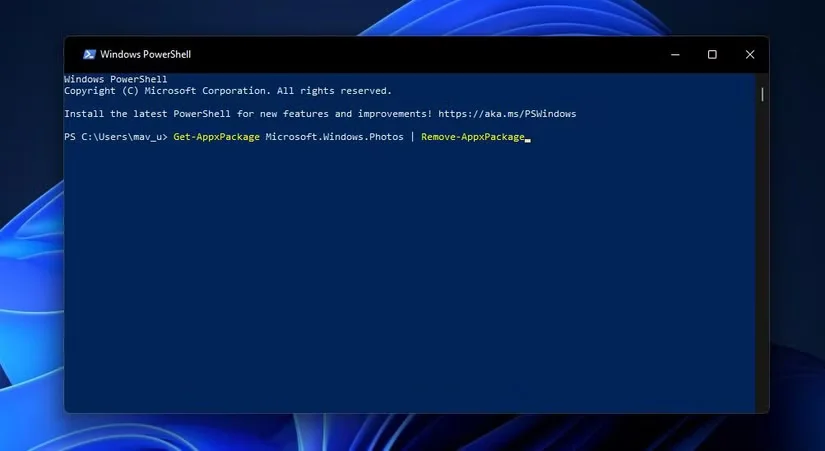
If none of the above solutions fix the file system error, you may need to reinstall the Photos application. It is also recommended that you thoroughly remove any remaining files from Photos after uninstalling the application.
Here's how to reinstall photos and remove the remaining parts in Windows:
- First, press Win + S Use the shortcut keys to bring up the search box.
- Enter keywords Power supply casing In the text box of the search tool.
- Right-click the Windows PowerShell search result and select... Run as administrator.
- To uninstall photos, enter the following PowerShell command:
Get-AppxPackage Microsoft.Windows.Photos | Remove-AppxPackage - Please press return The key to execution.
- Open the PsExec v2.3 webpage.
- Click Download PsTools The link is there.
- Launch the Windows Explorer window to navigate to the folder where the PsTools ZIP file is saved.
- Right-click PsTools ZIP to select Extract all.
- Click Browse In the opened extraction window, select to extract the ZIP file to... C:\Program Files (x86)\PsTools Folder location.
- choose refining Unzip the ZIP file.
- Open a command prompt with elevated user privileges.
- Enter the following text and click return:
C:\ProgramFiles (x86)\PsTools\PsExec.exe-sidc:\windowsystem32\cmd.exe - choose agree Options on the opened PsExec protocol window.
- Next, in the new prompt window that opens, type this rd (delete directory) command, and then press Enter. return:
rd /s “C:\Program Files\WindowsApps\Microsoft.Windows.Photos_2017.37071.16410.0_x64__8wekyb3d8bbwe” - Please press yes Use the keyboard keys to grant approval.
- Open the Microsoft Store by clicking the application's shortcut on the Start menu.
- type Microsoft Photos In the MS Store search box.
- Choose to open the Microsoft Photos page. Click get The button reinstalls the application.
Please note that the version number in the title of the "Microsoft.Windows.Photos" folder on your PC may differ from the version number in the command specified in step 15. You need to have ownership of the "WindowsApps" folder to open that folder directory and check the version number of the "Microsoft.Windows.Photos" folder on your PC.
You can take ownership of the WindowsApps folder by entering the following PowerShell command:
TAKEOWN /F "C:\Program Files\WindowsApps" /R /D YUse these potential fixes to start photos
File system errors affecting photos are not always easy to fix. There is no guaranteed fix for this error. However, the potential Windows 10 and 11 solutions for file system errors are certainly worth trying.
Please remember that Photos isn't the only image viewer application in the world. If file system errors persist after applying these resolutions, you can always check out some alternative image viewer applications for Photos. FastStone Image Viewer and IrfanView are two of the best free software image viewers with decent feature sets.

 Chinese (China)
  English
  Chinese (Taiwan)
  Russian
  Japanese