
How to fix Windows Skyrim Script Extender not working
Does the Skyrim Script Extender (SKSE64) tool malfunction when you try to run a new Skyrim mod? The SKSE64 tool may fail to work for a variety of reasons, including mod defects, corrupted game files, compatibility issues between SKSE and your game version, and most importantly, antivirus interference.
In this article, we will discuss the different fixes you can apply to get Skyrim Script Extender working again.
recommend:6 Weebly Website Builder Alternatives
Are you using a cracked version of Skyrim?
If you've been playing Skyrim using a pirated or illegal version, the following fixes won't help. In that case, get a legitimate copy; the problem might disappear. However, if you're using a legitimate copy and experiencing this issue, you should start applying the fixes.
1. Ensure the module is free of defects.
SKSE may not work if your recently enabled mod is corrupted. Perhaps the mod you're using doesn't support the latest version of Skyrim or SKSE, or it hasn't been updated in a long time. Additionally, recently added mods that are incompatible with other mods you're using can also cause the same problem.
Therefore, if problems occur after enabling a new mod, disable it and run the tool again. If disabling it resolves the issue, delete the mod, including files in its installation folder. However, if the problem is random, try enabling and disabling each mod individually to rule out any mod-related issues.
2. Run SKSE as administrator.
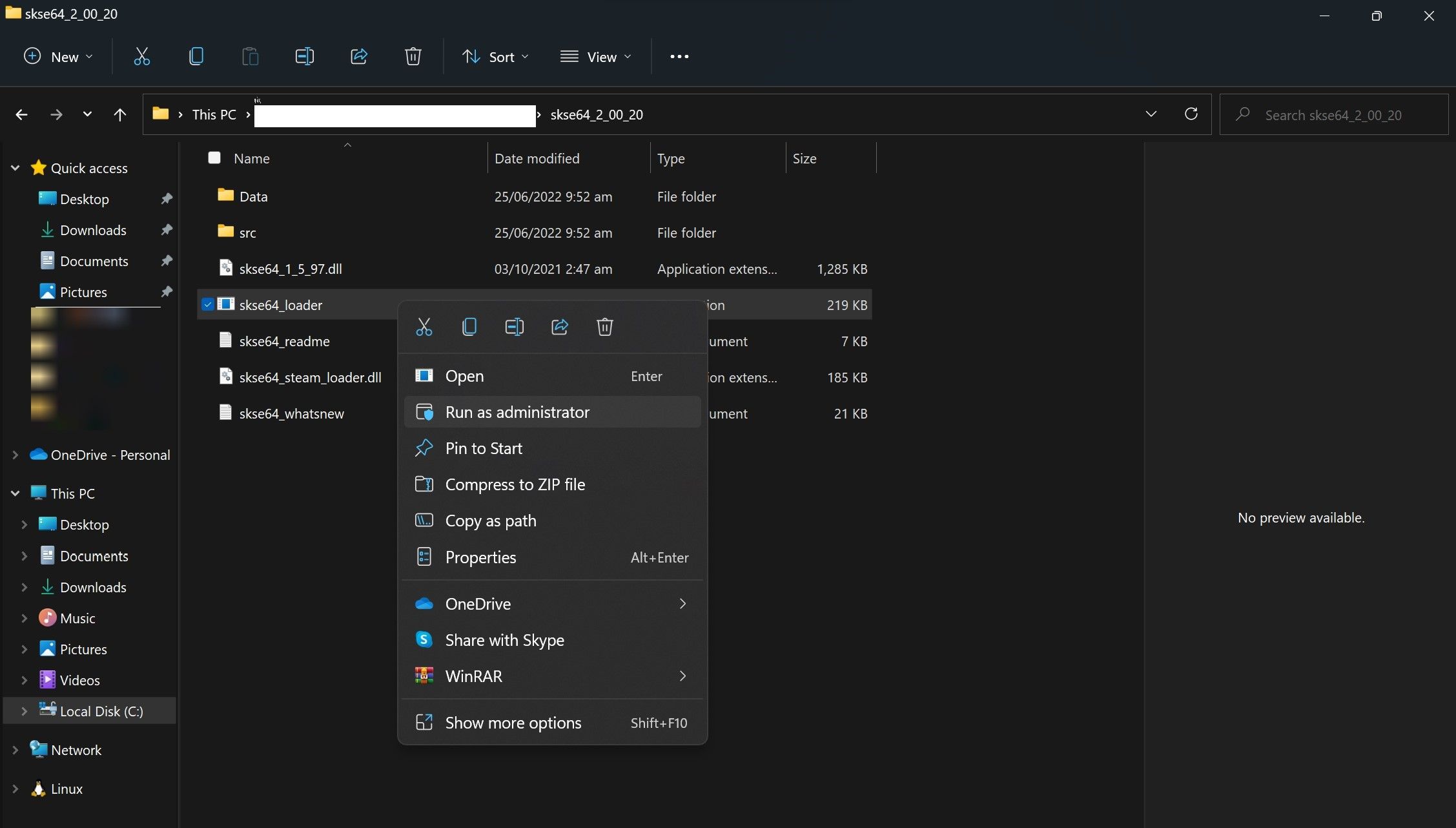
By running SKSE as administrator, you can eliminate any possibility that the operating system restricts the tool's access to system files, thus preventing it from functioning properly. You can do this by right-clicking its executable file and clicking... Run as administrator.
3. Verify the integrity of the game files.
For peace of mind, you should verify the integrity of the game files. Steam has a built-in tool to repair corrupted game files. Here are the steps you need to follow:
- Start the steam.
- Go to Steam Library.
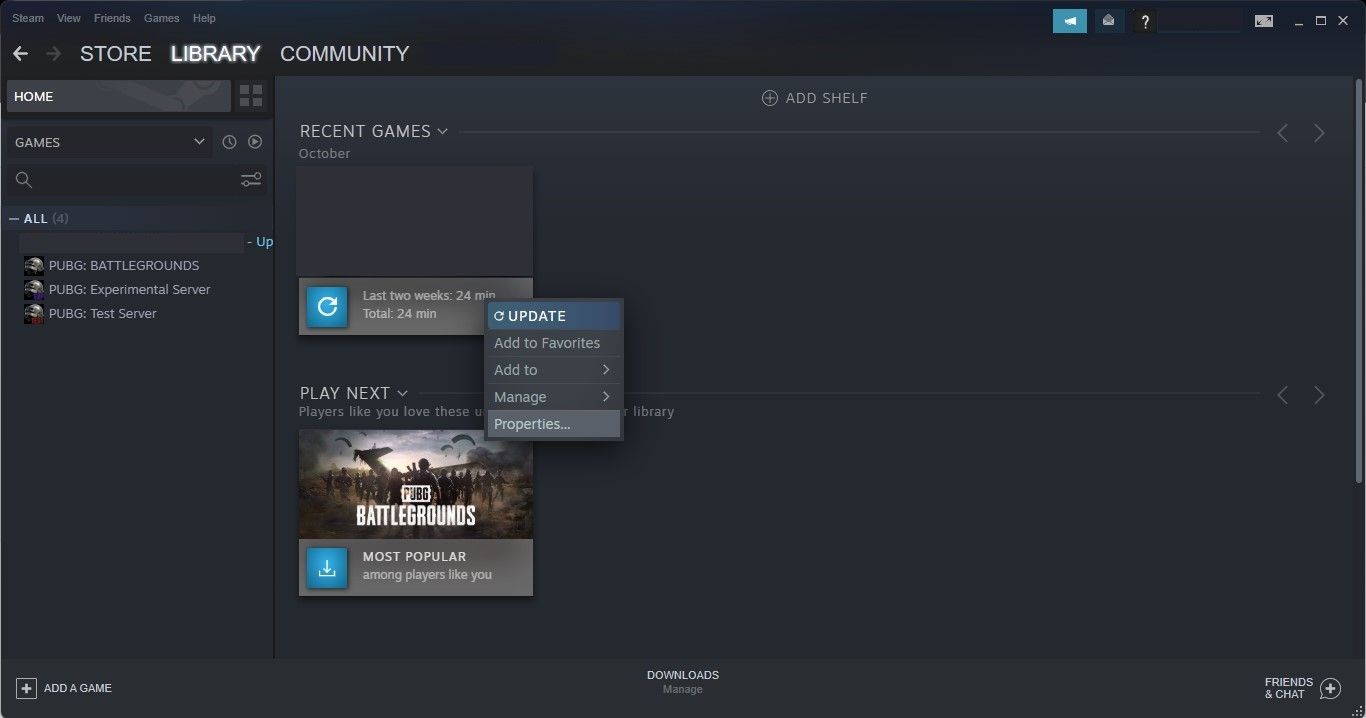
- Right-click on the sky and select characteristic.
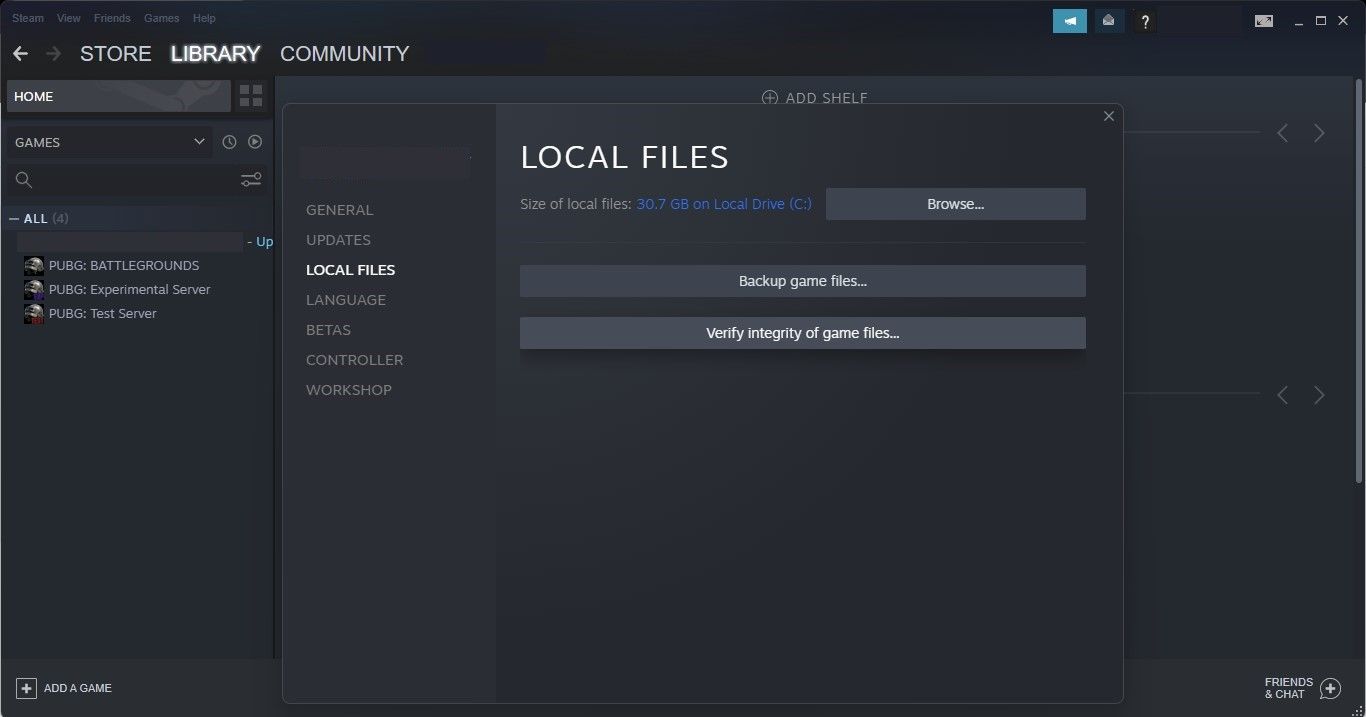
- In the left sidebar, click local files.
- In the right pane, click Verify the integrity of game files.
If the integrity check fails to resolve the issue, ensure that compatibility problems are not the cause.
recommend:Fix Google Chrome not loading images
4. Eliminate compatibility issues
Just as running incompatible mods will cause SKSE to malfunction, running SKSE on incompatible game versions will also cause it to fail. Please follow these steps to rule out this possibility:
- Navigate to the following path:
C:/Program Files (x86)/Steam/steamapps/common - Locate the game's executable file.
- Right-click it, and then select characteristic.
- Please note the game version. detail Label.
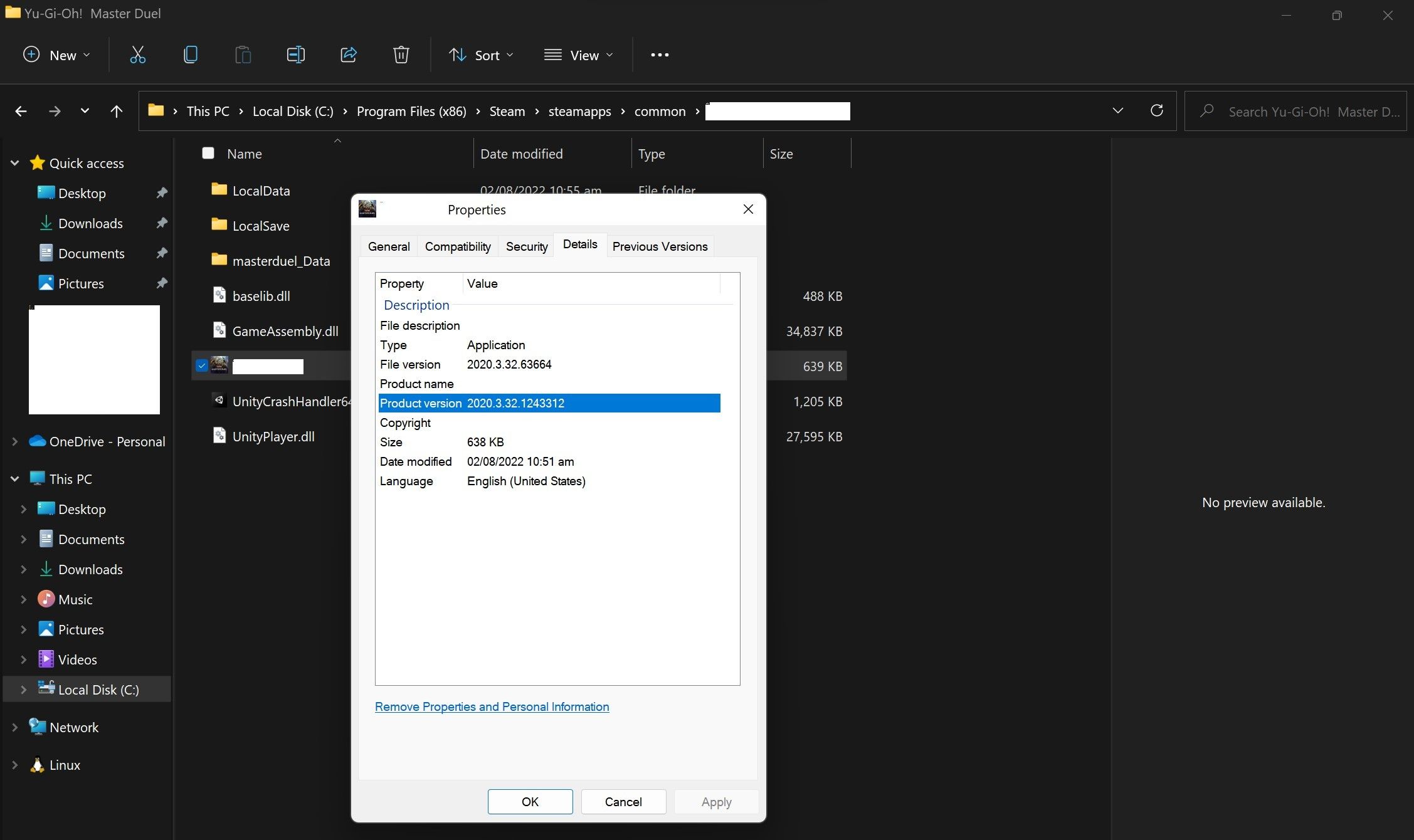
- Visit the SKSE download page and compare your version with the game version.
If SKSE's build is compatible with the game version, you can proceed to the next fix. Otherwise, download a compatible version to resolve the issue.
5. Prevent Skyrim from updating automatically.
If downloading a compatible version of SKSE resolved the issue, be sure to disable Skyrim automatic updates to avoid encountering incompatibility problems again. Please follow these steps to stop Skyrim automatic updates:
- Turn on the steam.
- Go to Steam Library Label.
- Right-click Skyline And select characteristic.
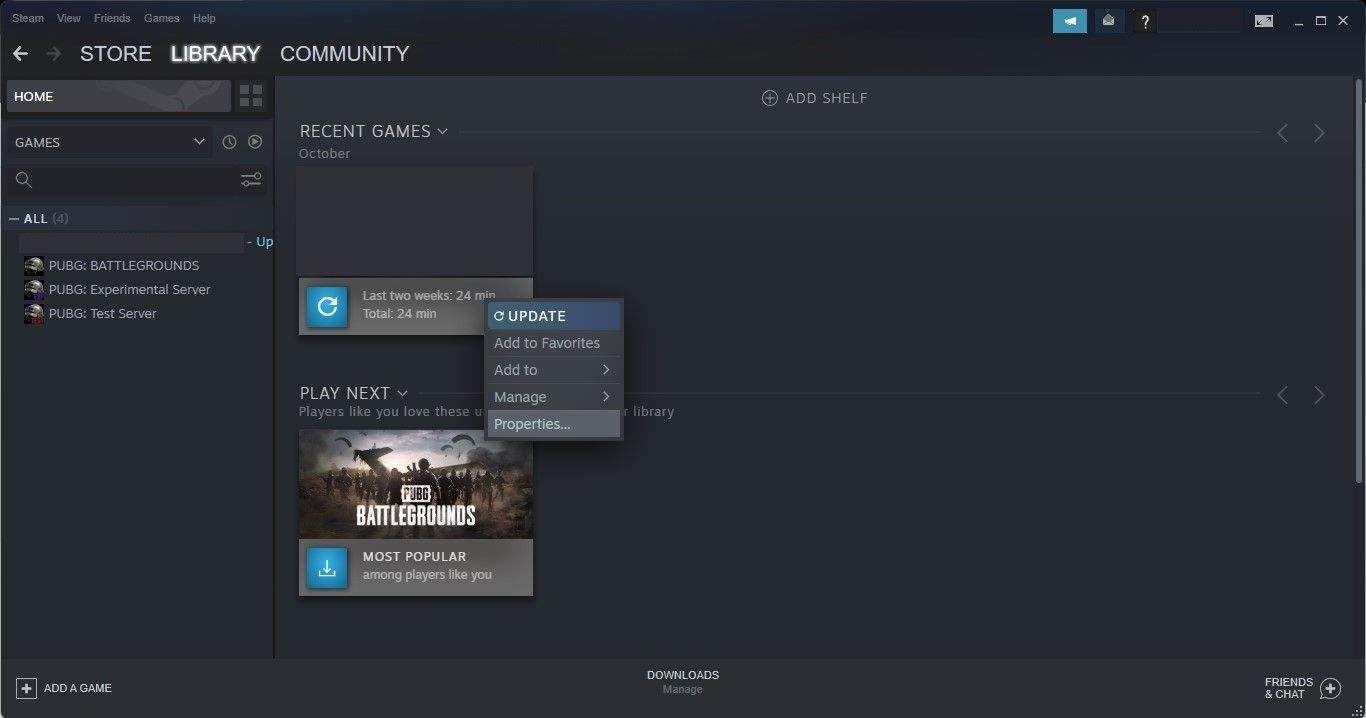
- In the left sidebar, click renew Label.
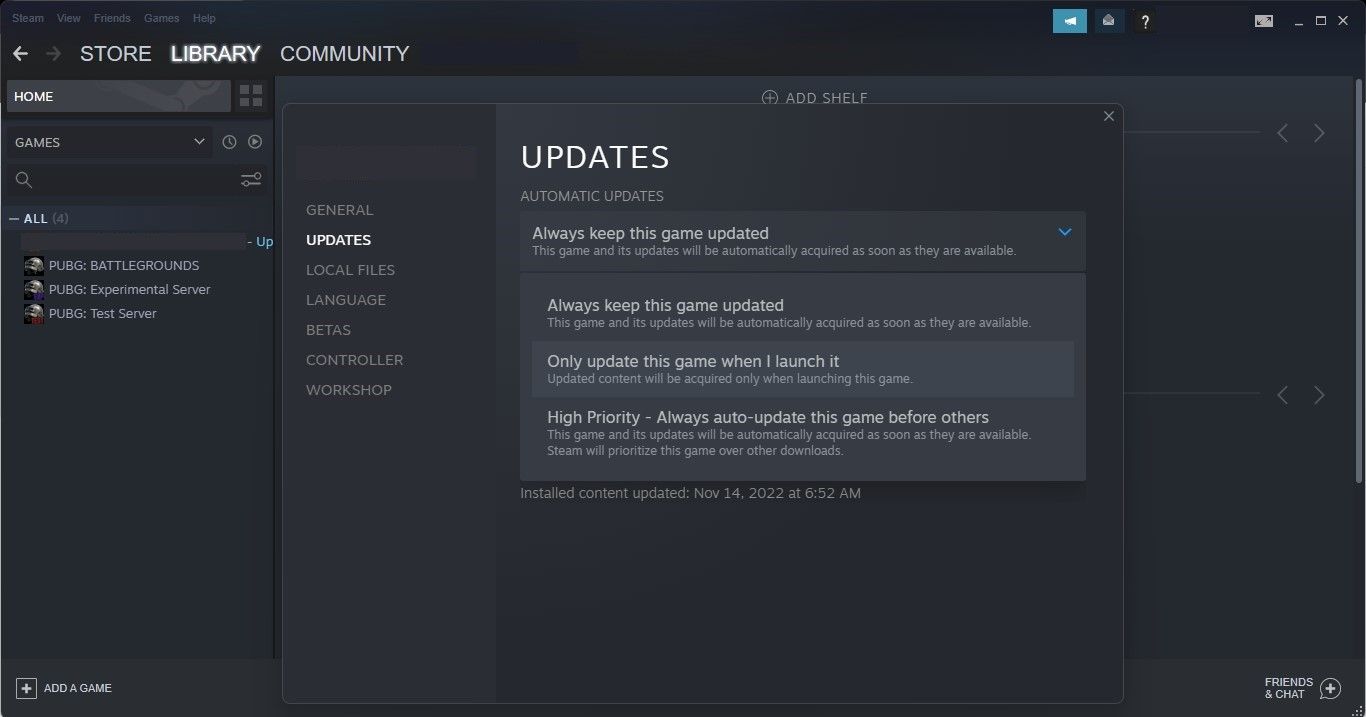
- choose Update this game only when I launch it From Automatic updates fall.
- Inside Background download Drop-down menu, select Background downloads are strictly prohibited..
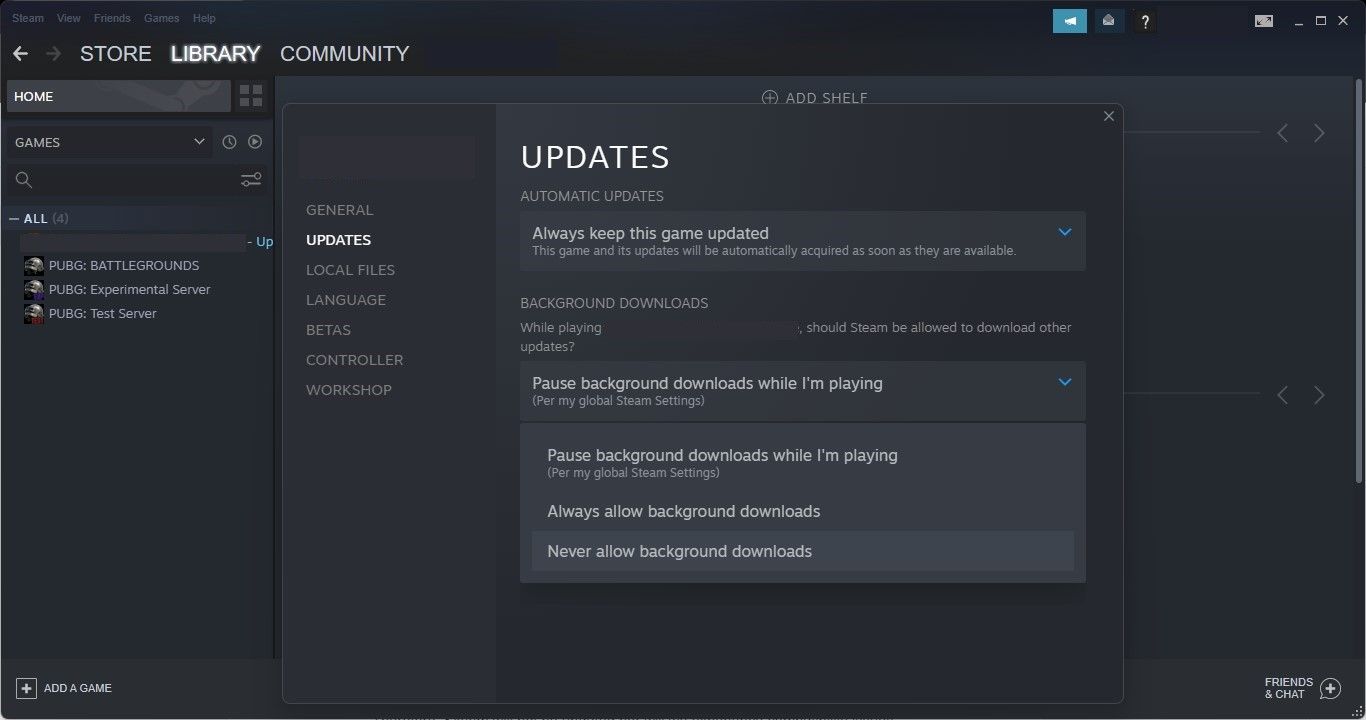
By setting automatic updates to only start when launching Skyrim, you should not launch the game again from Steam. Doing so may cause the game to update again, making it incompatible with your current SKSE version. Therefore, you should launch the game using SKSE itself or through a mod manager.
recommend:How to hide the language bar from the Windows 11 taskbar
6. Launch the game using Mod Organizer.
Starting Skyrim using a Mod Organizer (such as Mod Organizer 2 or Vortex) has two main advantages:
- First, using the mod manager eliminates the need to launch the game via Steam. Therefore, Skyrim will not be updated, and we will not encounter compatibility issues.
- Secondly, Skyrim often skips mods when launched from its launcher or executable. Using the mod organizer has eliminated this possibility.
For those who don't use any mod manager, we recommend doing so to eliminate compatibility issues. However, what if you don't want to use a mod manager? Use SKSE itself. To prepare for future compatibility issues, always keep a backup of Skyrim.
7. Resolve compatibility issues through backups
If you occasionally run Skyrim without mods on Steam, Steam may automatically update the game, as we've configured it to do so. This means that running SKSE might cause compatibility issues to reappear.
However, you can use a workaround to avoid compatibility issues: create a backup of your game files, which you can restore if the same problem occurs again. Here's what you need to do:
- Navigate to the following path:
C:/Program Files (x86)/Steam/steamapps/common - Copy the Skygames folder.
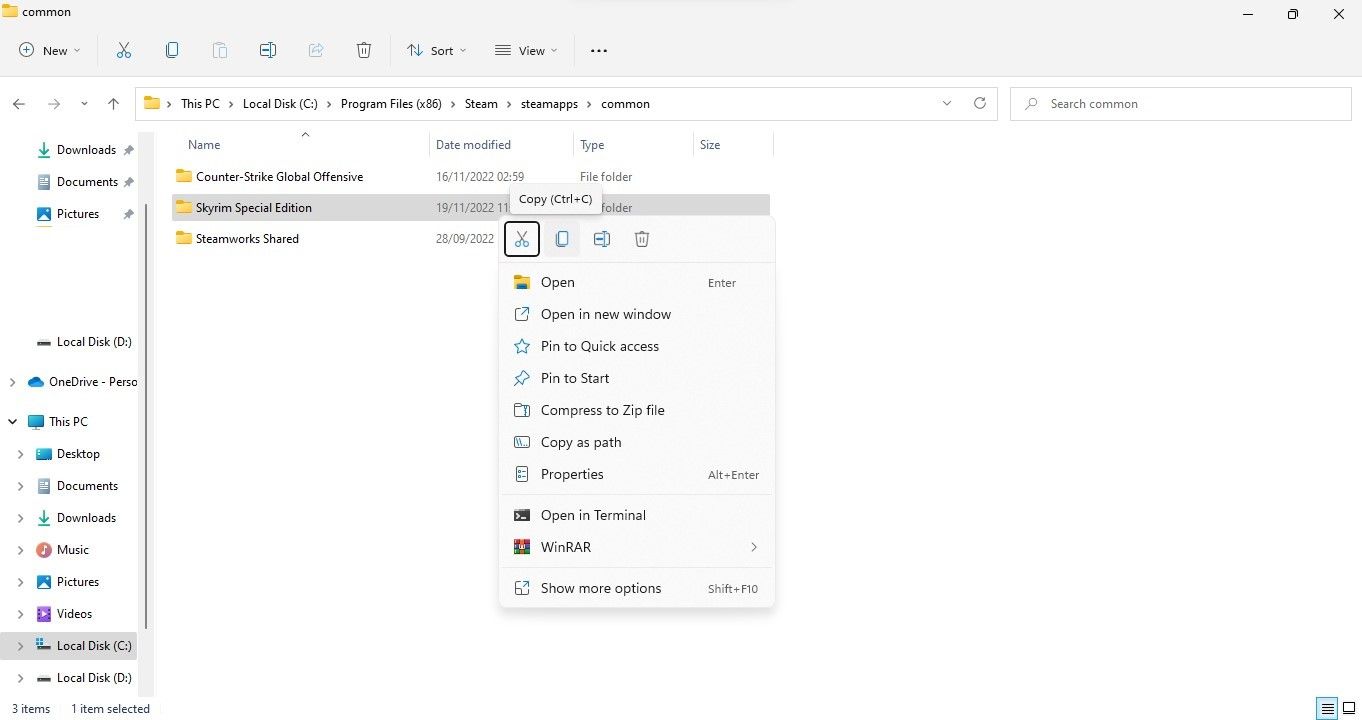
- Paste the game files to another location on your computer. You can also use one of the methods in our guide on how to back up your Windows data to the cloud.
That's all. If compatibility issues arise after the update, return to the backup location and replace the original game folder in your Steam directory with the backup.
8. Ensure that your firewall or antivirus software is not interfering.
Because SKSE directly modifies game files, your antivirus software or Windows Defender firewall will often identify it as a threat. This may cause your firewall or antivirus program to interfere with the communication process between SKSE and the game.
To resolve this issue, you need to allow SKSE exclusive access through your firewall; in other words, whitelist it. If you are unfamiliar with the process, our guide on how to whitelist files in Windows Defender Firewall will help you. If you are using third-party antivirus software, please refer to its official documentation for instructions on how to whitelist applications.
9. Reinstall Steam from a different location.
If all repairs fail, you should reinstall Steam. Make sure it's not installed on the same drive as your operating system. The reason is that Windows security blocks SKSE from modifying game files, thus preventing communication. Reinstall Steam in a different location; hopefully, this will resolve the issue.
Try your new module with SKSE64
It can be really discouraging when we're all ready to try out newly released mods, especially when the Skyrim Script Extender isn't working. Hopefully, applying the fixes discussed in this article will fix SKSE64 and let you enjoy your new mod. There's no doubt that mods can breathe new life into a game, so they're definitely worth a try.

 Chinese (China)
  English
  Chinese (Taiwan)
  Russian
  Japanese