
How to control an iPhone via Windows/Mac
Let's face it, checking your work emails on your iPhone while working on your PC simultaneously is incredibly tedious. That's just one example. Many times, you might need to use your phone and Windows or Mac at the same time. In such cases, being able to control your iPhone from your PC becomes a breeze.
Okay, so what if we told you how to control your iPhone from Windows/Mac? Yes, you can rely on several methods! Of course, some are more convenient and effective than others. Wondering which methods they are? That's basically where this guide comes in! Read on to learn everything about them.
Method 1: Use Imyfone Mirror
We tried many third-party apps that allow you to control your iPhone from your PC. None of them compare to Imyfone Mirrorto – the best screen mirroring app. Curious to know how it works? Let us give you a breakdown:
Control your iPhone with a USB cable using the Imyfone Mirrorto
Therefore, the Imyfone Mirrorto allows you to control your iPhone on your PC via a USB cable. To do this, you will need to follow these steps:
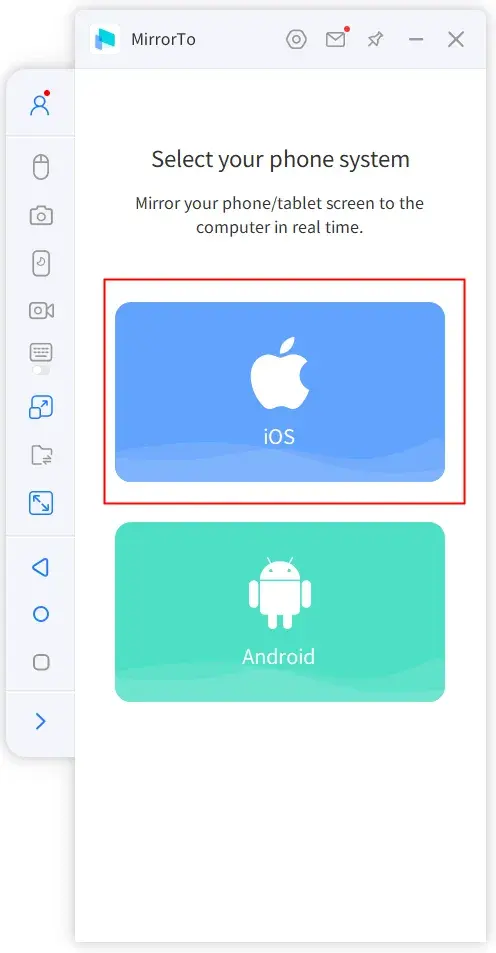
- Launch the mirror app, then click iOS.
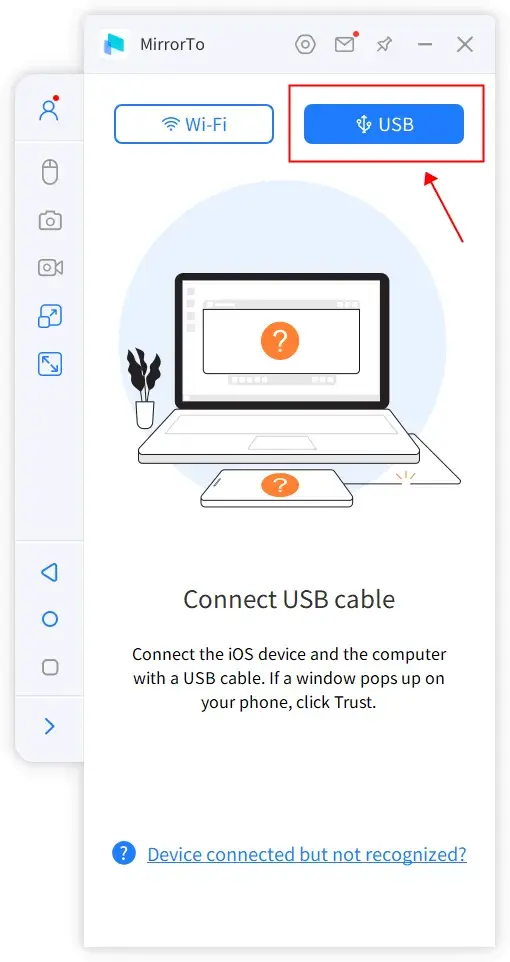
- Connect your iPhone to your computer using a USB cable, and then select the USB option in the app.
- On your iPhone, you should be prompted to trust your computer; tap Trust.
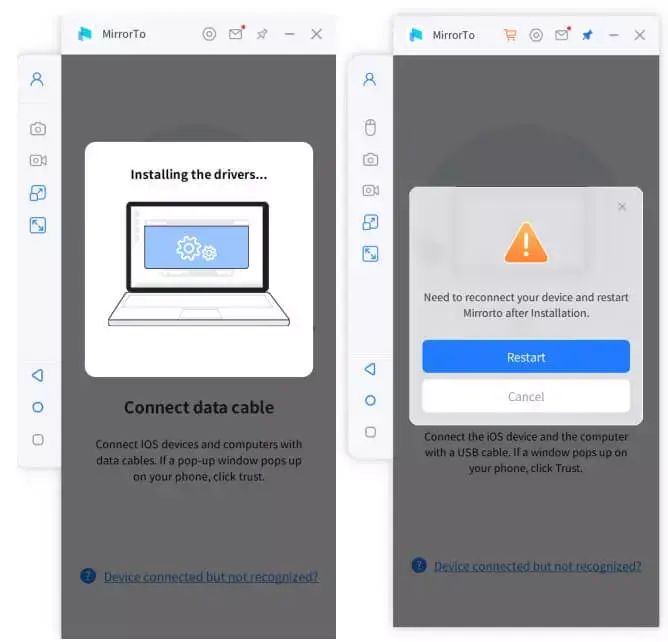
- If your Windows or Mac computer does not have the required drivers, let the Mirrorto application download them. Close the application after the drivers are installed.
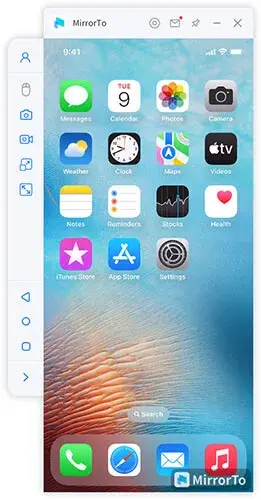
- Relaunch the Imyfone Mirrorto app, select iOS, reconnect your iPhone, and press USB. You should see a mirror of your iOS device on your PC screen.
Control your iPhone via WiFi on your PC using Imyfone Mirrorto
Don't want to keep your phone connected to a USB cable? You don't have to! That's the beauty of this app. It also lets you mirror your iPhone via Wi-Fi. All you need to do is follow these steps:
- Launch the mirror app, then click iOS.
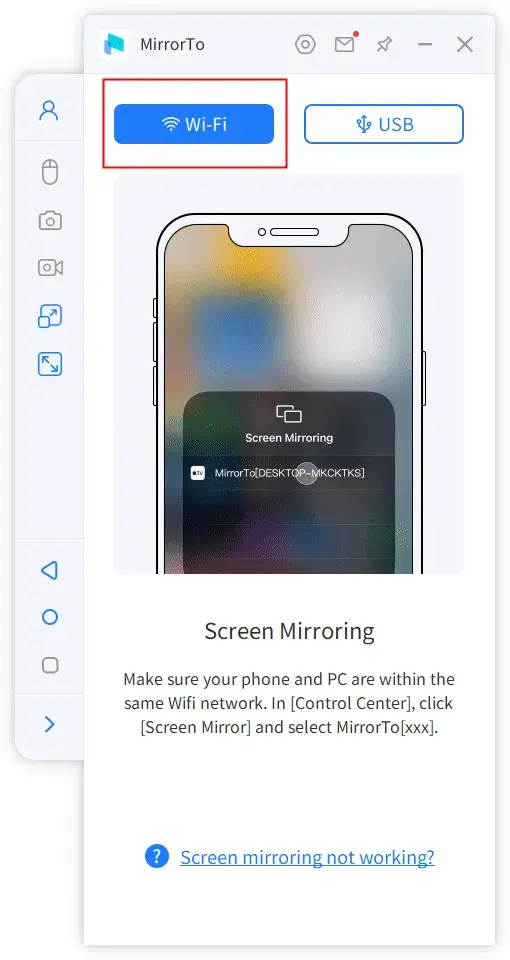
- Select WiFi in the next window. Note that you will need to manually turn on your hotspot and connect your iPhone to the same network when using the desktop.
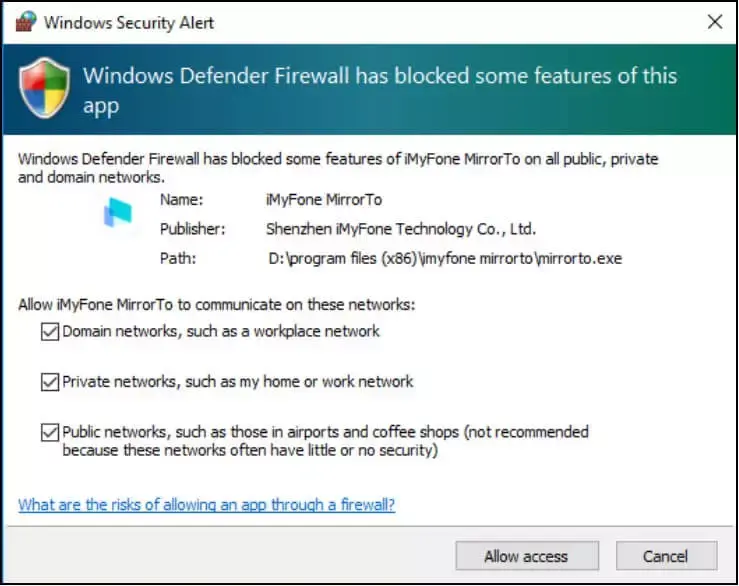
- Grant Mirrorto the necessary permissions to access your network.
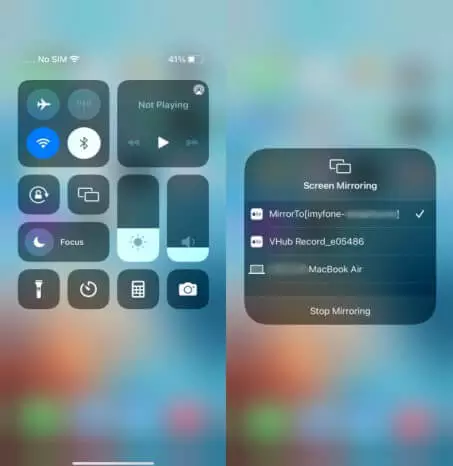
- You should start seeing a mirrored iPhone screen on your computer.
Other steps to control your iPhone from your PC
After obtaining your phone's screen on your PC through the steps described above, you must pair your iPhone and computer via Bluetooth for control. Let's move on:
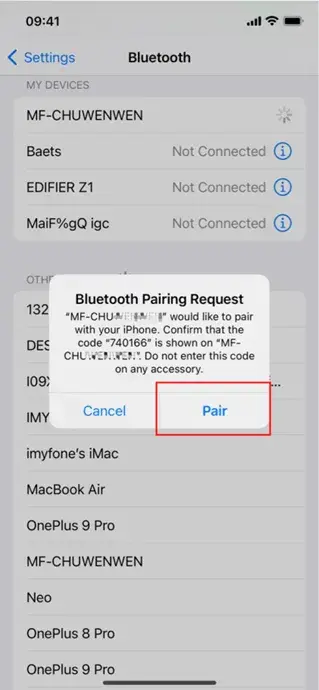
- Go to Settings on your iPhone and press Bluetooth.
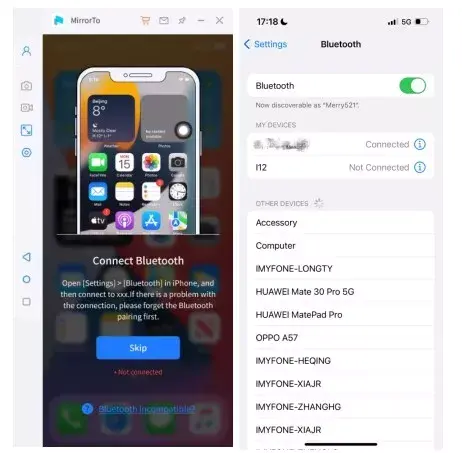
- Pair with your current screen-casting computer. When it pops up, press Pair. If you see two Bluetooth connection ports with the same name, connect to both.
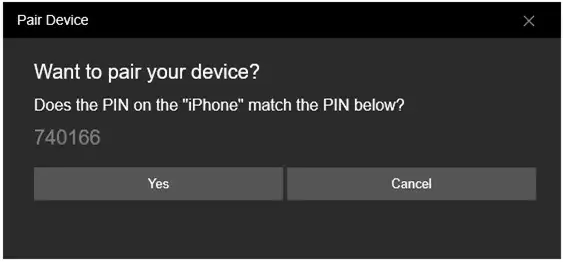
- On a PC, when the new window pops up, click the "Yes" button.
- You should see a message indicating a successful connection. After that, you can control your iPhone from your PC.
recommend:Disable or enable virtual memory file encryption in Windows 11
Method 2: Use TeamViewer to control your iPhone from your PC
You can control your iPhone from your PC using TeamViewer. However, please remember that unlike Imyfone Mirrorto, you cannot control all of your phone's functions through TeamViewer. Configuring the app isn't as straightforward either. That said, here are the steps to use it:
- Download and install the TeamViewer app on your iPhone. Once launched, it will generate a unique ID for your device.
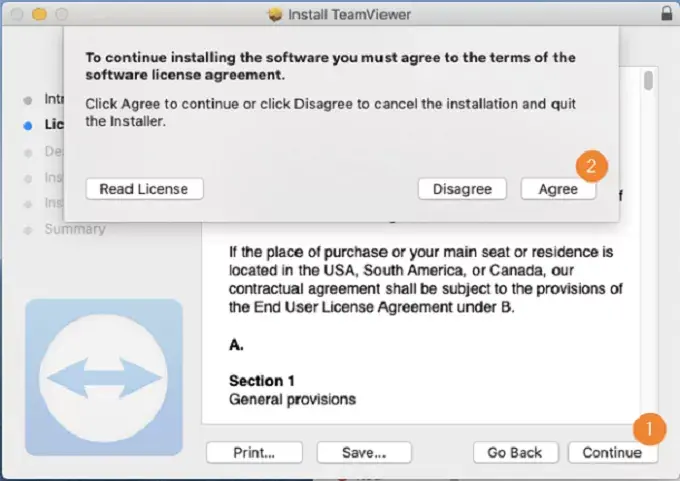
- On your computer, open the TeamViewer software and then click "Remote Control".
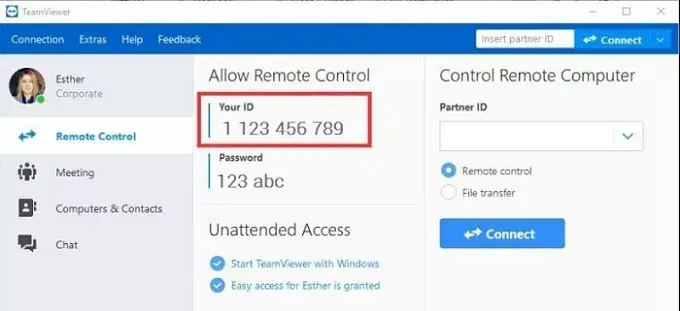
- Enter the unique ID generated on your iPhone, and then click "Connect".
- Swipe down on your iPhone's screen to open Control Center. Locate "Screen Mirroring" and tap to enable it.
Method 3: Using ISL light
Another great tool for controlling your iPhone from your PC is ISL Light. Note that it requires you to download the app on both your phone and PC. That said, here are the steps:
- Download ISL Light on your PC and iPhone.
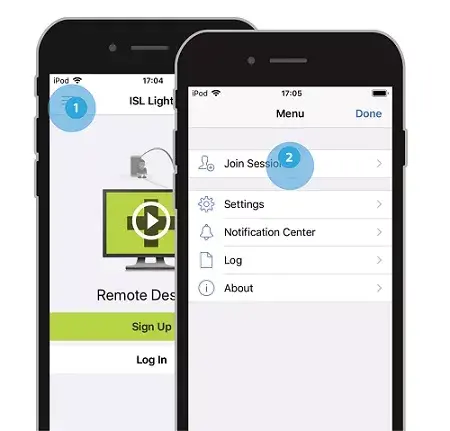
- Open the application on your PC and start a session.

- Open the application on your phone and join a session. Enter the code provided in the application on your computer.
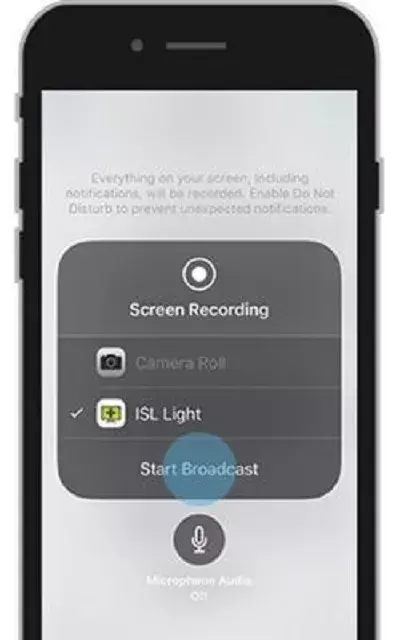
- To record screen in iPhone Control Center, select ISL Light, and then press Start Broadcast.
recommend:How to import captured scanned and sketched images from your iPhone to your Mac
Method 4: Using Veency
Another software that allows you to control your iPhone using a computer is Veency. While it offers complete control, you'll need a jailbroken iPhone. Additionally, it's known to quickly drain the battery. Therefore, proceed with caution.
- Open the Apple App Store and install Veency.
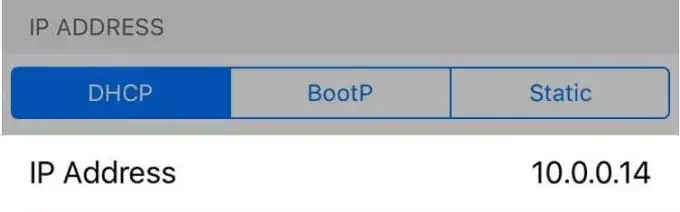
- Go to Settings on your iPhone, then Wi-Fi, and note down your iPhone's IP address.
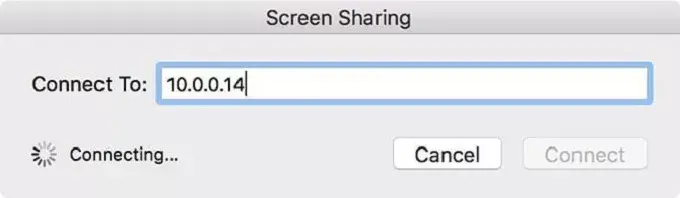
- Download and launch Veency on your iPhone. In the IP address box, enter your iPhone's IP address and then press Connect.
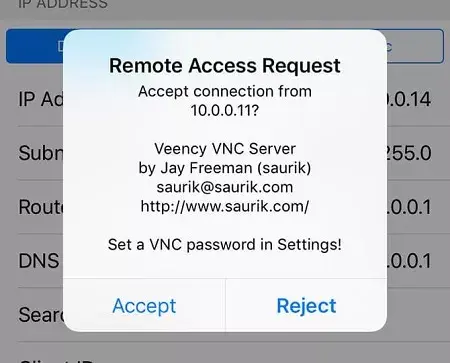
- Once you accept the phone's request, you should be able to view and control the phone's screen from your computer.
Summarize
You have several options for controlling your iPhone from your computer. However, as you can see, some are more convenient than others. If you're asking us, we recommend Imyfone Mirrorto. The good thing is that it doesn't just work on iPhones; it also works on Android. You can also project multiple screens, annotate on the shared screen, and then play games on your phone.

 Chinese (China)
  English
  Chinese (Taiwan)
  Russian
  Japanese