
How to import captured scanned and sketched images from your iPhone to your Mac
This feature puts AirDrop in a tough fight, and in some cases might even be better, such as sending documents.
Sharing from your iPhone to your Mac takes only a few steps. All you need to do is put them in iMessage or AirDrop, open them on your computer, and they're there.
However, if you've ever needed to send multiple documents at once, or if you do this frequently, you might wonder if there's a better way.
Fortunately, yes. With the Import from iPhone feature in macOS, you can send files directly to your desktop when you capture them on your phone. Here's how it works.
recommend:How to customize your Mac terminal
Take a photo directly on your Mac desktop using your iPhone.
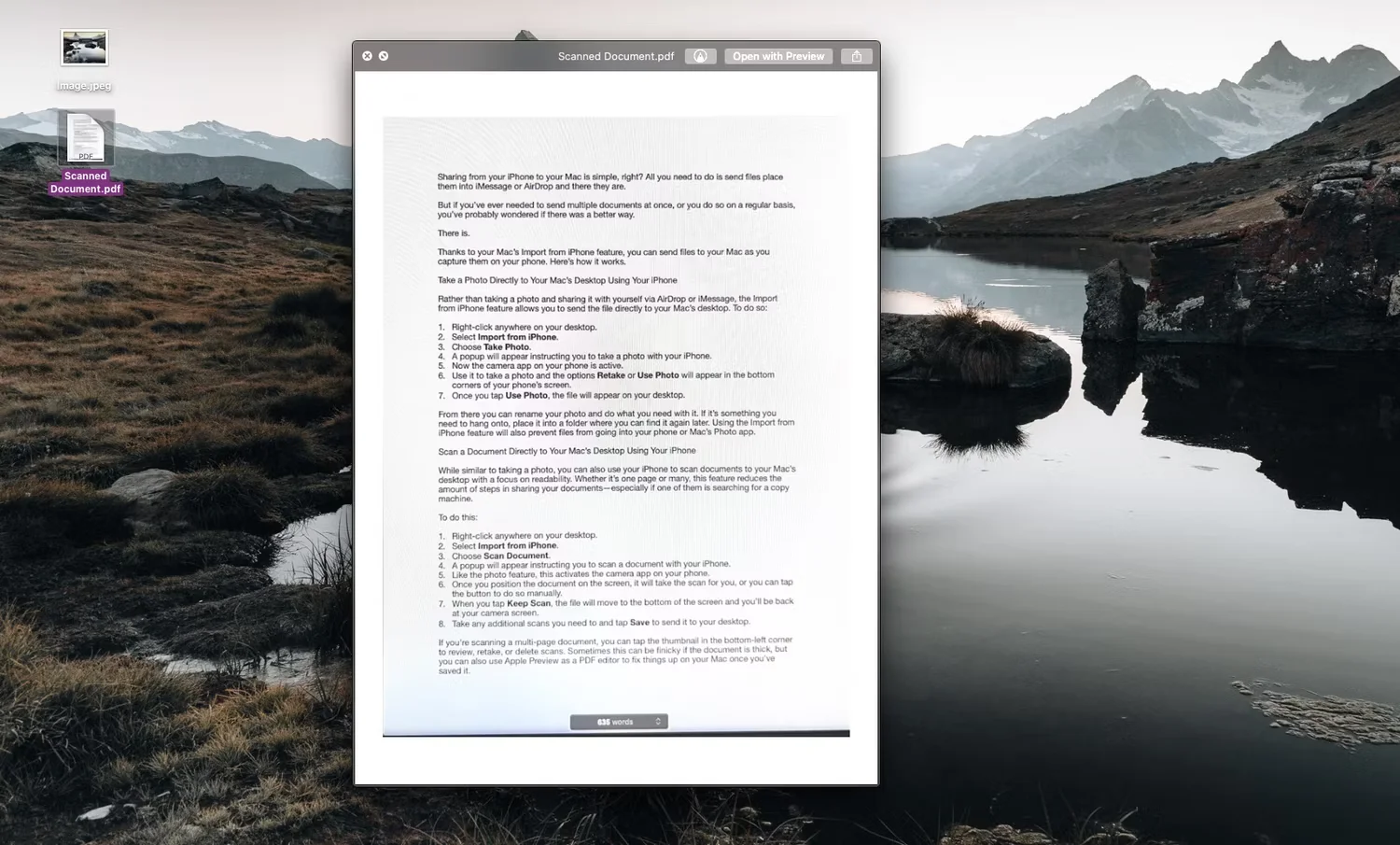
Instead of taking a photo on your iPhone and manually sending it to yourself, Import from iPhone This feature allows you to capture image files directly to your Mac's desktop. Here's what you need to do:
- Right-click anywhere on the desktop.
- choose Import from iPhone > Take a photo.
- A pop-up window will appear, instructing you to take a photo with your iPhone. You will see that the camera app is open and active.
- Use it to take pictures, and the options Reshoot or Use photos It will appear in the bottom corner of the phone screen.
- When you click Use photosThe image will appear on your desktop.
From there, you can rename the file and put it into the document.
Using the import from iPhone feature can also prevent the image from appearing in your phone's or Mac's Photos app. Therefore, if you need to keep the file, put it in a folder so you can find it again later.
Scan documents directly to your Mac desktop using your iPhone.
You can also use your iPhone to scan documents to your Mac desktop. Whether you're scanning one page or multiple pages, you can capture and create a PDF that looks similar to copier quality.
To do this, please follow these simple instructions:
- Right-click anywhere on the desktop.
- choose Import from iPhone > Scanned Document.
- A pop-up window will appear, instructing you to scan the document using your iPhone. Similar to taking a photo, this will activate the camera app on your phone.
- Once you place the document on the screen, your phone will capture it for you, or you can do so manually by pressing a button.
- When you click Keep scanningThe file will move to the bottom of the screen, and you will return to the camera screen.
- Perform any additional scans you need, then click save Send the file to your desktop.
If you are scanning a multi-page document, you can click the thumbnail in the bottom left corner to view, retake, or delete the scan. This can sometimes be tricky if the document is thick, but you can also use Apple Preview on your Mac to add, delete, or merge pages after saving.
Add sketches directly to your Mac desktop using your iPhone.
Sometimes, you might need a perfect sketch to illustrate your point, or something easier to draw than to express in words. With the "Import to iPhone" feature, you can easily create sketches and add them to your documents.
Please follow these steps to learn the process:
- Right-click anywhere on the desktop.
- choose Import from iPhone > Add Sketch.
- A pop-up window will appear, instructing you to add a sketch using your iPhone. A blank marking screen will appear on your iPhone.
- You can use the tools at the bottom of the screen to create a sketch.
- When you click completeThe file will appear on your desktop.
Now you can drag and drop it into the file you need or save it wherever you want.
If you work in Apple Pages, you can also save yourself another step by using the import from iPhone feature directly in Pages.
Import from iPhone to save time
Mac's "Import from iPhone" feature makes keeping documents together a breeze. You'll also avoid cluttering your phone with work- or project-related photos, scans, and sketches, saving you the trouble of deleting them later. Importing images to your Mac truly takes your productivity to a new level.

 Chinese (China)
  English
  Chinese (Taiwan)
  Russian
  Japanese