
Fix Xbox Insider Hub not working on Windows 11
Xbox Insider Hub is an application for Windows that lets you participate in the Xbox Insider program and provide feedback on the latest Xbox updates. It gives you the opportunity to preview new Xbox games and apps before anyone else.
However, sometimes you might find that the Xbox Insider Hub won't run on your computer. This issue can occur due to a corrupted Microsoft Store cache and third-party antivirus programs. Here, we show you all the effective ways to fix the Xbox Insider Hub in Windows 11.
recommend:How to update your Xbox One controller and Series X|S controller
1. Troubleshooting Windows Store apps
Windows comes with many built-in troubleshooters to help resolve Windows-related issues. One of these is the Windows Store App Troubleshooter, which is the preferred option for resolving various Windows Store app problems.
The Windows Store App Troubleshooter will scan your computer and detect any issues preventing Xbox Insider Hub from working properly. It will then automatically eliminate these issues, if possible, without your intervention.
Here's how to use the Windows Store application troubleshooter:
- Open the "Settings" menu, then navigate to... system > Q&A.
- Click Other questions and answers.
- Scroll down and click run The button next to Windows Store Apps.
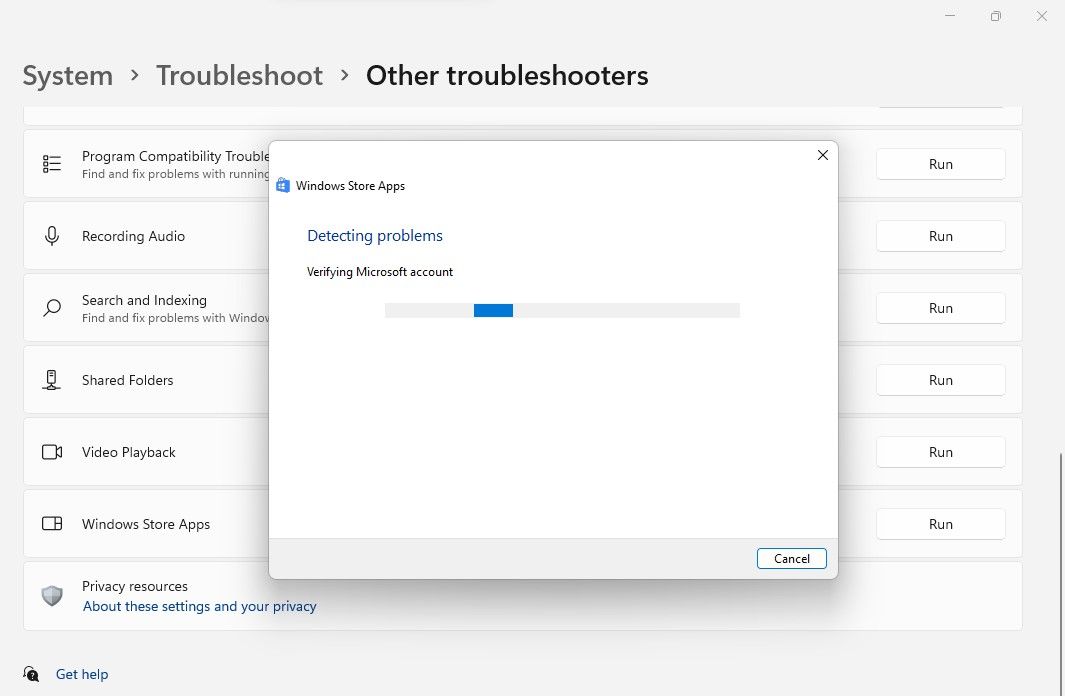
Fix Xbox Insider Hub not working on Windows 11
- A troubleshooting window will open and begin scanning your system for problems.
If the troubleshooter detects any problems, it will attempt to fix them independently. Alternatively, it may guide you on how to resolve the issue yourself.
After applying all the repairs, close the troubleshooting program and restart the system.
2. Synchronize your computer time and date
Although it may sound strange, Xbox Insider Hub may not work properly if your system displays an incorrect date and time. This is because Xbox Insider Hub is downloaded from a secure server that carefully checks whether the time it tracks is synchronized with the client's computer.
Please follow these steps to configure the date and time in Windows 11:
- Open settings and select Time and language From the left panel.
- choose Dating time.
- In the date and time window, disable the toggle next to it. Automatic time setting.
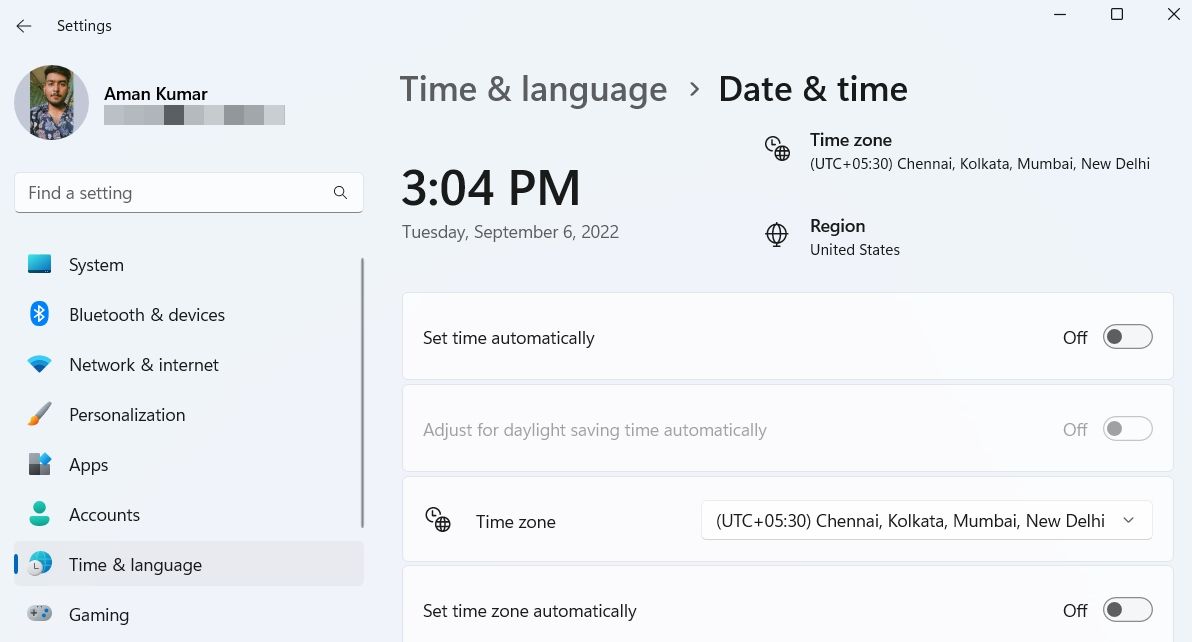
- Click Change The button next to Manually set date and time.
- Enter the correct date and time in the pop-up dialog box, and then click [click]. Change.

That's it. Quickly restart your computer and check if you still encounter the problem. If so, try the next solution in the list.
recommend:How to update AMD Radeon graphics card drivers on Windows 11
3. Check if any Windows updates are available.
After completing the date and time synchronization steps, you may find that the Xbox Insider Hub is not working properly due to an error that you are unaware of or do not know how to remove. In this case, you should consider downloading the latest Windows update.
If Windows updates are paused on your system, you should allow it to download the latest updates, which may restore Xbox Insider Hub to normal.
To check for any available Windows updates, follow these instructions:
- Open settings, then select Windows Update From the left panel.
- Click Check for updates Button.
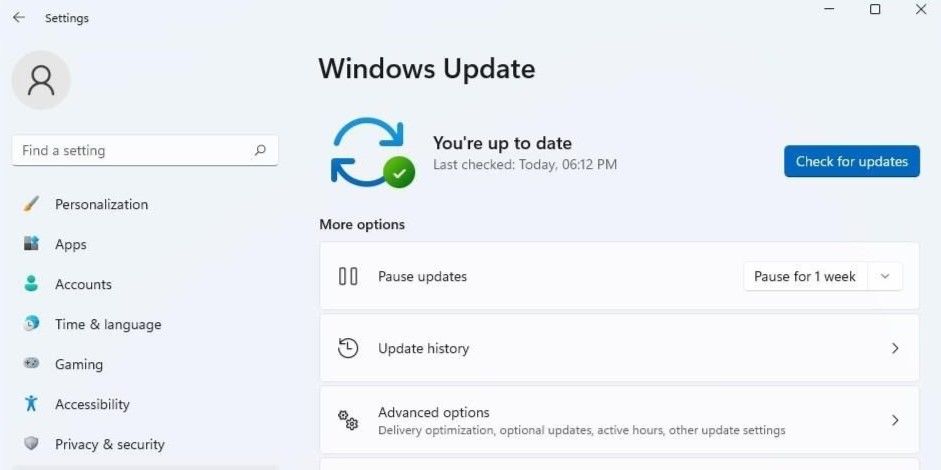
Windows will now look for and download any available updates. You may then need to restart your computer to install the downloaded updates.
Once the entire process is complete, check if the Xbox Insider Hub is working properly.
4. Clear the Microsoft Store cache
Cache files are temporary files stored by all applications, including the Microsoft Store, to help provide faster, smoother service the next time you visit the platform. However, for various reasons, these cache files can become cluttered and corrupted over time, causing various problems, including the last one.
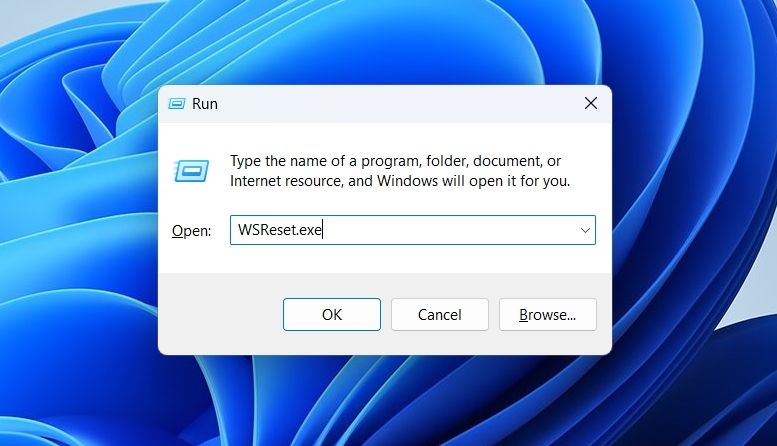
In this case, the solution is to use a built-in utility called WSReset.exe to reset the Microsoft Store cache. This utility will close the Microsoft Store and reset application and account settings.
To reset the Microsoft Store cache, open the "Run" dialog box and type... WSReset.exe, Then press Enter. You will see a black command prompt window, which will disappear after a few seconds, and then the Microsoft Store will open automatically, indicating that the reset was successful.
5. Disable any third-party antivirus programs.
Antivirus software is important for your computer's security. However, some third-party antivirus programs can sometimes interfere with the operation of installed applications and cause various problems.
To confirm that a third-party antivirus program is the primary cause of the problem, consider using Xbox Insider Hub after disabling the antivirus program. You can right-click the antivirus icon in the system tray and select Disable it from the context menu.
If Xbox Insider Hub launches without any issues after disabling your antivirus software, then you now know the culprit behind the problem. You can now uninstall your third-party antivirus program, or remember to always disable it before using Xbox Insider Hub.
recommend:Installing the EPEL repo on Amazon Linux 2023
6. Check your proxy settings.
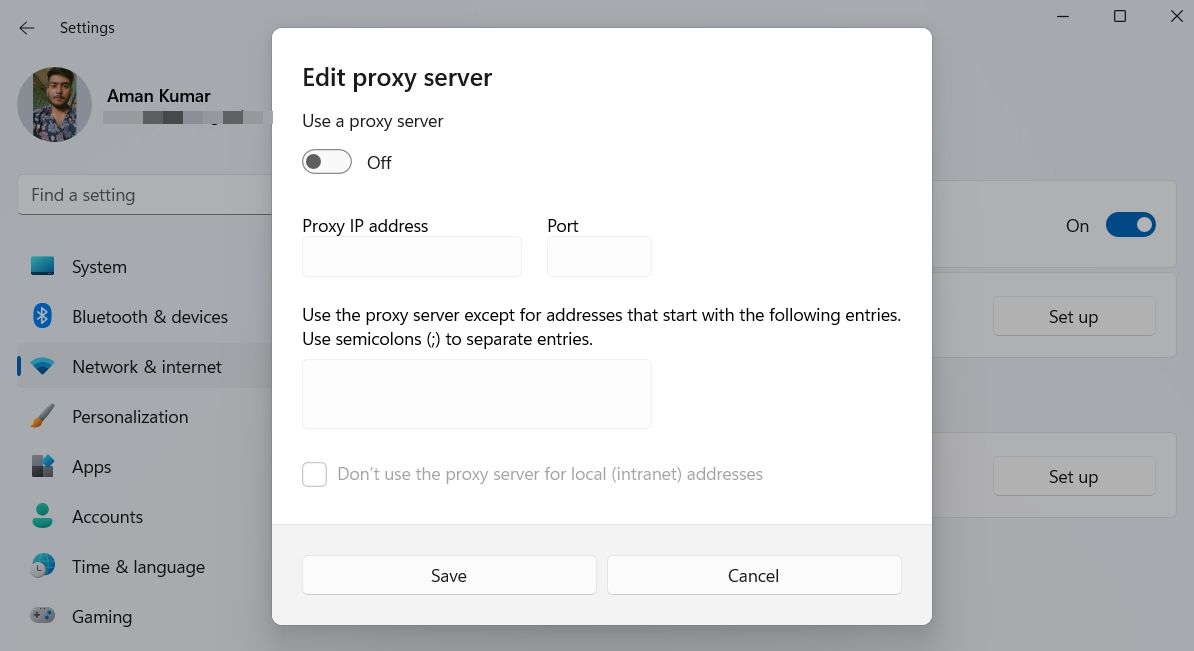
If you are using irregular network settings, Xbox Insider Hub will not work on your system. First, temporarily disable any VPNs you have installed. If you don't know how to disable it, check your VPN's documentation page.
Alternatively, if you don't use a VPN frequently, uninstall it from your system. Afterward, disable your proxy settings. You can do this by following these steps.
- Open Settings, then navigate to Network and Internet > agent.
- Disable Use a proxy server Switch.
7. Reset Xbox Insider Hub
Restoring your Xbox Insider Hub to its default settings may resolve your issue.
Here's how to reset your Xbox Insider Hub in Windows 11:
- Open Settings and go to application > Installed applications.
- Click Three points beside Xbox Member Center And select Advanced Options.
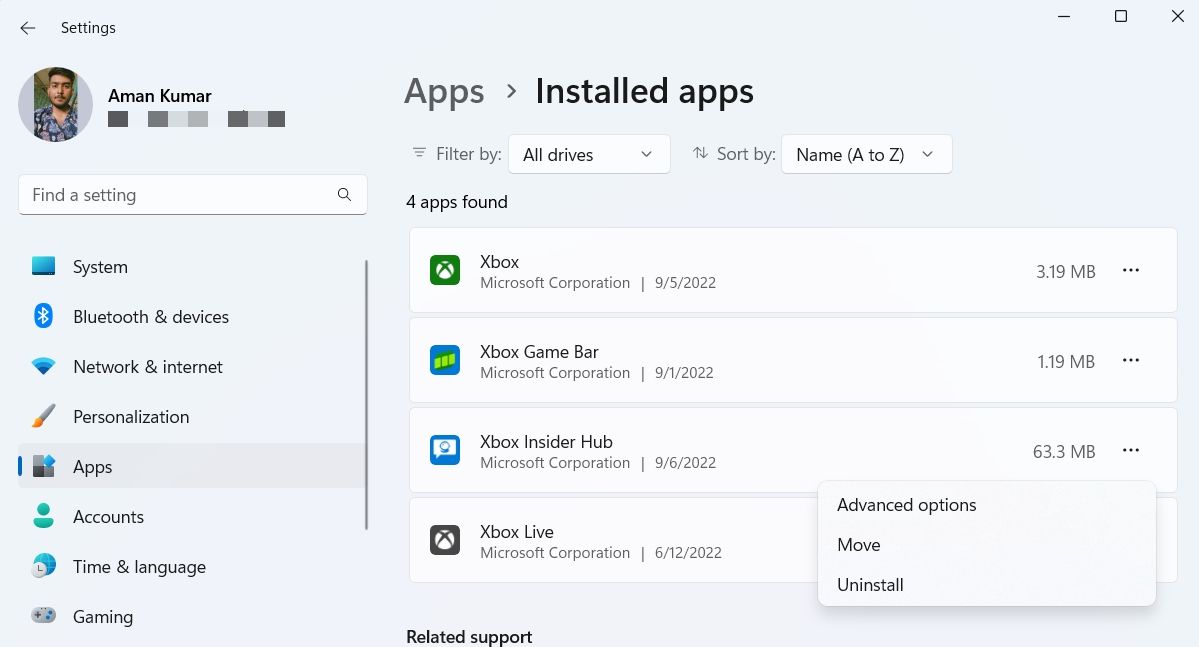
- choose Reset Button.

- Windows will take a few seconds to reset the application and restore it to its default settings.
Fix Xbox Insider Hub
The Xbox Insider Hub gives you the opportunity to test upcoming features before others and provide valuable feedback for improvements. However, sometimes corrupted files on your computer can affect its performance or even render it unusable. When this happens, you can use the fixes mentioned above to resolve the issue.
In the worst-case scenario, if all solutions fail, try repairing and installing Windows 11.

 Chinese (China)
  English
  Chinese (Taiwan)
  Russian
  Japanese