
How to hide the language bar from the Windows 11 taskbar
Here's how to hide the Windows 11 language bar and free up more space on the taskbar.
Have you noticed the Windows 11 language bar hanging around the taskbar? This is a feature that some people may wish to get rid of, especially if you don't plan to change the language you type anytime soon.
Let's see how to hide the language bar in Windows 11.
recommend:How to import, export, and manage passwords in Safari on Mac
What is the language bar?
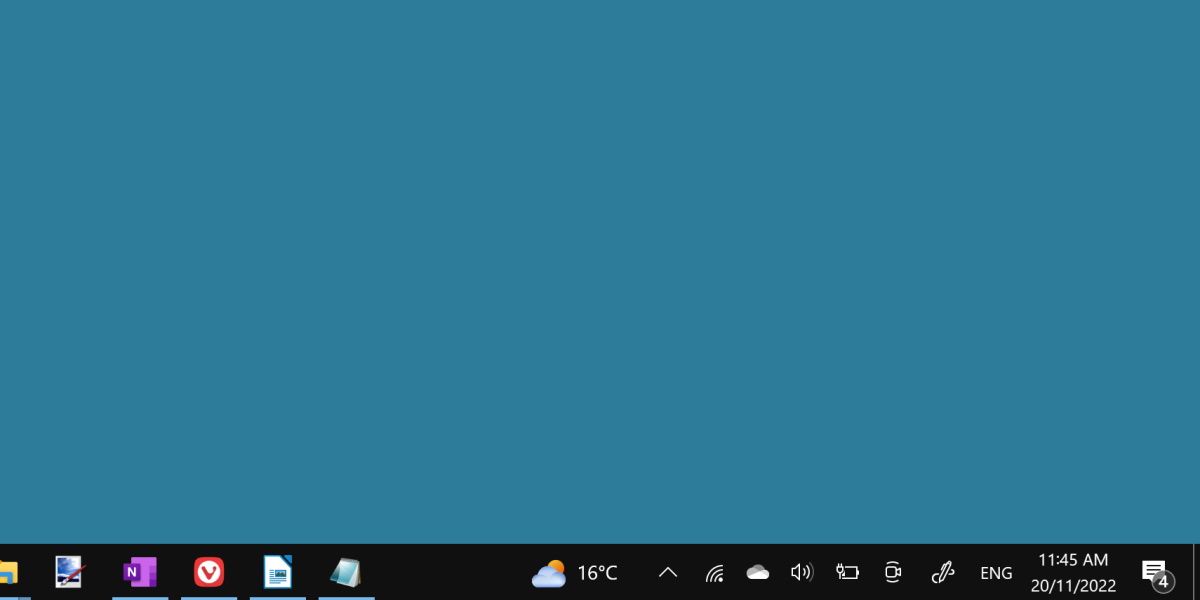
The language bar is a small icon on the taskbar, usually represented by a three-letter language code, such as ENG for English.
It allows users to quickly switch between different keyboard layouts. If you have added more than one keyboard layout or language in Windows 11, the language bar will appear in the bottom right corner of the screen.
If you are unfamiliar with this feature, consider reading how to install different languages and layouts in Windows 11 before removing it. It's a convenient feature for people who use multiple language input methods, but the average user may find it difficult to utilize.
How to delete the language bar
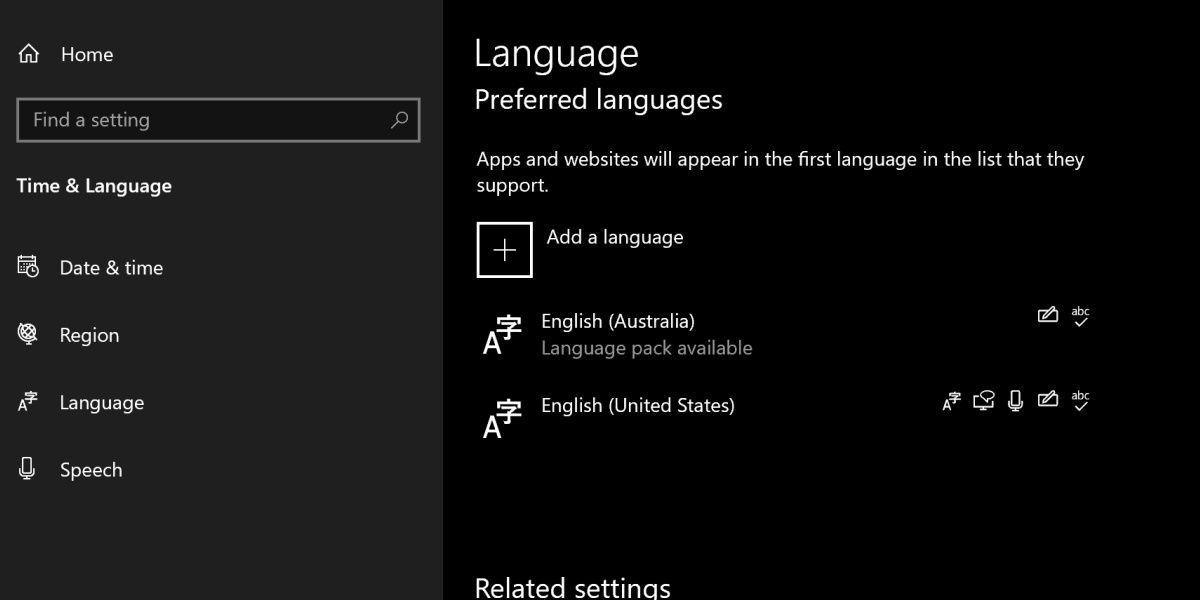
The language bar is easiest to remove by ensuring that only one keyboard language is installed.
You can check how many languages are installed by searching. Editing Language In the search bar of the Start menu.
You will want to open Edit language and keyboard options.
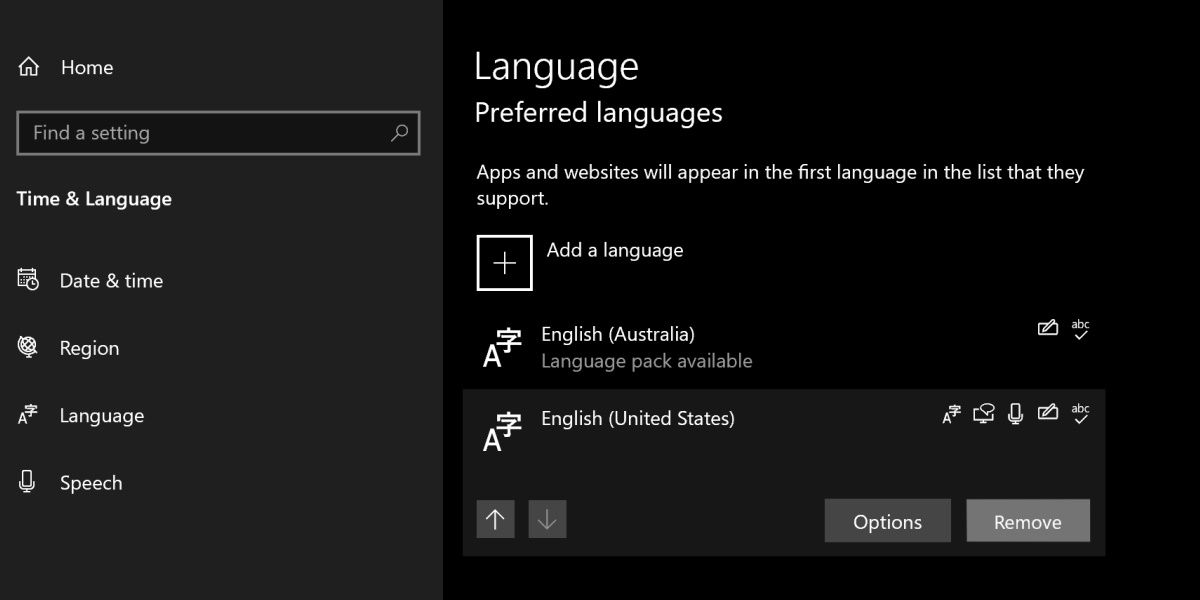
Click on the language you want to delete and click... eliminate. The language bar should be cleared immediately.
recommend:10 Best Affiliate Programs for Beginners
Is the language bar still there?
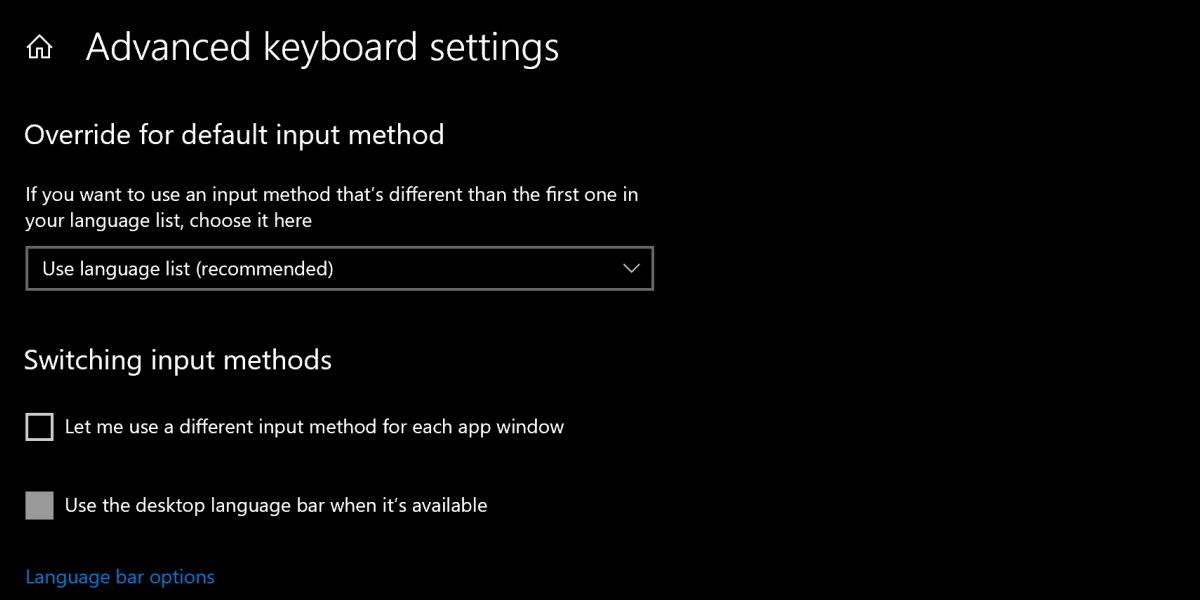
If the language bar doesn't disappear, there's another way to remove it.
search Advanced keyboard options In the Start menu search bar, open this system settings window and check the box. Use the desktop language bar when available. Then, click to enter. Language options.
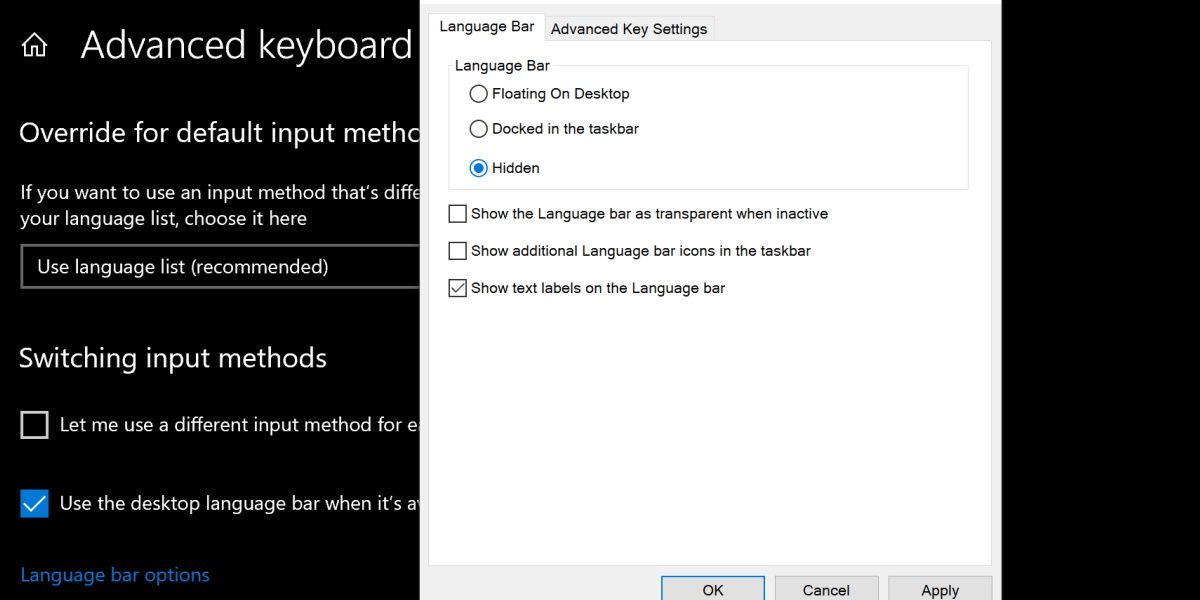
Check hidden The following options Language bar Title, then click ApplyThis will prevent the language bar from displaying in any way.
The language bar may be harder to hide than it should. For some users, the language bar will still be displayed even if they have only installed one language.
Fortunately, it can still be deleted or hidden anyway. If you've never used this feature, enjoy the small amount of extra space you gain on the taskbar by removing it.

 Chinese (China)
  English
  Chinese (Taiwan)
  Russian
  Japanese