
How to create a Linux virtual machine in a Windows virtual machine using Hyper-V
Virtual machines allow you to experience multiple operating systems on a single system, while isolating them from the host operating system. You've probably tried creating virtual machines to try out new operating systems you don't want to install directly. But have you ever tried using Hyper-V within a virtual machine?
Hyper-V is a built-in hypervisor in Windows that allows you to create and run virtual machines. However, Hyper-V can also be used within VMware Windows virtual machines. Therefore, you can create a Hyper-V virtual machine within a VMware virtual machine and run it without any problems. Here's how.
recommend:How to use PowerShell to display the required Hyper-V functions
Prerequisites for running Linux virtual machines in Hyper-V
First, you will need a fully functional Windows virtual machine that works within VMware. We recommend using a Windows 10 or 11 virtual machine for this project. Additionally, you must choose either Windows Professional or Enterprise edition, as Hyper-V is not compatible with Windows Home edition.
Ensure that sufficient hardware resources are allocated to the virtual machine. The reason behind this is that you will be attempting to run a virtual machine inside another virtual machine. Therefore, a Windows virtual machine can only dedicate a portion of its resources to running a Linux virtual machine using Hyper-V. We tested this using a Windows 11 system with 16GB of RAM and an eight-core AMD processor.
In addition, update VMware Workstation Player to the latest version before starting the installation process.
How to create a Linux virtual machine in a Windows virtual machine using Hyper-V
We will break these steps down into three parts. First, you must enable virtualization for your Windows virtual machine. Then, you need to enable Hyper-V on this virtual machine. Finally, you need to create a Linux virtual machine using Hyper-V.
1. Enable virtualization for Windows virtual machines in VMware
To enable virtualization, do the following:
- Launch the VMware application on your system. Click the Windows virtual machine you want to use.
- Virtual machine details will pop up on the right. Click... Edit virtual machine settings Options.
- this hardware The tabs will be open by default. Click processor Options.
- Find VVirtualization engine part Then click Virtualization Intel VT-x/EPT or AMD-V/RV Options.
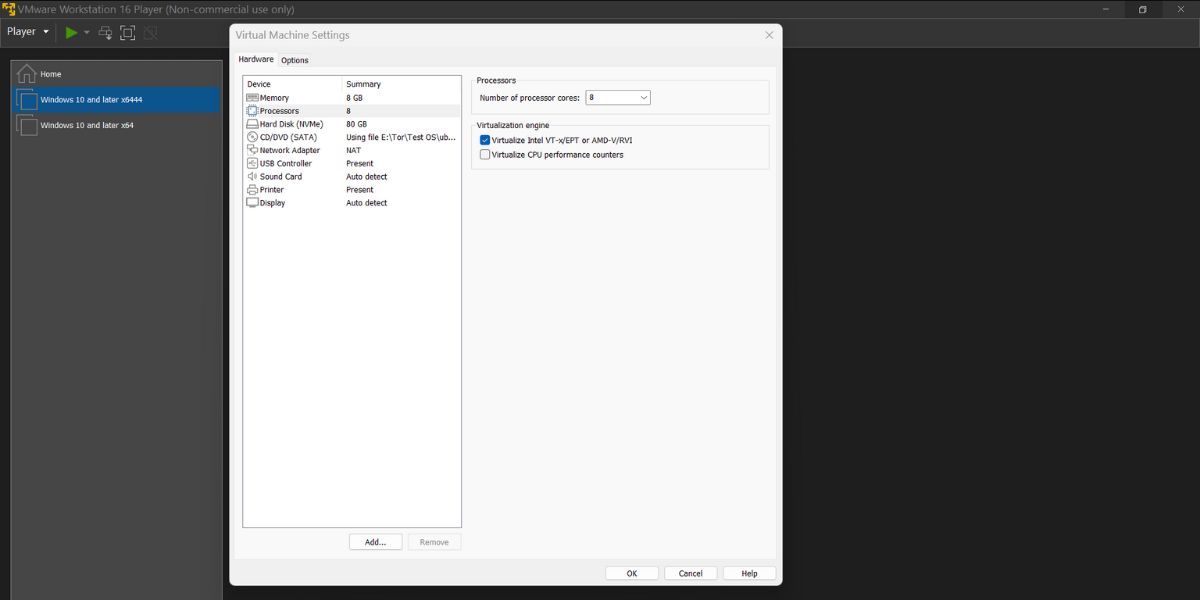
How to create a Linux virtual machine in a Windows virtual machine using Hyper-V
- Click OK Button application changes.
The virtualization functionality of the Windows virtual machine described above is now activated. Next, you need to install Hyper-V.
recommend:Nine ways to open the Local Group Policy Editor in Windows 11
2. Install Hyper-V on a Windows virtual machine
To install Hyper-V on a VMware Windows virtual machine, repeat the following steps.
- Launch the VMware application on your system. Double-click the Windows virtual machine to launch it.
- After booting to the desktop, press win + R The key launches the command prompt window.
- type Application Wizard Then press Enter.
- The Programs and Features window will launch. Click [link]. Turn Windows features on or off Options.
- Scroll down and click Super V Check boxes in the Windows feature list.
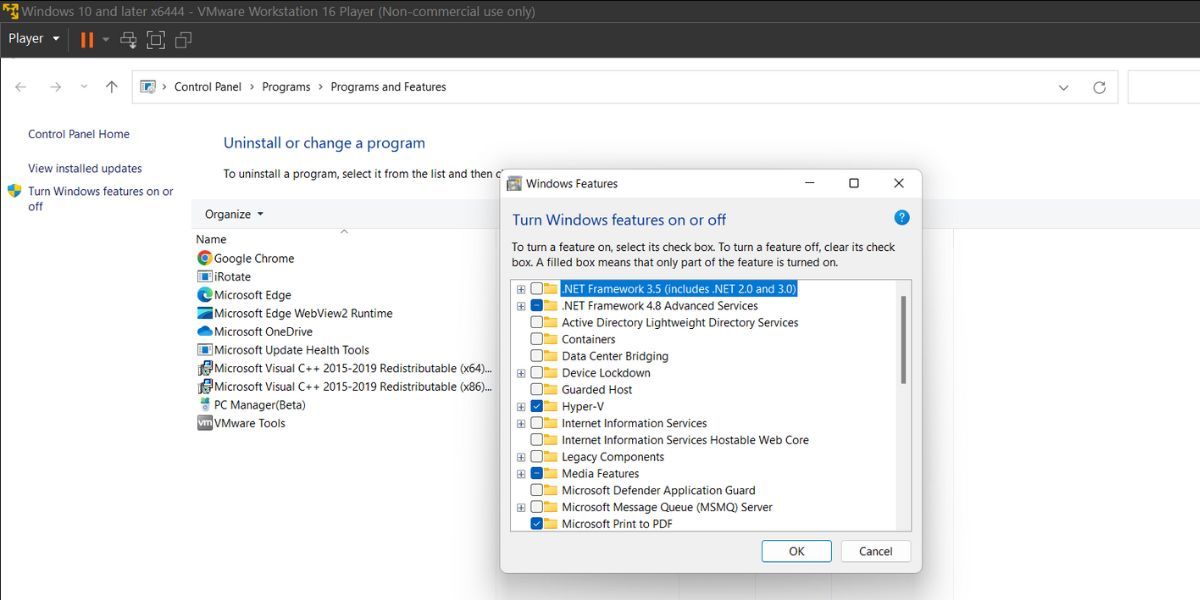
- Click OK The button will install the feature on your system.
- restart Your system applies the changes upon completion of installation.
Hyper-V is now active on your Windows virtual machine. Next, you need to create a Linux virtual machine for it.
3. Creating a Linux virtual machine using Hyper-V
The final challenge is creating a Linux virtual machine within a Windows virtual machine using Hyper-V. You can choose any Linux distribution you prefer. We will use Ubuntu for this experiment. Before proceeding with these steps, you must download the Ubuntu ISO file for the virtual machine from the Ubuntu website.
To create an Ubuntu virtual machine, do the following:
- Start the Windows virtual machine. Please press [button]. Win key Then type Hyper-V Manager. Launch the application.
- Navigate to the right side and then click New > Virtual Machine.
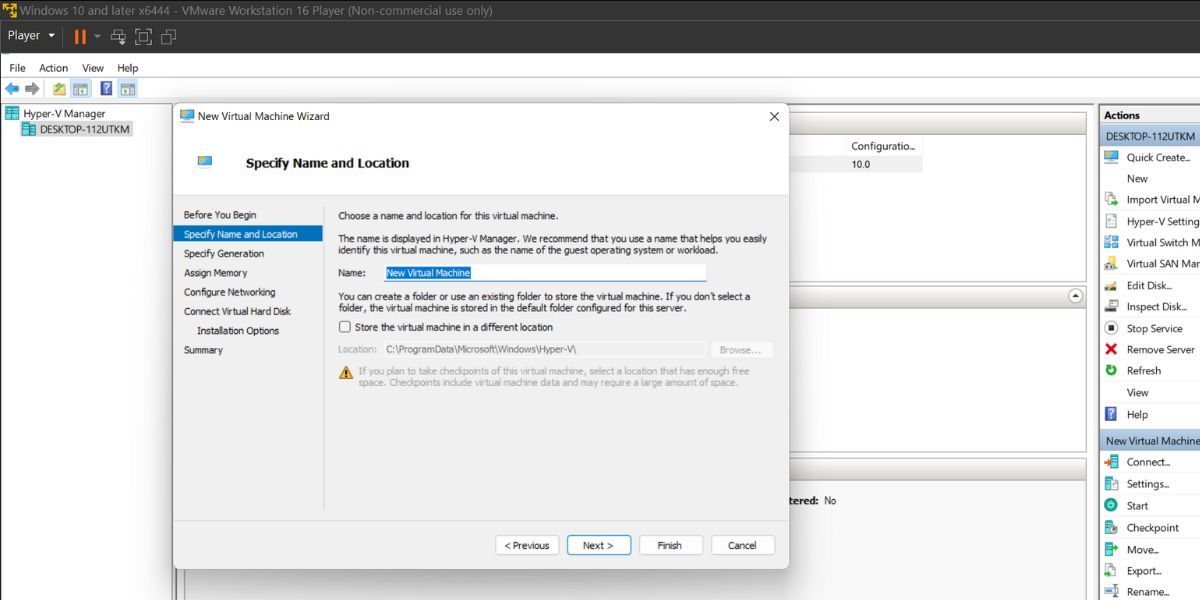
- Click Next Button. Enter the name of the virtual machine, and then click. Next.
- Click First generation Select the radio button, and then click Next.
- Keep Startup memory As 2GB And enable Therefore, the virtual machine uses dynamic memory. Options.
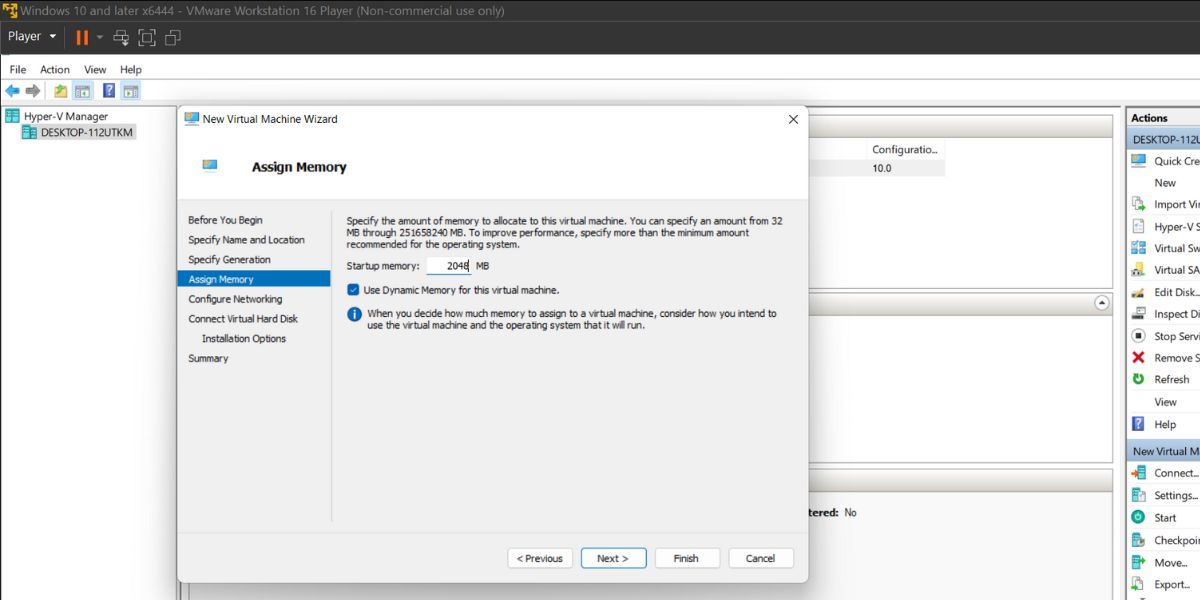
- Then, click Next Button and select Default switch Configure the options in the network section.
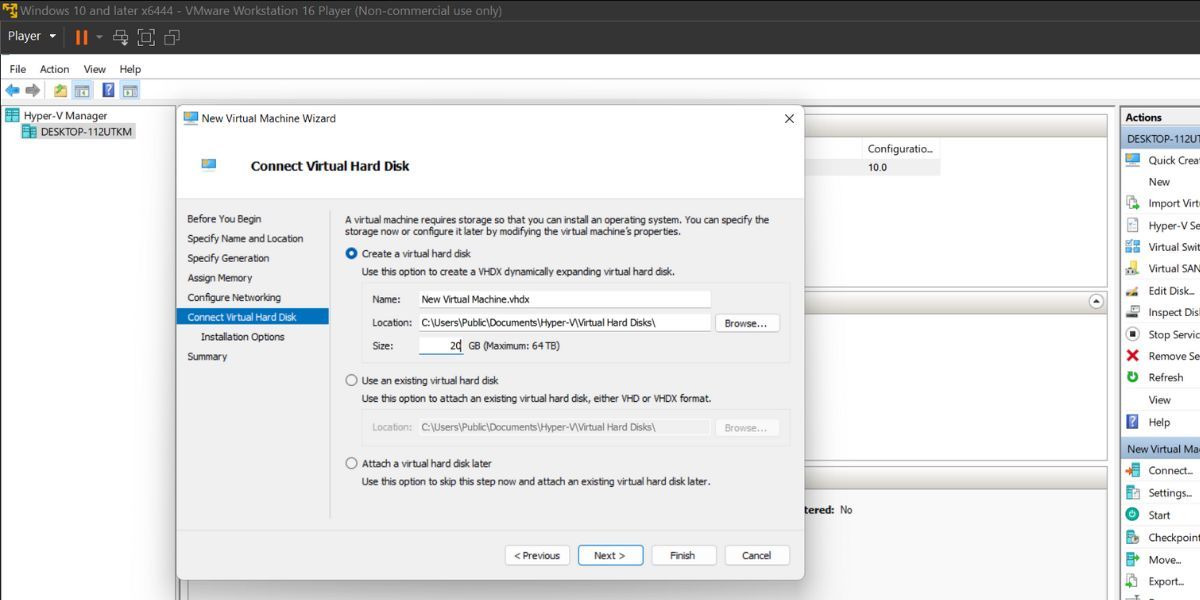
- Click Create a virtual hard disk Options and Allocation 20GB To the virtual hard disk. Proceed to the next section.
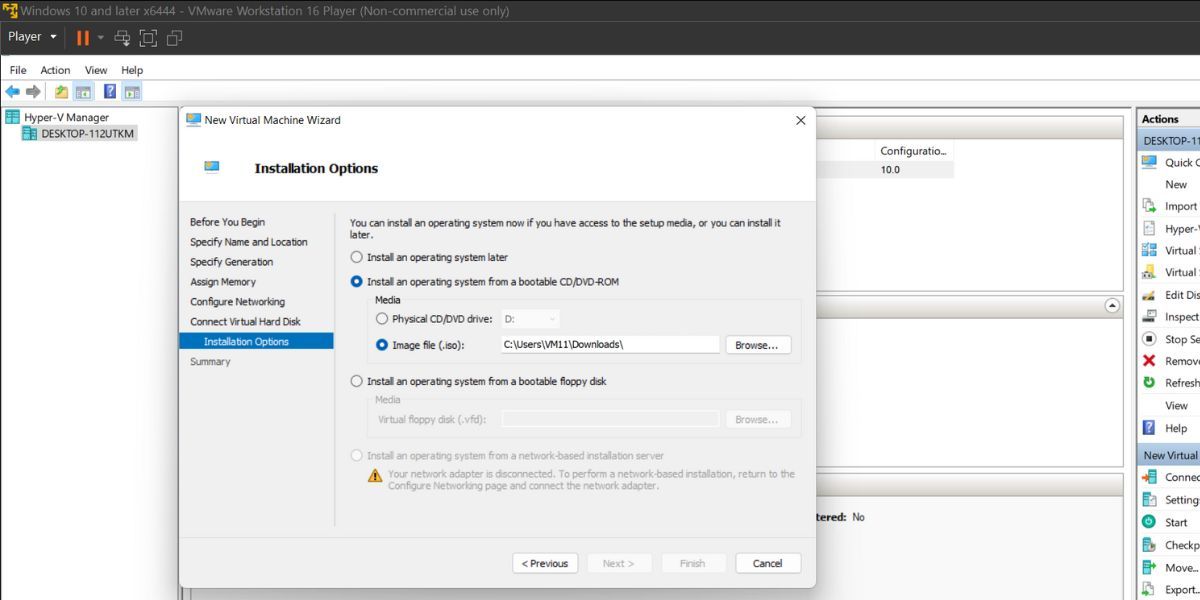
- choose Installing an operating system from a bootable CD/DVD-ROM The options are located under the "Installation Options" section. Before starting this step, select the Ubuntu image file (.iso) you downloaded.
- Click Next Click the button and view the virtual machine configuration. Then, click... Finish The button creates a virtual machine.
Now that the virtual machine is ready, it's time to boot up and run Ubuntu:
- Select the virtual machine you just created from the list, and click... start Options for starting a virtual machine.
- The Ubuntu installer will start. Select... Install Ubuntu Choose the option and continue the installation.
- Click Minimal installation And deselect Download updates when installing Ubuntu Options.
- Then, select Erase disk and install Ubuntu Select and click Install now Button.
- Select your location and enter your username and password. Then, click... continue Button.
- Wait for the installation to complete. If your system has a SATA HDD installed, it may take longer.
- The installer will prompt you to restart your system. Click [here]. Restart now Button.
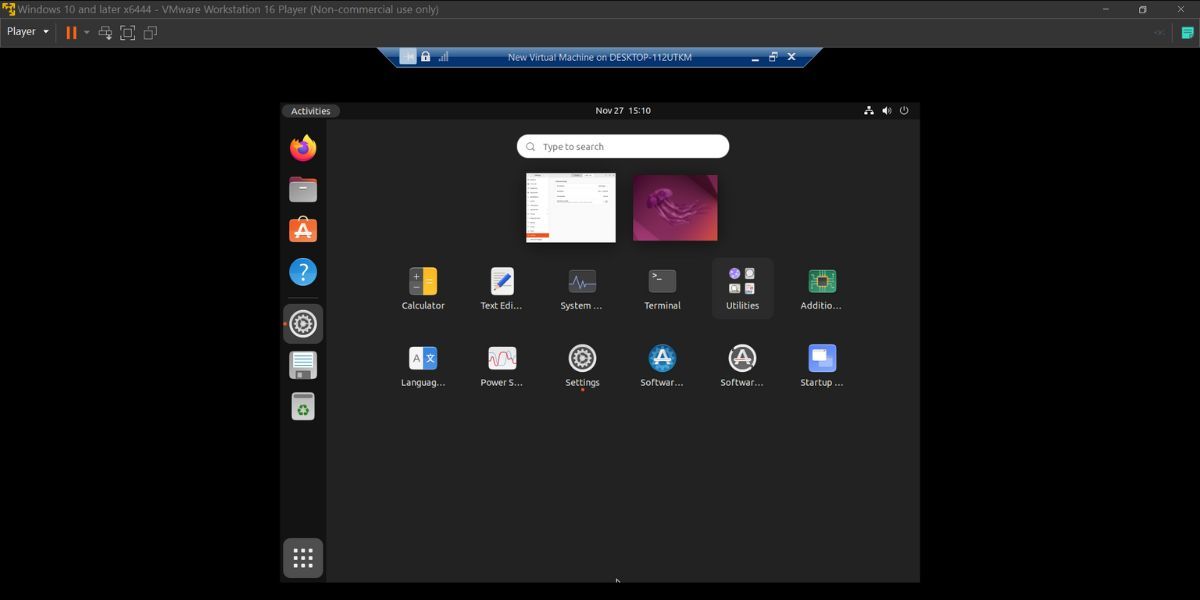
The virtual machine will boot to the Ubuntu desktop. You can use Ubuntu and notice that the system works well in Hyper-V, just like on any other virtualization software.
recommend:How to install GitLab Runner on Ubuntu
A few things to remember
Creating a virtual machine inside another virtual machine is possible. However, you must remember that the host system's basic configuration must be capable of running the virtual machine inside without any problems. If you try this experiment on a low-end system with 4GB of RAM and a dual-core processor, it will clog the system.
Therefore, you need to use a system that can provide sufficient hardware resources for a Windows virtual machine. Only then can you use Hyper-V and create a Linux virtual machine and run it without any problems. After trying our Ubuntu with Hyper-V, you can shut down the virtual machine. Alternatively, you can take an extra step and delete the virtual machine from the Hyper-V Manager. This will free up a significant amount of space inside the Windows virtual machine.
Additionally, if you no longer need the Hyper-V feature in your Windows virtual machine, please uninstall it. See our guide on how to disable or remove Hyper-V in Windows 11 for more information.
Using Hyper-V to use virtual machines inside virtual machines
VMware supports hardware virtualization and can extend this capability to its virtual machines. VirtualBox has not yet caught up in this regard, as Hyper-V does not run in VirtualBox virtual machines at the time of writing. Make sure to disable virtualization for Windows virtual machines when no longer needed.

 Chinese (China)
  English
  Chinese (Taiwan)
  Russian
  Japanese