
How to remove Dipladoks.org redirect malware on Windows
When Windows starts, does your browser automatically try to open Dipladoks.org, start showing you suspicious pop-ups and ads, or redirect you to other suspicious websites? There are two main reasons for this: either your browser is infected, or malicious adware has been automatically installed on your computer. The question is, how?
In this article, we will explain why you are being redirected to or from Dipladoks.org at startup, and how to stop unauthorized redirects.
recommend:How to remove HackTool:Win32/Keygen malware on Windows
What is the Dipladoks.org redirect malware?
Dipladoks.org is a domain that redirects users to multiple dubious websites containing enticing offers and deceptive pop-ups. This domain may have various 301 redirects or similar redirects, and when users log in to this domain, they are redirected to other websites that scammers are trying to increase traffic to.
Does the redirection of Dipladoks.org indicate a virus infection?
A redirect from Dipladoks.org indicates the presence of adware that redirects users to dubious products without their permission. Therefore, if you are repeatedly redirected to this website when opening your browser, starting Windows, or searching for anything in your browser, your computer is likely infected with adware.
Where is the Dipladoks.Org adware located?
Adware that serves ads for Dipladoks.org can be found in your operating system and web browser. To remove it from your device, you must thoroughly check your operating system and browser by running the necessary scans.
In the next section, we will explain how to remove Dipladoks.org separately from your operating system and browser.
How to remove Dipladoks.org adware from Windows
To remove Dipladoks.org adware from your Windows operating system, follow these steps:
1. Clean up your startup program list
In most cases, adware infecting Windows will find its way into the Windows Startup folder. This way, it launches on startup and immediately redirects the user to a suspicious offer. Are you being redirected to Dipladoks.org when Windows starts? If so, please follow these steps to remove it:
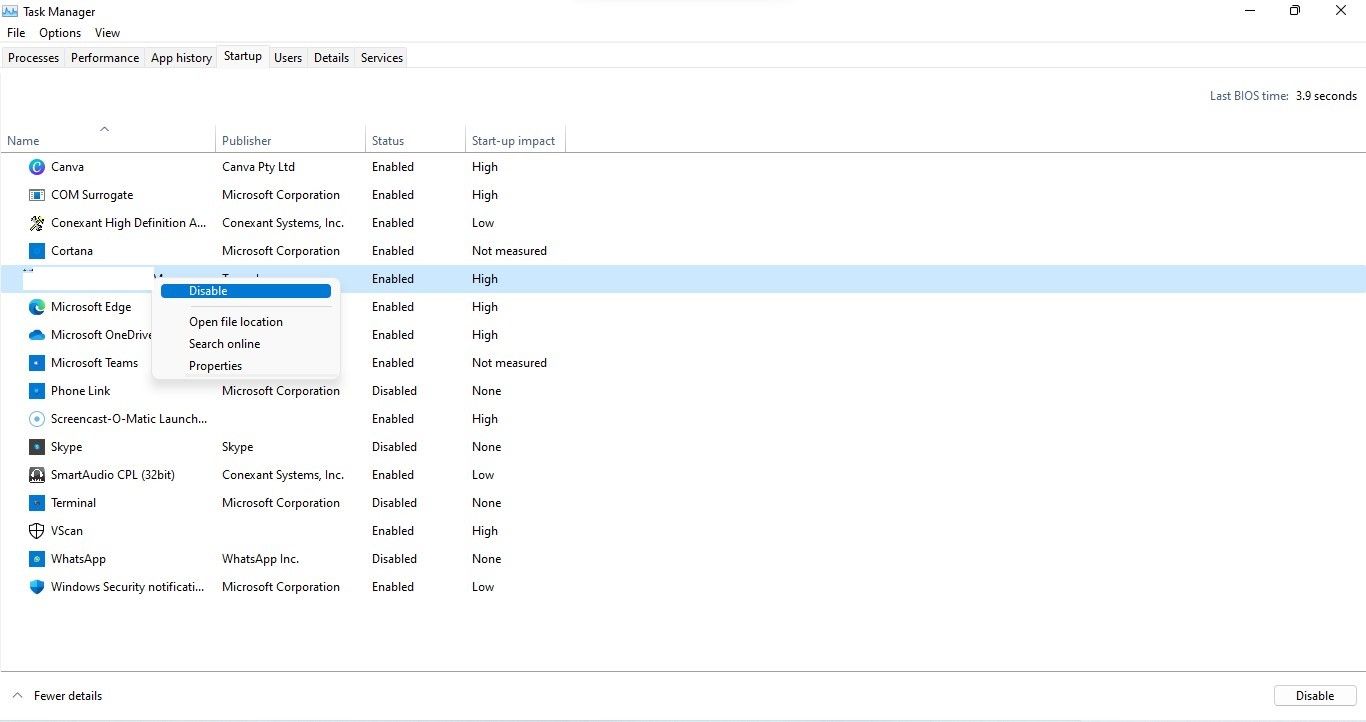
- Right-click Windows start Button and open task manager.
- Go to start up Label.
- Check the startup program list for any suspicious software.
- If you find one, right-click it and select... Discontinued.
How to remove Dipladoks.org redirect malware on Windows
- After changing your username, navigate to the following path: C:\Users\YourUsername\AppData\Roaming\Microsoft\Windows\Start Menu\Programs\Startup
- Right-click the malware and click delete.
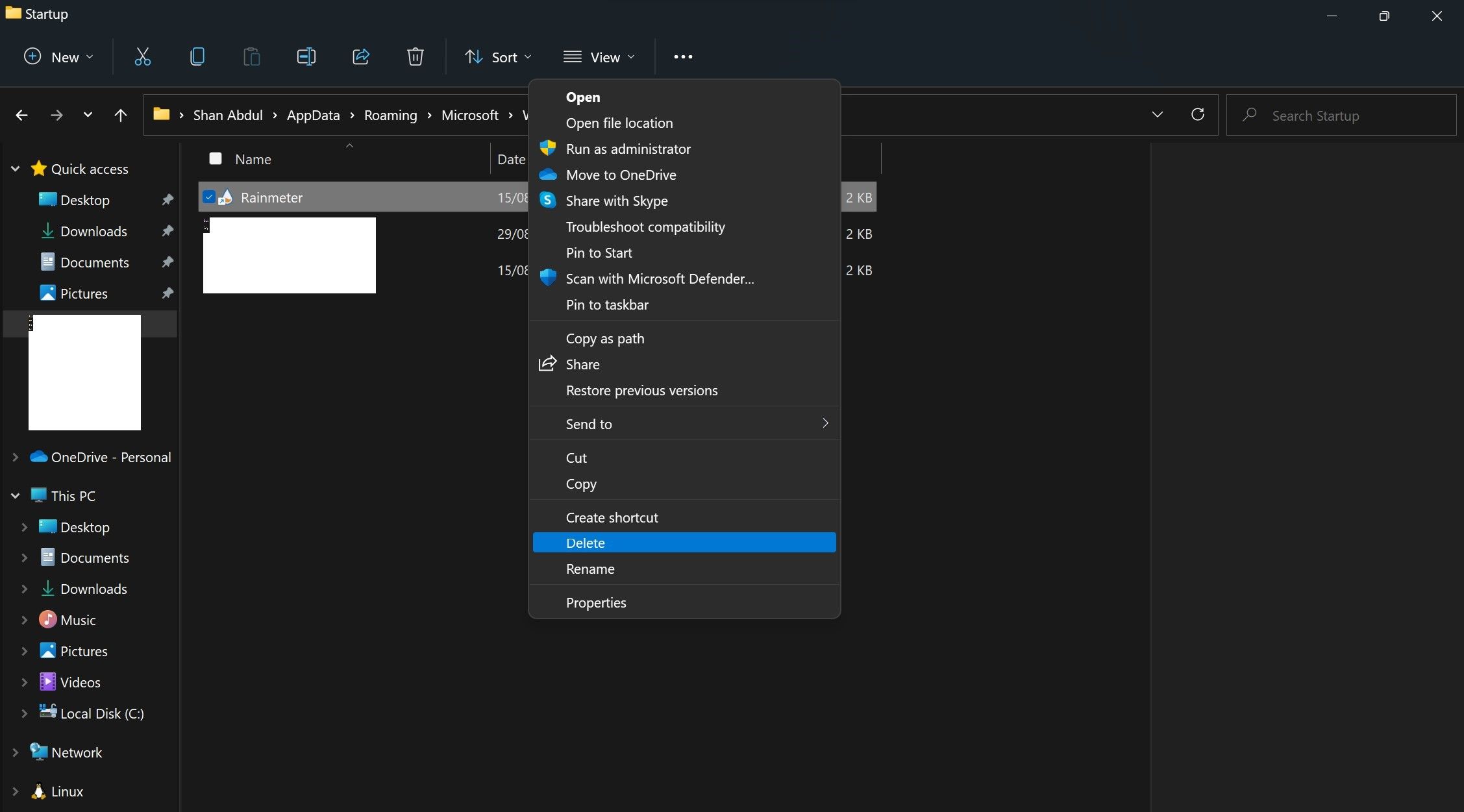
Similarly, if Dipladoks.org redirects to other websites in Chrome or any other browser and is listed in the launchers list, right-click it and delete it.
2. Scan your device for viruses.
Next, you should scan your device for viruses to see if your antivirus software automatically removes malware or viruses. To do this, either use one of the free antivirus programs you already use or run a scan with Microsoft Defender. If the virus scan doesn't resolve the issue, manually remove adware.
recommend:How to access the past using Google Street View on mobile devices
3. Manually remove adware from Windows
If a malware scan fails to identify and remove malware, you should remove it manually. To do this, follow these steps:
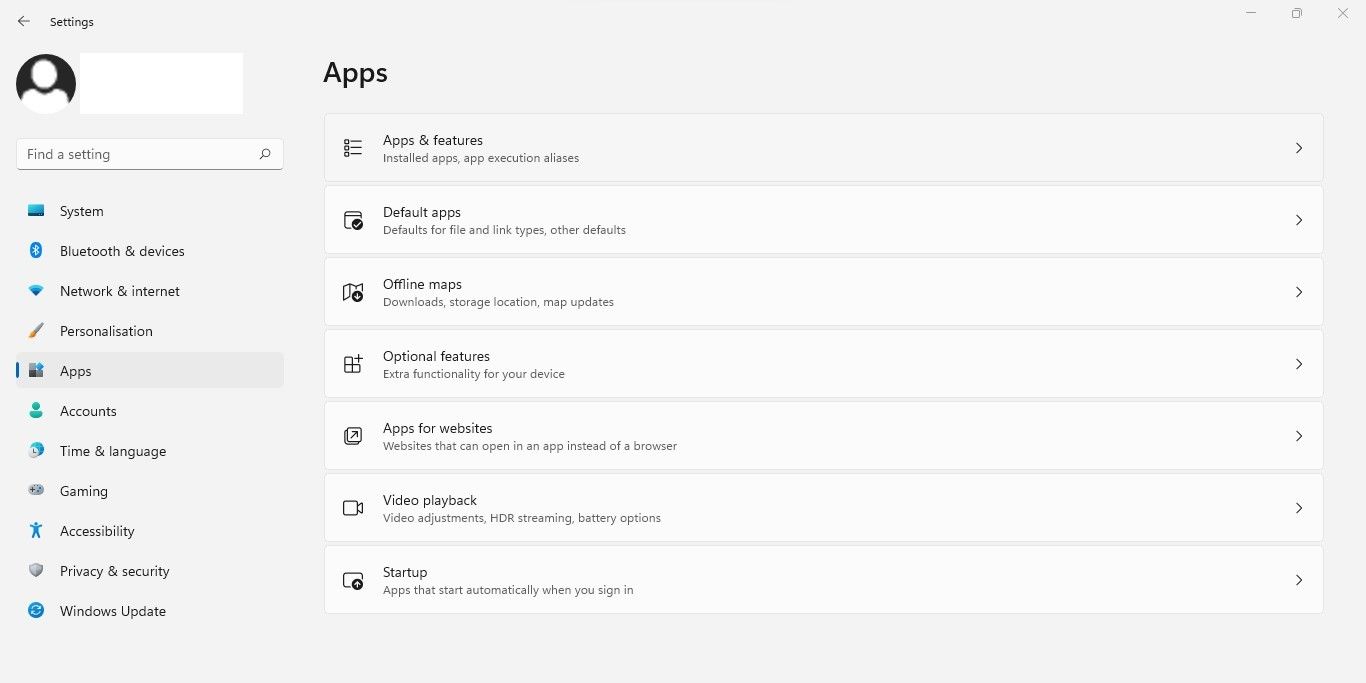
- according to win + i Open the Settings app.
- In the left sidebar, click application.
- go Applications and Functions.
- Find the malware in the application list (you may have already removed it from the launch list).
- Then, click Three vertical points Next to it and select uninstall.
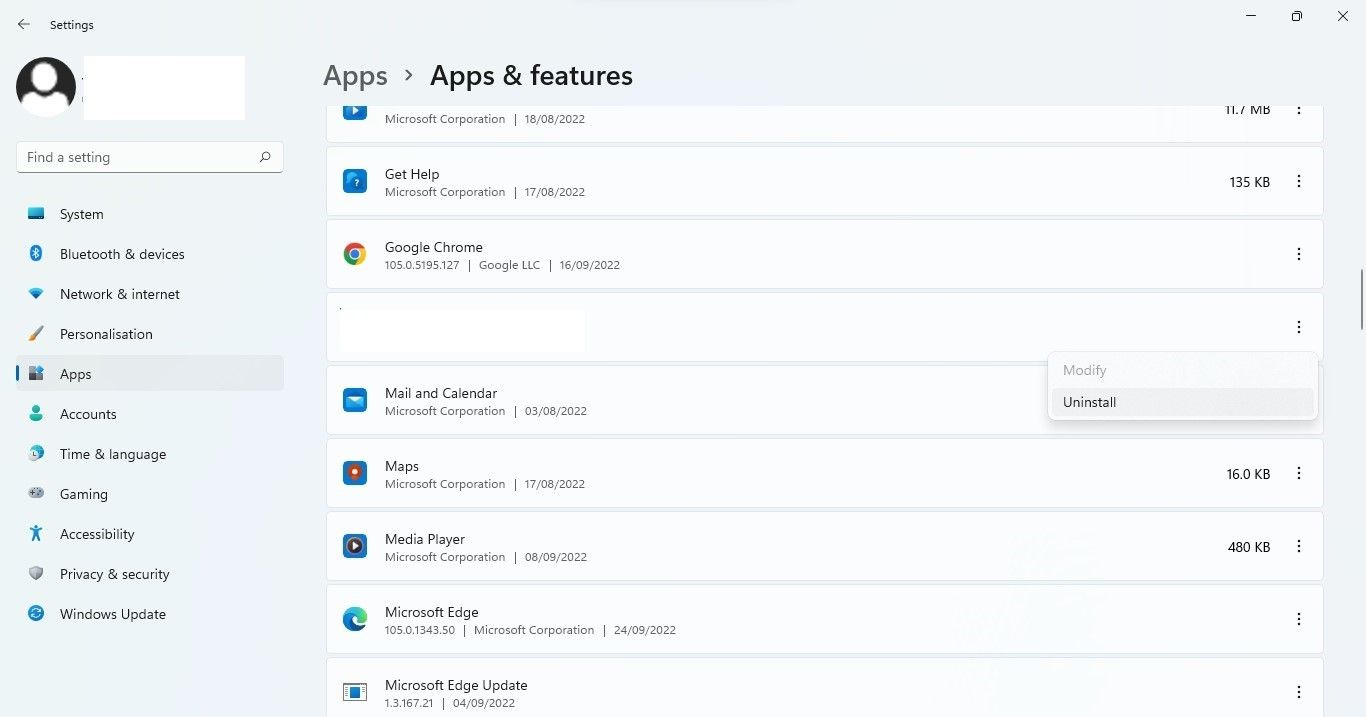
By following the steps above, you should be able to get rid of adware. If you are still being redirected to Dipladoks.org, it may be because your browser has been infected.
How to remove Dipladoks.org adware from your browser
To remove Dipladosk.org adware from your browser, you must ensure that your browser shortcuts or the browser itself have not been hijacked. In the following sections, we explain how to remove shortcuts or hijacked browsers (if the problem lies with them):
1. Clear browser shortcuts
Does it redirect every time you open your browser? If so, your browser shortcut may be infected, causing it to redirect you to Dipladoks.org when you click it. Therefore, this possibility must be ruled out.
To do this, right-click the browser shortcut and select... characteristicGo to shortcut tabs in characteristic Windows. Make sure you enter the executable file path in your browser. Target The field, not the path to any other malware.
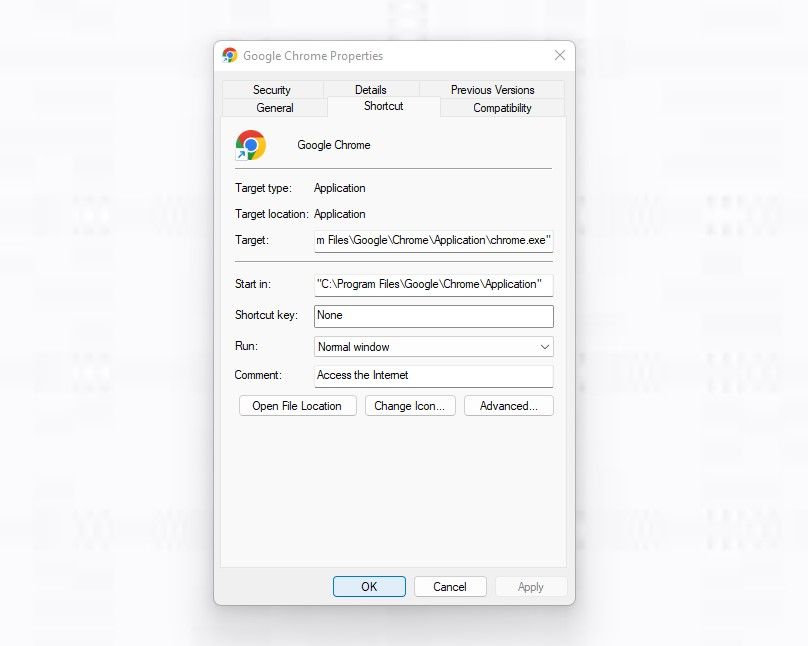
If you see a file extension different from .EXE or see shortcuts to suspicious software set as targets, it means your browser shortcut has been infected. Delete it and replace it with the correct application address.
The correct path may vary depending on the browser. For Chrome, it looks like this:
"C:\Program Files\Google\Chrome\Application\chrome.exe"
Similarly, if you are using other browsers, such as Edge, Firefox, Brave, or any other browser, you can check and clean up shortcuts in the same way. However, if the target field already contains the correct path, please proceed to the next step.
2. Clean up infected browsers
Besides hijacked browser shortcuts, a hijacked browser itself can also cause this redirection. If you're wondering if this is the case and want to remove the hijacker from your browser, check out our guide on how to get rid of a quick search tool hijacker.
The steps outlined in this article apply to all hijackers, including Dipladoks.org. You should follow the instructions to remove the hijacker from your browser. When doing so, please make sure to confirm the following:
- No malicious extensions were installed.
- The Dipladoks.org domain is not configured to open when the browser starts.
- Your browser does not set the hijacker as a search engine.
Once you've confirmed that your browser hasn't been hijacked, proceed to the next step.
recommend:How to install Podman on Debian 12/11 Linux
3. Ensure the task scheduling program has not been hijacked.
Windows provides a Task Scheduler tool that allows us to schedule certain tasks to run or repeat at specific time intervals. In rare cases, adware may hijack your Task Scheduler, causing your browser to redirect you to Dipladoks.org after a specified time interval.
Therefore, if you are randomly redirected, Task Scheduler has likely been hacked. To confirm this, follow these steps:
- Open Task scheduler By typing the application Task Scheduler In Windows search.
- In the left sidebar, select Task scheduler library.
- Find scheduled tasks you don't remember creating.
- Once you find the task, select it and click. action Use the tabs to understand their function.
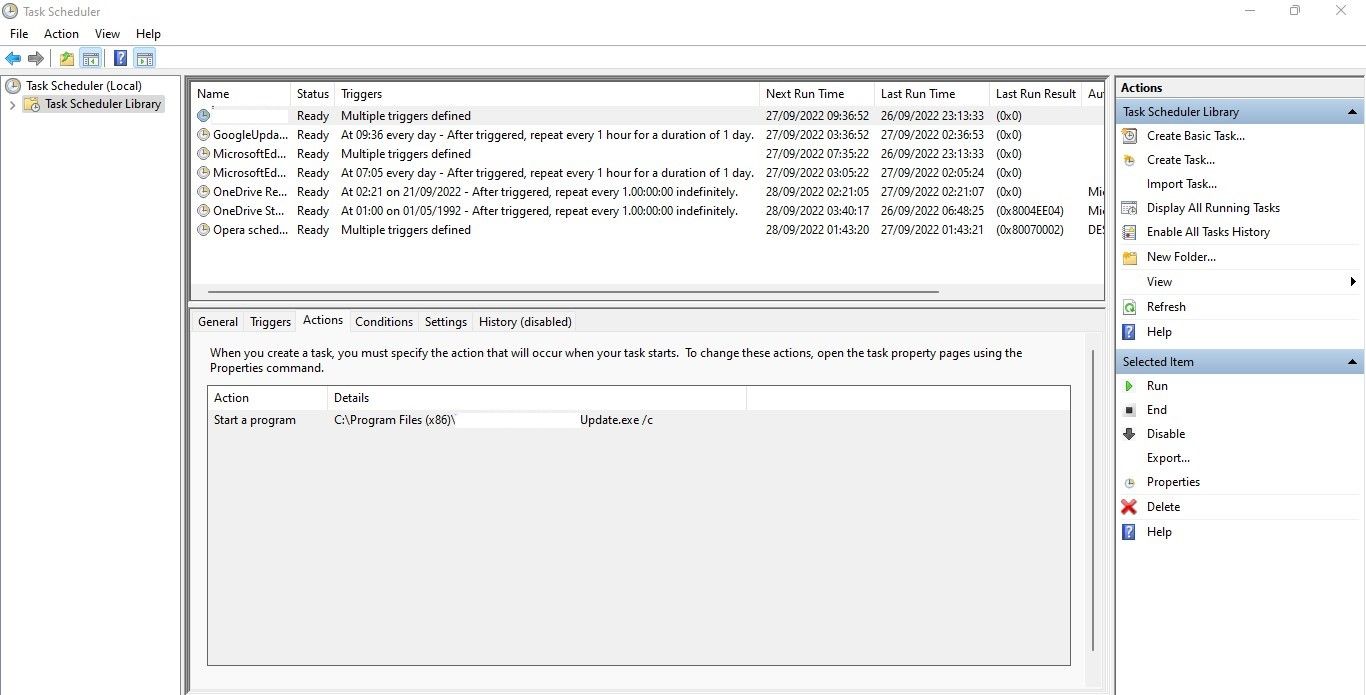
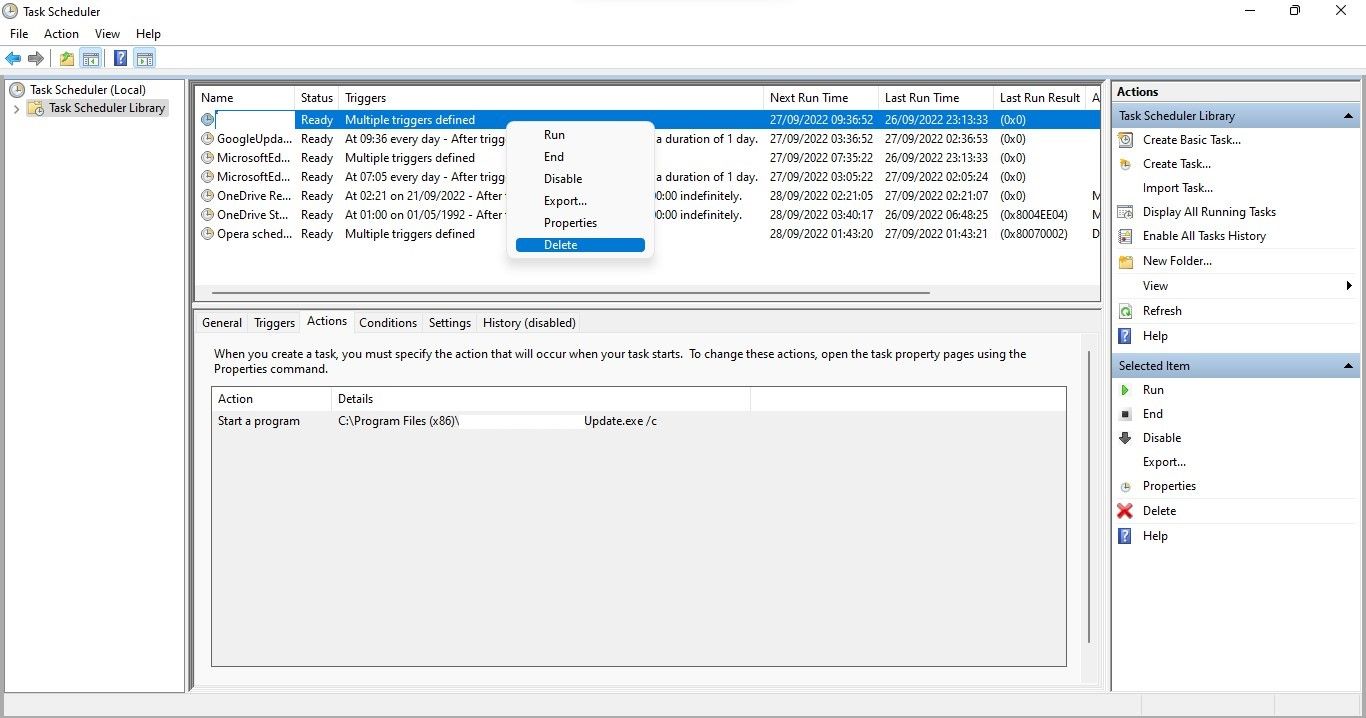
If the task's action is to open malicious programs or run suspicious scripts, then you have found the source causing the redirection. Therefore, you only need to delete the task. To do this, right-click the task and click... delete.
Get rid of Dipladoks.org redirect malware on Windows
You should now have a better understanding of the adware from Dipladoks.org. Furthermore, you can now take appropriate steps when you encounter this adware in your browser.
While the tips above will help you remove Dipladoks.org adware, you won't even get infected if you keep your antivirus and security settings in the right place.

 Chinese (China)
  English
  Chinese (Taiwan)
  Russian
  Japanese