
How to fix Windows Waterfox failing to load web pages
Waterfox is a popular open-source browser for Windows. But like any other browser, it has its flaws. Many users have reported that Waterfox cannot load web pages on Windows.
This problem is very frustrating, but fortunately, it's fixable. When Waterfox fails to load web pages on Windows, you can try the following fixes.
recommend:How to speed up the Squarespace website
Why can't Waterfox open or load web pages on Windows?
Nobody likes having a browser that can't load web pages. If Waterfox fails to load or open web pages on Windows, here are all the possible culprits:
- You may encounter this problem if you are connected to a weak internet connection.
- This problem can occur if the Waterfox installation files are corrupted.
- Malicious extensions can disrupt the connection to the server and prevent the browser from loading web pages.
- If there is a problem with the browser code, the webpage will also fail to load.
Once we've identified the cause of the problem, let's begin fixing it.
1. Restart Waterfox and try accessing the webpage.
The first thing you should do is restart Waterfox and try accessing the webpage again. It turns out the problem was likely caused by a temporary glitch in the browser. In this case, the best thing you can do is restart your browser and check for further issues.
2. Update Waterfox
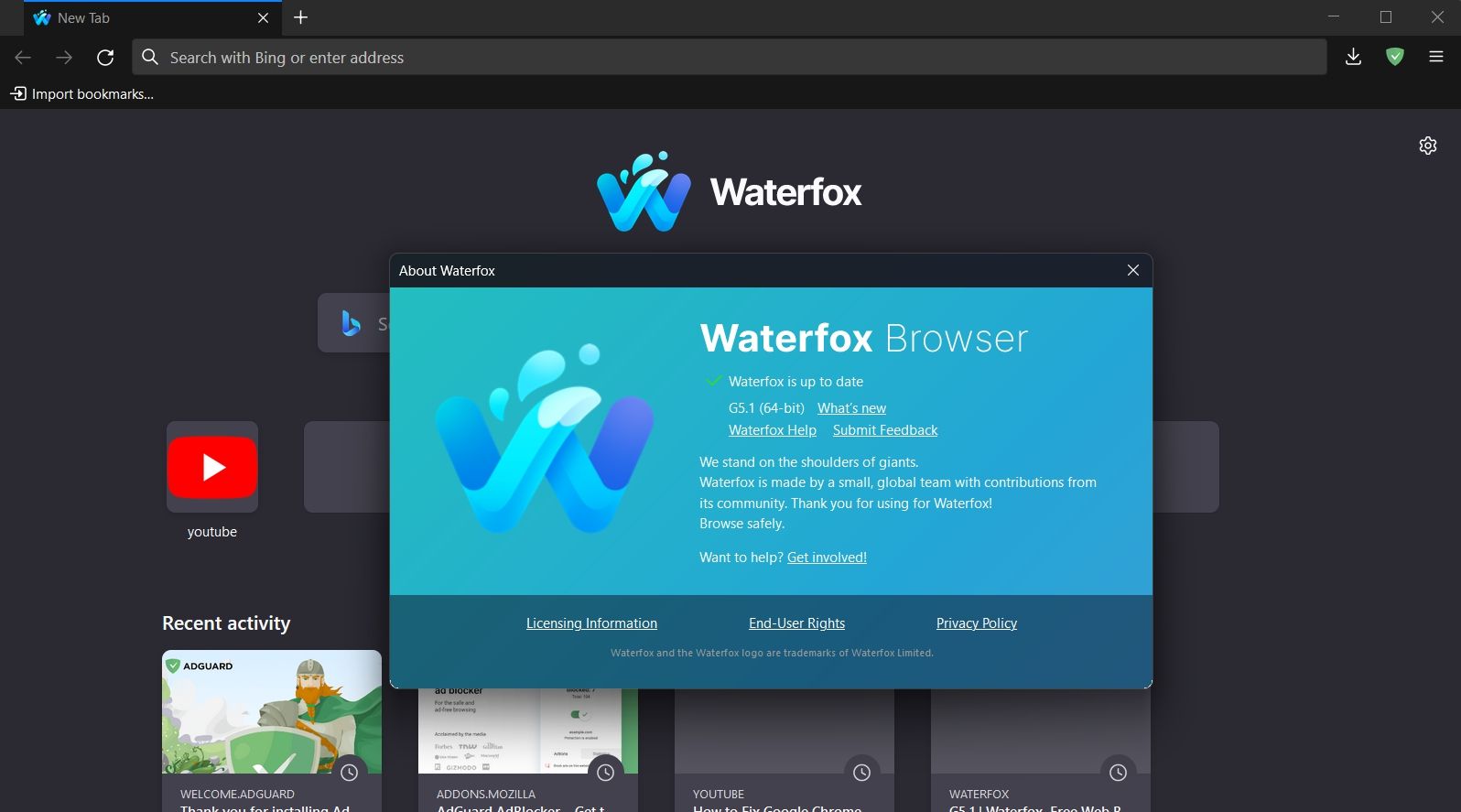
If you are running an outdated version of Waterfox, you may encounter various problems, including your browser failing to load web pages. You can update Waterfox manually when it updates automatically, giving it a chance to eliminate these bugs.
To download the latest Waterfox update, please follow these instructions:
- Launch Waterfox on your computer.
- Click hamburger Select the option in the upper right corner, then select... help Options.
- choose About the Water Fox Options in the pop-up window.
- Waterfox will now look for and download any available updates.
After installing the update, restart your computer and check for problems.
3. Ensure your internet connection is working properly.
Needless to say, you need a stable and strong internet connection to open web pages. Your network connection may be experiencing problems, causing your web pages to fail to load.
To check your connection status, open any other browser and try opening websites like Google or Yahoo. If the sites open, the connection is fine.
You can also visit an internet speed test website to check your internet speed and stability. If the results show that your connection is unstable, please resolve your connection issues or contact your ISP.
recommend:7 ways to edit links in Microsoft Excel
4. Check your DNS
A Domain Name System (DNS) server is an address book that matches domain names with IP addresses. If your current DNS server is slow, Waterfox will be unable to load the website.
You can change your DNS settings to speed up your connection. Switching to a Google-provided server might help, as it's faster than other options on the market.
To switch to Google DNS servers, please follow these instructions:
- roll out Power Menu By pressing win + X Hotkey, then select Network connection From the menu list.
- choose Advanced network settings.
- Expand Wifi Options and selection edit The button next to More adapters Options.
- Highlight the title as Internet Protocol version 4 (TCP/IPv4) And select characteristic Button.
- choose Use the following IP address Button.
- type 8.8.8.8 Inside Preferred DNS server Box and 8.8.4.4 Inside spareDomain Name Server Box.
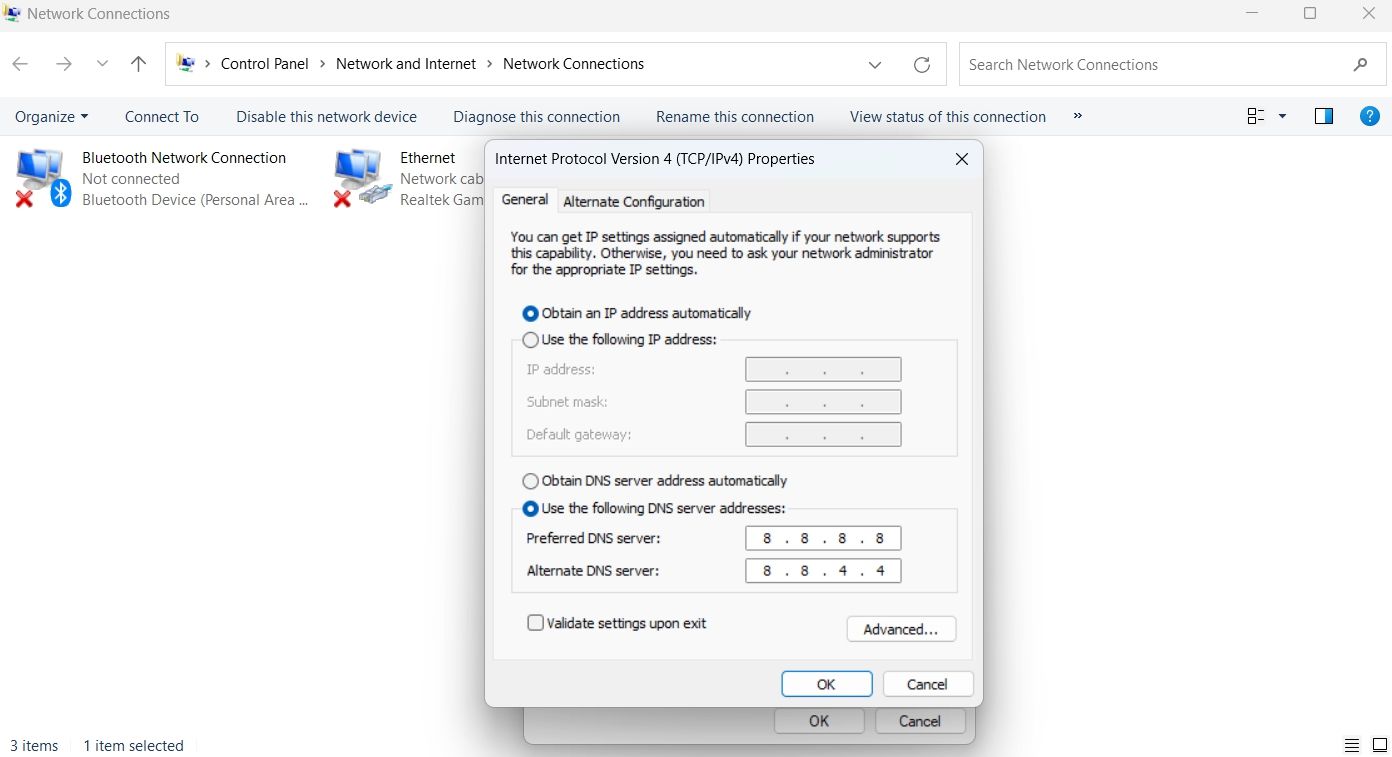
- Click OK Save settings.
- Highlight Internet Protocol version 6 (TCP/IPv6) And select characteristic.
- type 2001:4860:4860::8888 Inside Preferred DNS server Box and 2001:4860:4860::8844 Inside Alternate DNS server Box.
- Click OK Save IPv6 DNS settings.
That's all. Restart your browser and check for problems.
Like any other browser, Waterfox stores cached data to improve the user experience. However, sudden system crashes or malware attacks can corrupt cached data and cause various problems, including those discussed.
To resolve this issue, you must clear your cache and cookies. Here's how:
- Launch the Waterfox browser and then click the hamburger option.
- choose set up From the context menu.
- choose privacy& Safety From the left panel.
- Scroll and click Clear data The button below Cookies and website data part.
- In the prompt that appears, check the box. biscuitand site data and cached web content Options.
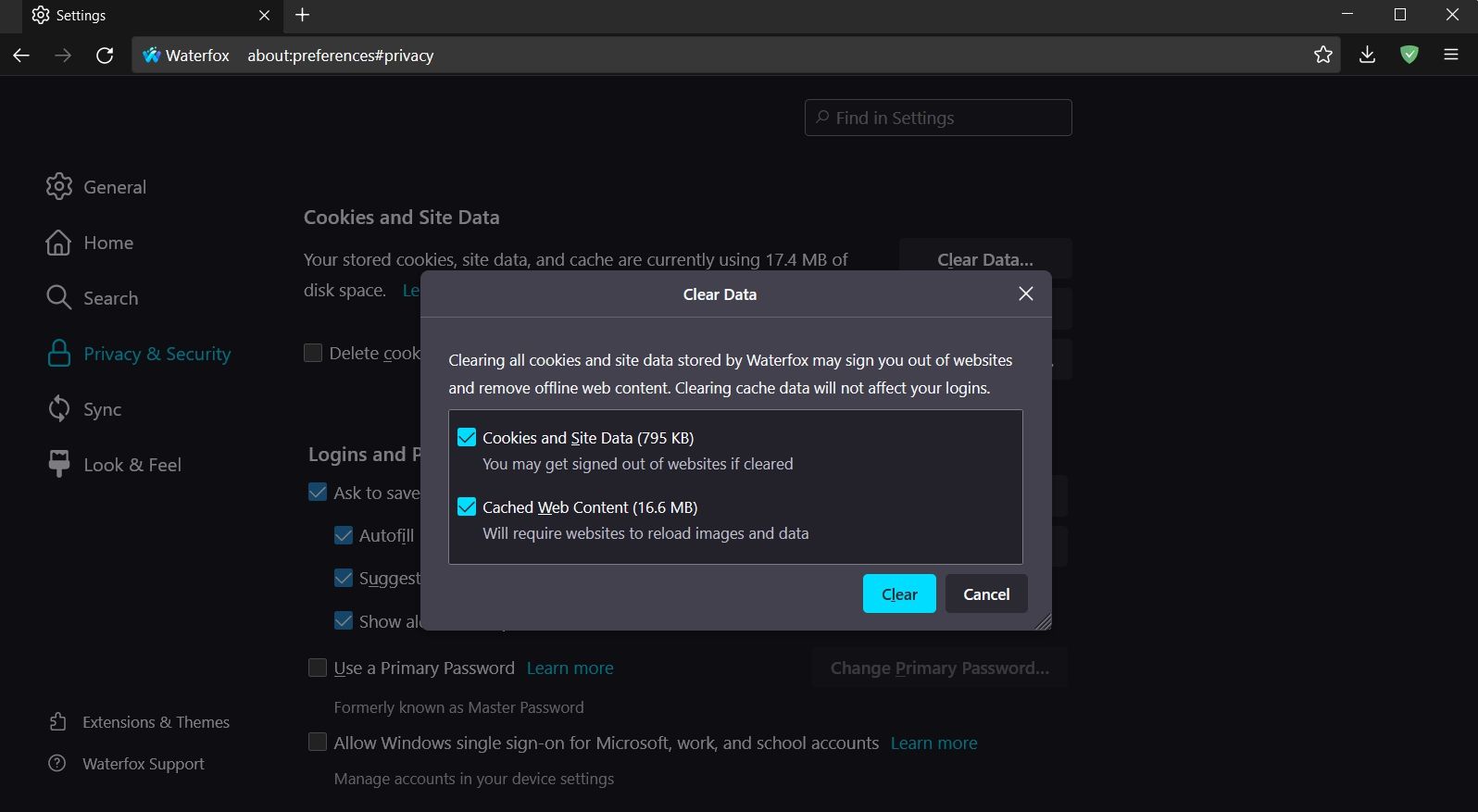
- Click Clear, Then click Clean up immediately Please confirm your selection.
6. Delete unnecessary extensions
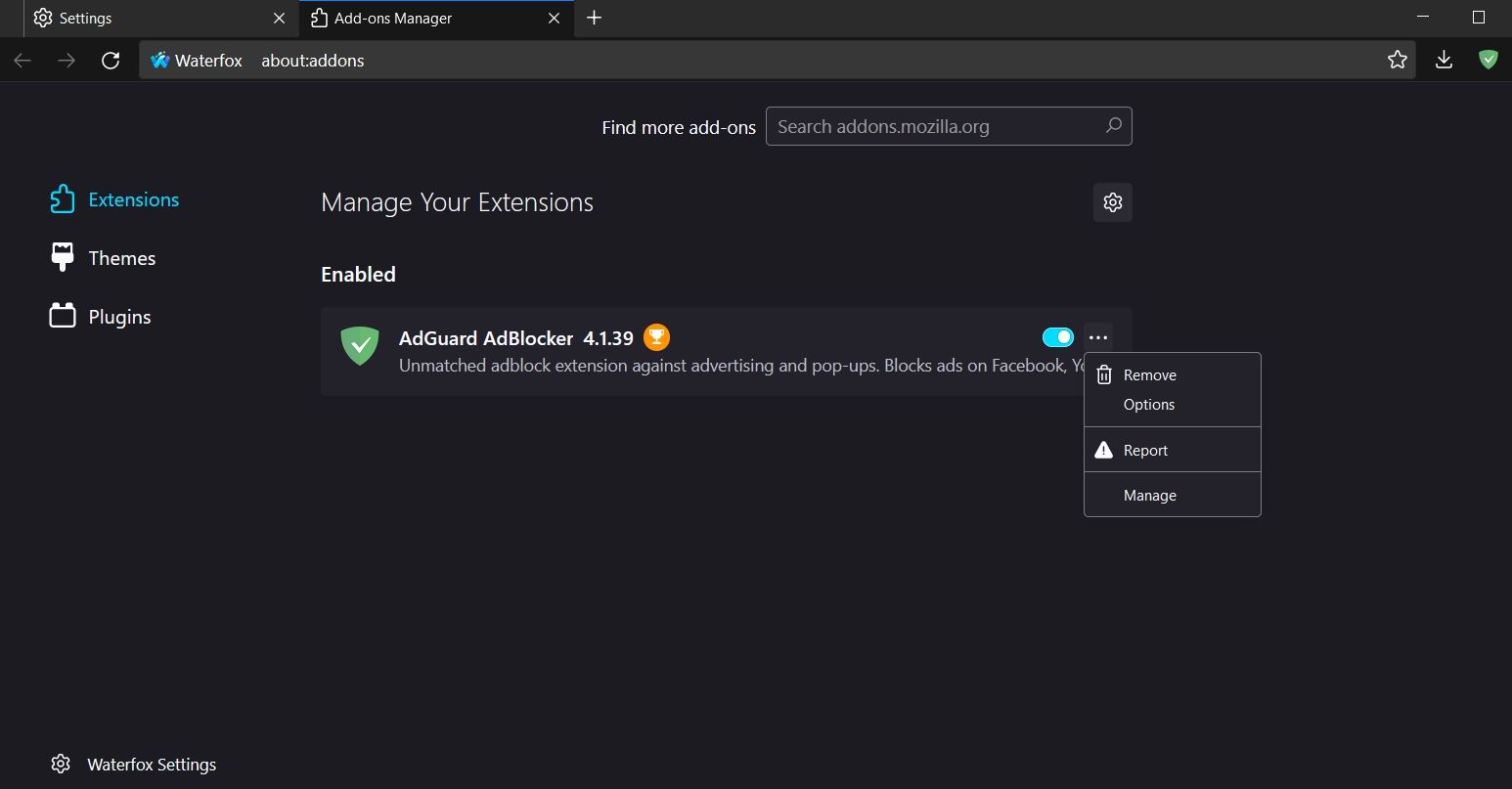
Extensions are great because they can help improve productivity. However, there are various extensions in the store that can harm your browsing experience. If you install any of these extensions on Waterfox, you may encounter this problem.
In this case, the solution is to remove the problematic extension from Waterfox. That's it:
- Open Waterfox > Hamburger Options > Add-ons and Themes.
- choose Extend From the left panel.
- Disable the toggle next to all installed extensions.
Now, to narrow down which extension is causing the problem, start enabling each extension one by one and check for issues. Once you know which extension is the culprit, click... threepoint Next to it and select eliminate Options.
recommend:How to manage website permissions in Microsoft Edge browser
7. Reset Waterfox
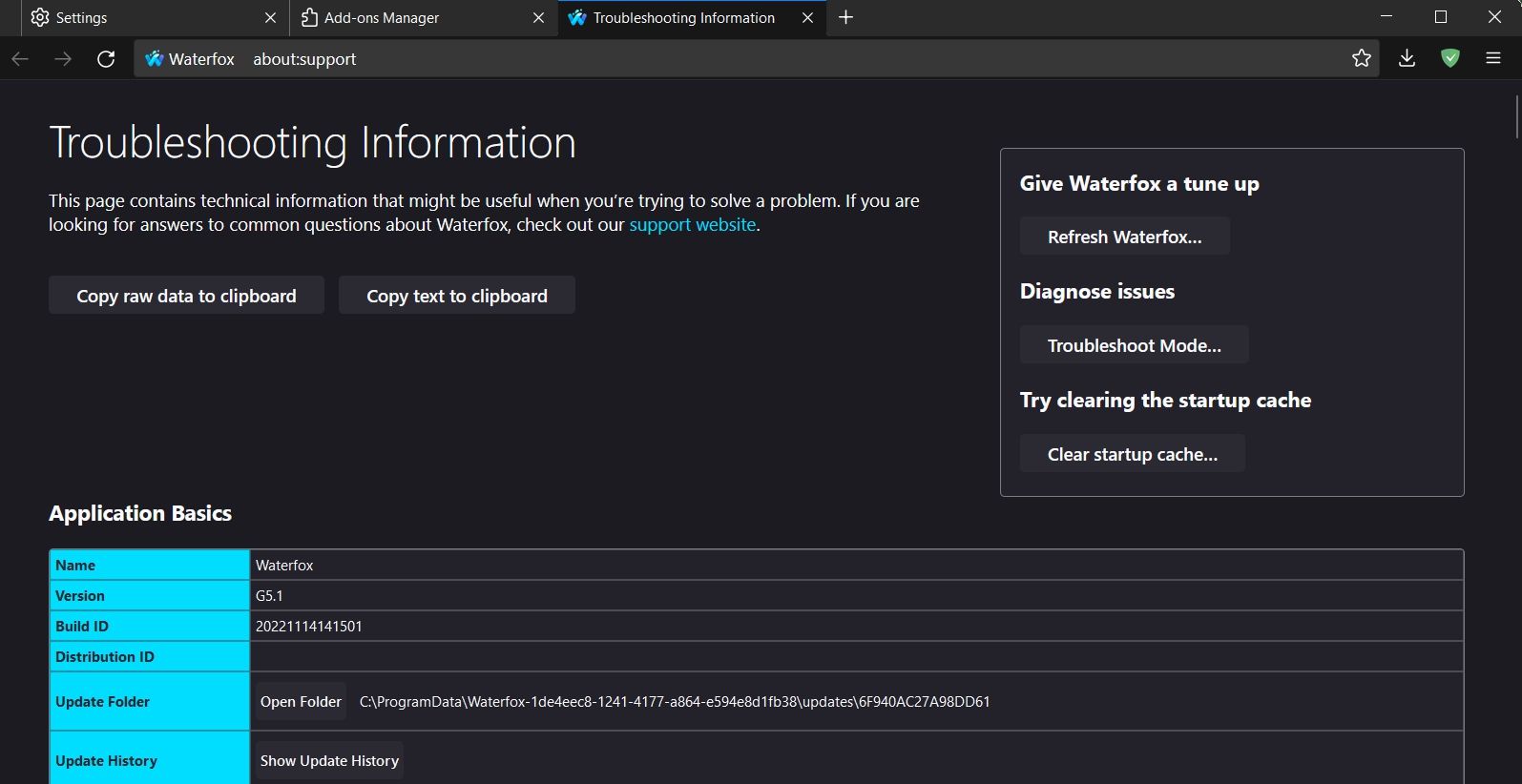
If you are still experiencing problems, it's likely that one of your custom browser settings is the culprit. You can try resetting your browser to resolve the issue.
- Click the burger option, and then select Help.
- choose More troubleshooting options.
- Click Refresh Water Fox The button below Water FoxAdjustment statement.
- Click Refresh Water Fox The prompt that appears.
Visit your favorite websites on Waterfox
It's common for browsers to fail to load web pages. This mainly happens when your internet connection is unstable or the signal is weak. If Waterfox is unable to load web pages, you now know the causes of the problem and how to fix it.
However, if the above solutions do not work, you can try using a different browser for Windows.

 Chinese (China)
  English
  Chinese (Taiwan)
  Russian
  Japanese