
How to customize Windows 10 and 11 using WinBubble
The default customization options in Windows 11 and 10 are relatively limited. However, certain third-party software packages offer you more options for customizing your Microsoft desktop operating system. WinBubble is a free customization software that allows you to tweak your Windows platform in a variety of different ways. You can use WinBubble to tweak Windows 11/10 in the following eight ways.
recommend:Four ways to create a table of contents in Microsoft Excel
First, download and extract WinBubble.
The latest version of WinBubble is primarily designed for customizing Windows 10. Its title, WinBubble for Windows 10, clearly indicates its target platform. Older versions of the software are available for Windows 7 and Vista.
You can still use WinBubble to tweak Windows 11. However, some of its custom settings may not work correctly on Microsoft's latest desktop operating system. Therefore, consider creating a restore point backup before using WinBubble in Windows 11.
WinBubble is a portable application, meaning it doesn't have an installer. It downloads as a ZIP archive, which you'll need to unzip before running the software.
To obtain the ZIP file, open the WinBubble for Windows 10 Softpedia page and select... Download now > Softpedia Mirrors (USA).
You can extract the archive by following our guide on how to decompress files on Windows. Double-click... WinBubble.exe Open the software in the extracted WinBubbles directory.
1. How to customize desktop shortcut icons using WinBubble
Windows desktop shortcut icons typically include a small arrow. However, you can change this using WinBubble's custom shortcut icon option. This option allows you to remove the arrow or change it to a star, heart, or the Windows logo. You can adjust desktop shortcut icons like this:
- Choose WinBubble Specific Label.
- Then click Customize shortcut icons Select from drop-down menu No arrows, Heart, Star, or win (Windows logo) option.

How to customize Windows 10 and 11 using WinBubble
- Please press put Button.
- Click OK In the dialog box prompting you to restart.
- You will then need to restart Windows for this customization to take effect.
2. How to customize your Windows screen saver using WinBubble.
Windows 10 and 11 include Bubbles, Mystify, and Ribbon screen savers, but there are no customization options for them. You can adjust these screen savers by manually editing the registry. However, WinBubble's customization options for Bubbles, Mystify, and Ribbon screen savers make life easier.
this Specific The tabs in WinBubble include options for adjusting these screen savers. You can change the screen saver presets by clicking on them. Preset Drop down the menu and select an alternative.
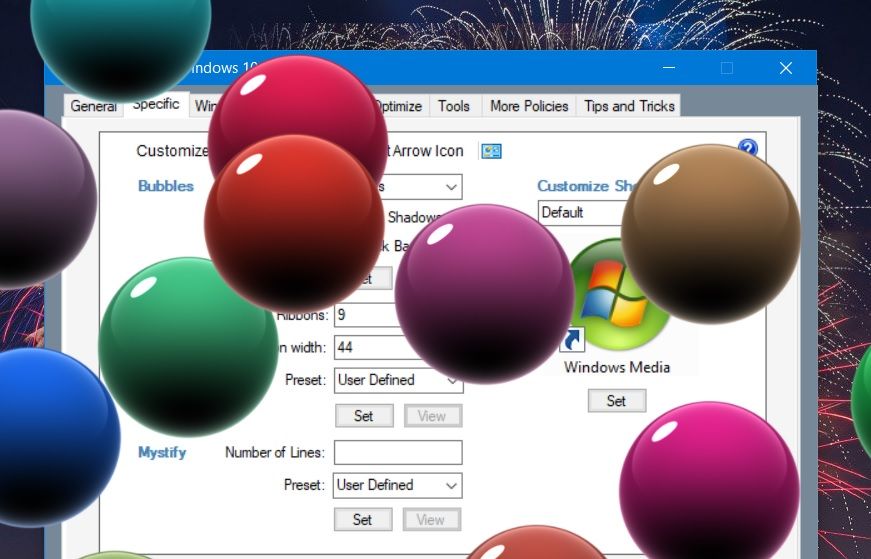
For example, you can choose glassy bubbles or Metal Bubble Bubbles screen saver offers different size options. Metal Bubble The option will provide you with the colored bubbles shown in the snapshot below.
You can also adjust the number of ribbons or lines to suit different needs. ribbon and Making a mystery Screensaver presets. Select a preset and then enter a value in the number box to change the number of lines or bands included in the screensaver. You can also... ribbonwidth Box.
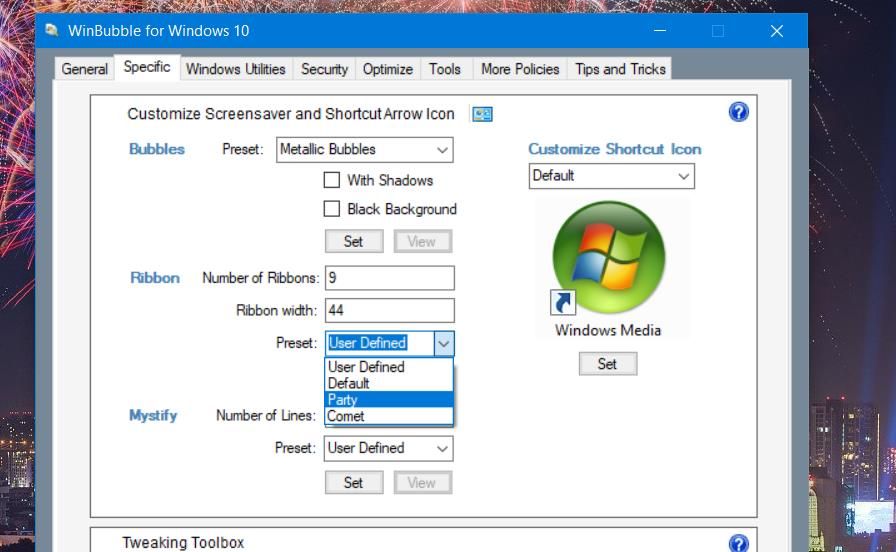
After customizing the screen saver, click view Click the button to preview. Select put Save the settings. You may also need to select and set a custom screen saver in the Change Screen Saver control panel applet.
You can slightly speed up the menu by reducing the menu latency. Windows has a default menu latency of 400 milliseconds, which you can reduce to zero. WinBubble includes a... Menu display delay You can configure options in many other optimization settings.
To configure this setting, please select... optimization Tags. Click Menu display delay Select the option with a value less than 400; Select Apply Save the new value.
When you do this, you can also slightly speed up the Windows shutdown process. To do this, select WinBubble. Reduce service downtime and Do not clear the page file when shutting down. Checkboxes in the same optimization Label.
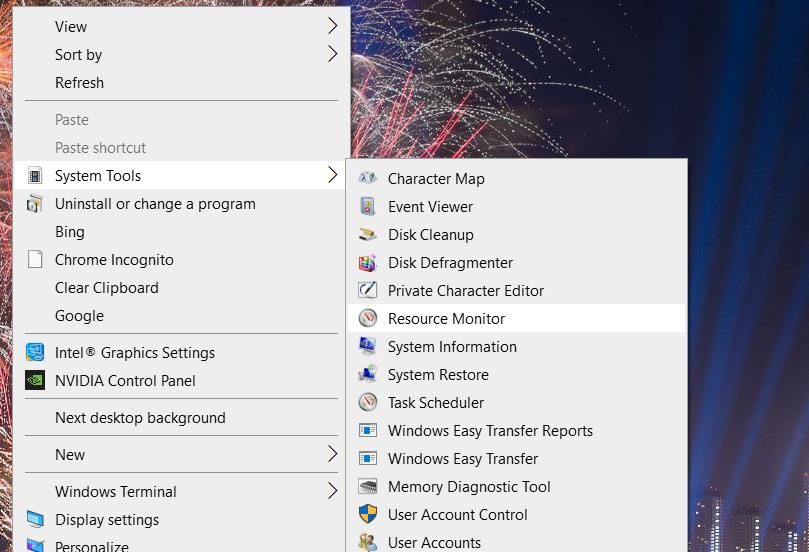
WinBubble includes numerous customization settings for the Windows desktop context menu. It allows you to add three alternative shortcut submenus to the desktop context menu. You can choose to add context menu submenus for opening Control Panel applets, Microsoft applications, and system tools.
Click General Use the tabs to view the custom settings for the context menu. Select one. Control Panel Menu, MS Software Menu, or System Tools Menu The option on this tab allows you to add one of these submenus. Click... run Apply to any open file warning dialog box.
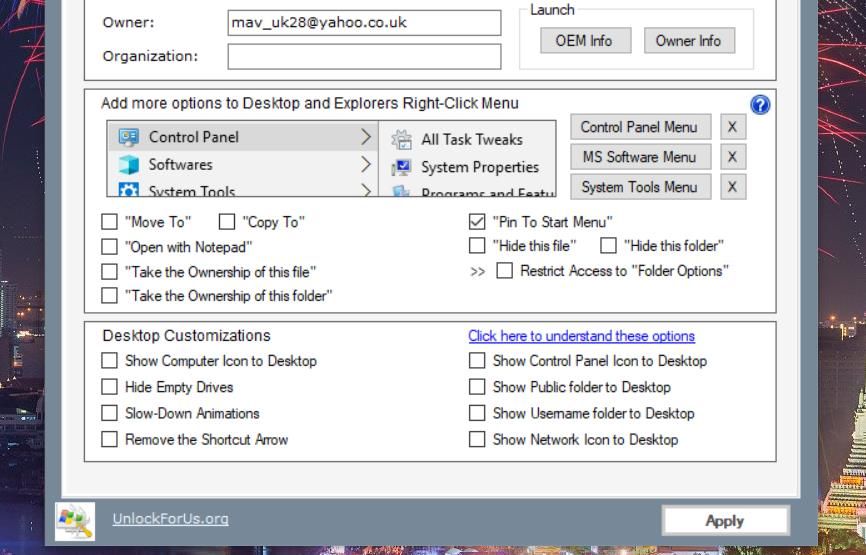
Then right-click on the desktop area to view your new... control Panel, System Tools, or software Submenu. In Windows 11, you also need to click... Show more options This adjustment applies to the classic context menu. Each submenu contains a variety of convenient shortcuts.
recommend:How to show or hide the Dim Display After option in the Windows Power Options menu?
5. How to add a new Take Ownership Explorer option to files and folders.
You cannot open folders with restricted access unless you own them in Windows 11/10. To manually gain ownership of a folder, you need to change its security settings through its properties window.
However, using WinBubble to add options for taking ownership of folders and files to the context menu is much simpler. Then you can right-click the folder or file in File Explorer to select it. Acquisition of ownership Options.
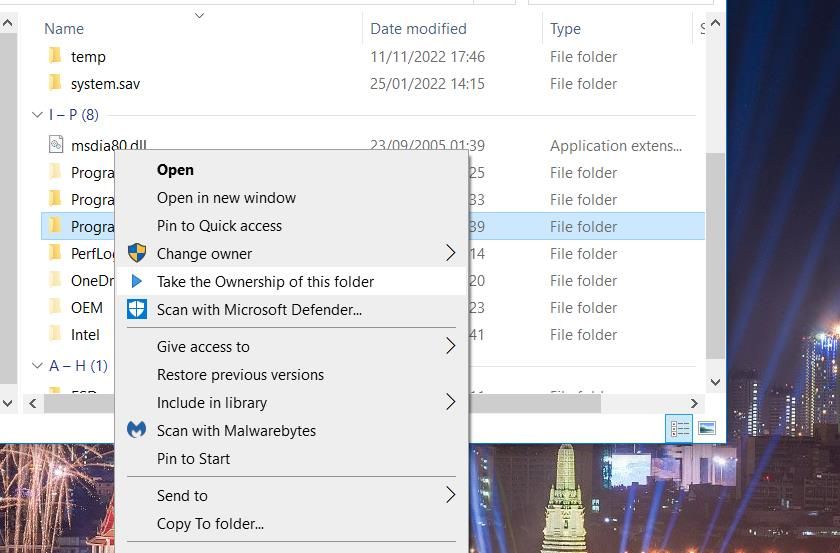
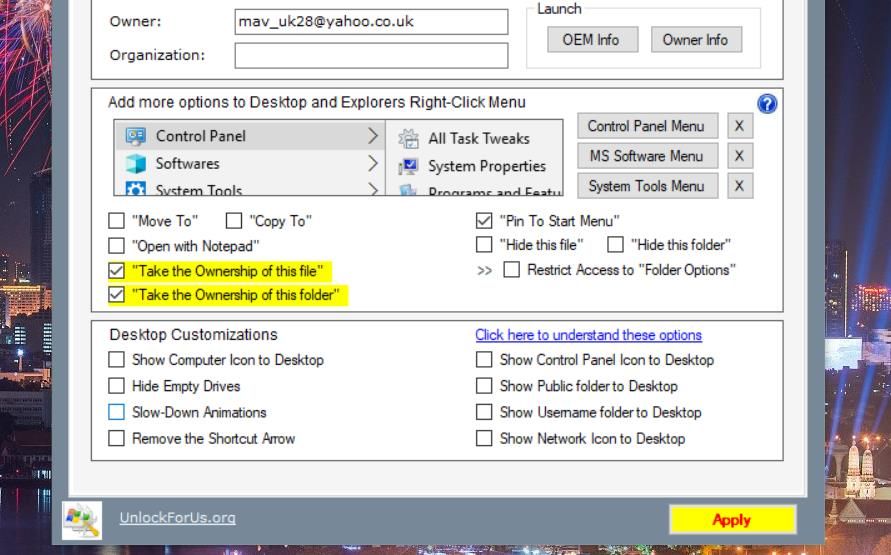
WinBubble General The tab includes two settings for adding ownership options to File Explorer's context menu. (Also select...) "Take ownership of this folder" and "Take ownership of this folder" Check the boxes to add these options. You also need to click... Apply Regarding this adjustment.
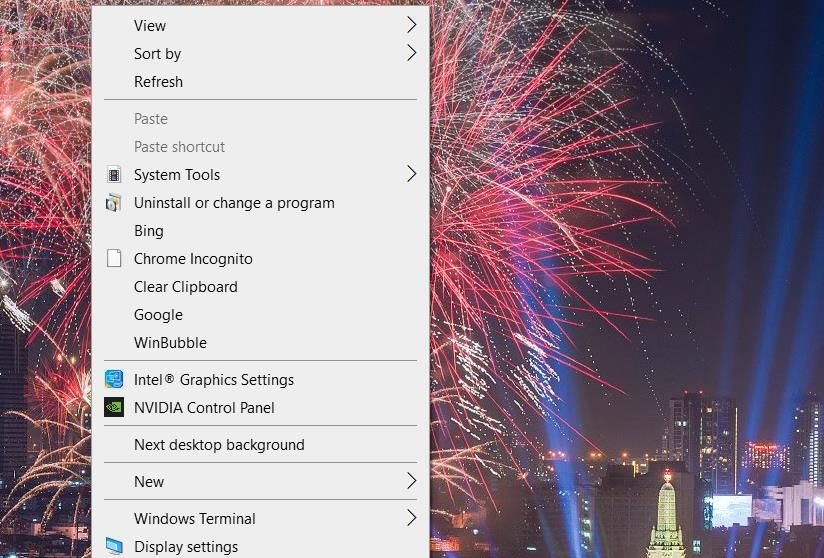
If you don't want your desktop cluttered with too many software shortcuts, context menus are an ideal alternative. You can use WinBubble to add many shortcuts to different context menus without manually editing the Windows Registry. Here's how to add shortcuts to open programs to the desktop right-click menu in Windows:
- choose tool Tabs in WinBubble.
- Please press File Explorer/Desktop The button on that tab.
- Click ellipsis button Order Box.
- Select the software you want to add to the menu, and then click... Open Options.
- Enter the name of the software inside. Name Box.

- Please press Add to Button.
- choose OK The prompt that appears.
Now, view the context menu by right-clicking on the desktop (select...)t Show more options In Windows 11, you will see a shortcut to open the software you added here. Click the shortcut to launch the program.
You can remove added shortcuts by selecting them in the WinBubble Explorer/Desktop box. tool Tags. Click eliminate The options there. Then select. Yes When asked to confirm deletion.
7. How to add a new item to the control panel
WinBubble tool The tabs also include a section that allows you to add new items to the control panel. You can add shortcuts to third-party software from there by following these steps:
- choose control Panel Radio button.
- Please press omission button Folder On the box tool Label.
- Choose the programs you want to include in the Control Panel.
- Click Open Add the path to the software.
- Enter the title of the selected software in the field. Name Box.

- Please press put Button.
- Then click OK Close the pop-up message dialog box.
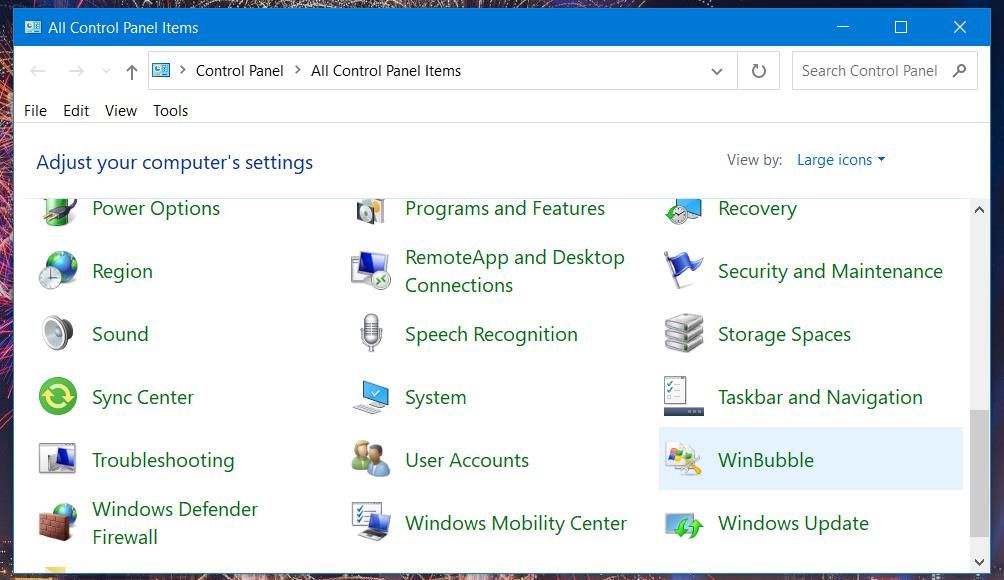
You will now be able to open software added from the Control Panel. Open the Control Panel window and then select... Large icons From Viewing method There's a drop-down menu there. Click the new software shortcut there.
recommend:Nine ways to open the Local Group Policy Editor in Windows 11
8. How to disable the Registry Editor in WinBubble
this More policies WinBubble's tabs allow you to disable many features in Windows. It contains four sub-tabs from which you can disable features related to the desktop, Start menu, taskbar, machine, system, and control panel. Additionally, several extra miscellaneous quick-adjustment settings are available.
For example, if you don't want other users to mess with the registry, you can choose to disable the Registry Editor. To do this, click [link to Registry Editor]. More policies > system Tabs. Select Prevent registry accessTo the Registry Editor checkboxes and Apply Option. When a user attempts to open the Registry Editor, an access denied message will pop up.
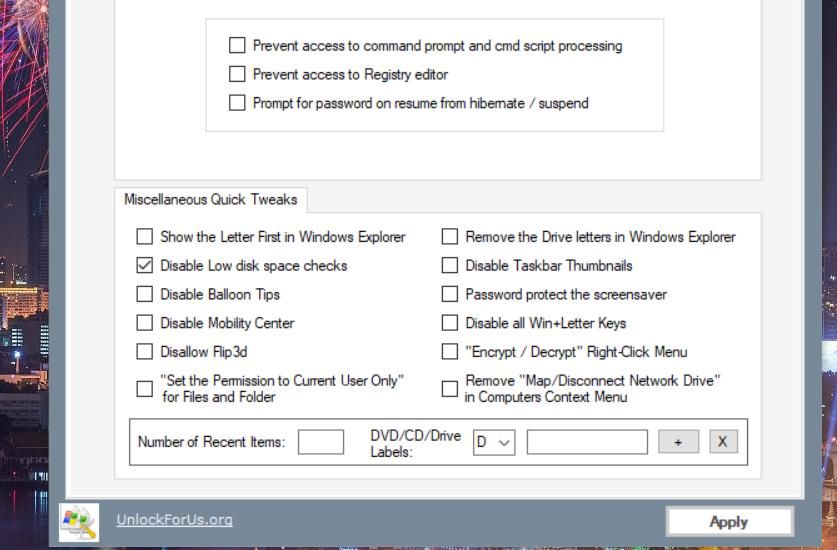
Customize your Windows to your liking with WinBubble
These are just some of the different ways you can customize Windows 10 and 11 using WinBubble. WinBubble includes many more convenient settings to tailor Windows to your preferences. So, enjoy customizing your Windows with WinBubble!

 Chinese (China)
  English
  Chinese (Taiwan)
  Russian
  Japanese