
How to use Apple TV to mirror your iPhone or iPad to your TV screen
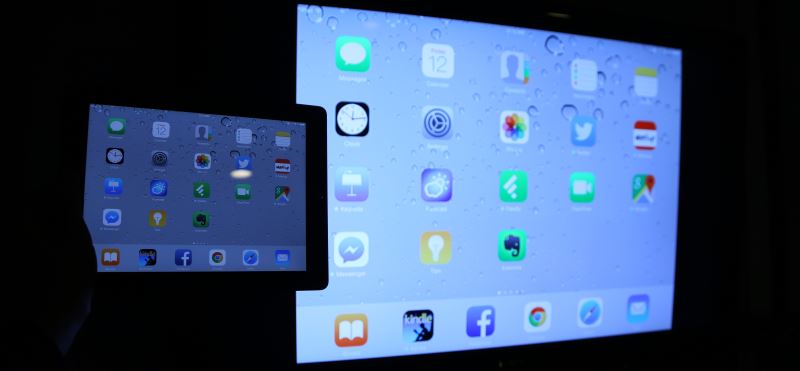
One of the coolest features of Apple TV is the ability to... The display of your iPad or iPhone is "mirrored" onto your TV screen.This allows you to watch virtually anything you can watch on your iPad or iPhone on your TV, including videos from iOS apps or live streams from websites.
For example, you can use the CBS.com iPad app to find shows on your iPad and then use Apple TV to "project" the shows onto your TV screen. Alternatively, you can access a live stream on a website on your phone and then project it onto your TV. This gives your Apple TV access to…A completely different world of content.
So, how do you watch your iOS device on a TV? As you might have guessed, you'll need an Apple TV (at least a second-generation one). If you don't know what that is, you can read my detailed review here.
If you have an Apple TV and an iOS device, getting what Apple calls AirPlay "mirroring" to work isn't difficult. Here's how:
Apple TV settings
First, you need to ensure that your Apple TV and iOS device are on the same Wi-Fi network. If you are at home and your device is set to use Wi-Fi, then you are probably already prepared.
If you are outside of a hotel room or home, you will need to set up your Apple TV and devices to use the same Wi-Fi network.
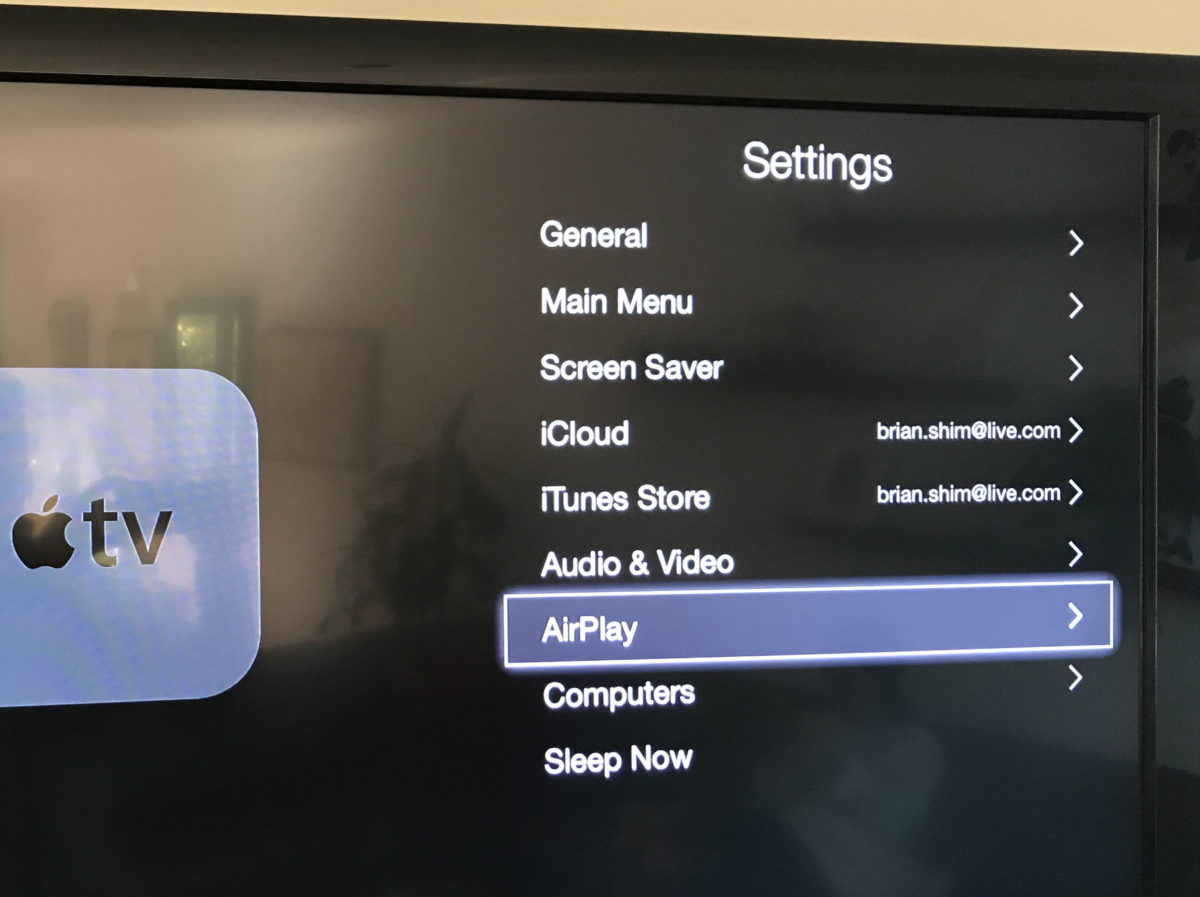
Next, if you've never used AirPlay on Apple TV before and don't see an AirPlay notification when you turn it on, you'll probably have to enable it.
On Apple TV, go to Settings -> AirPlay and make sure AirPlay is turned on.
iPhone User Manual
On an iPhone, swipe up from the bottom of the screen to reveal the Control Center.:
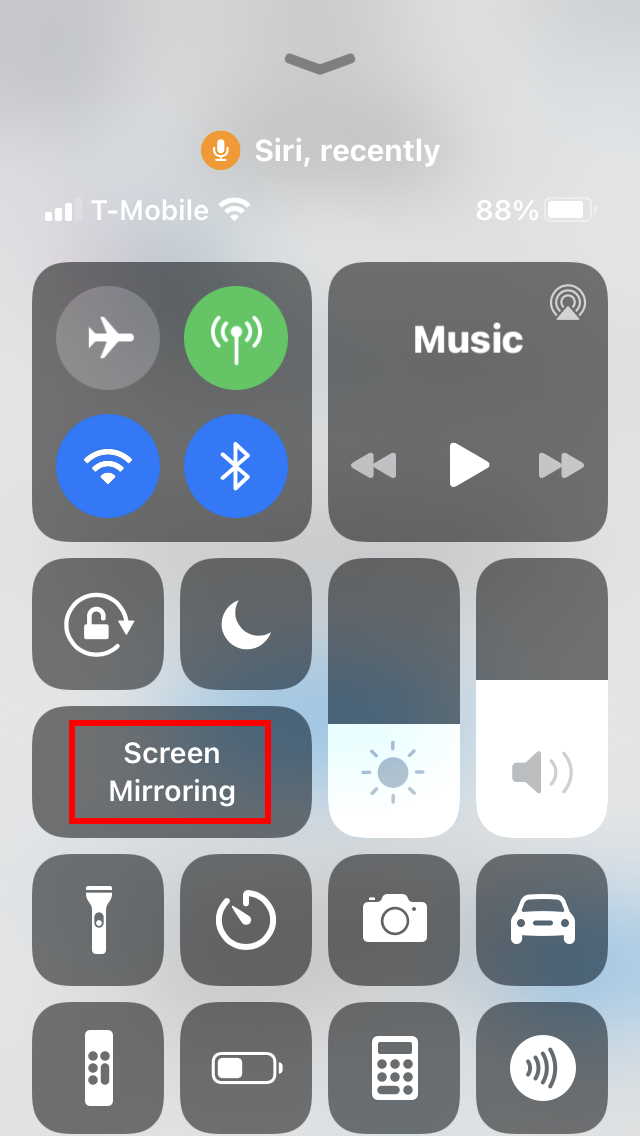
Click the screen mirroring button.If you don't see it, please check the troubleshooting section at the end of this article. If it works, you should be able to select "Apple TV," or whatever your Apple TV device is named.
recommend:Depicter, a visual slider editor plugin for WordPress
iPad User Guide
Apple has changed how you access Control Center (unfortunately). It used to be the same as on the iPhone, where you could swipe up from the bottom. That might have been useful if you haven't updated your iPad's software in a while.
If you do keep your iPad up to date, you will swipe down from the top right corner.
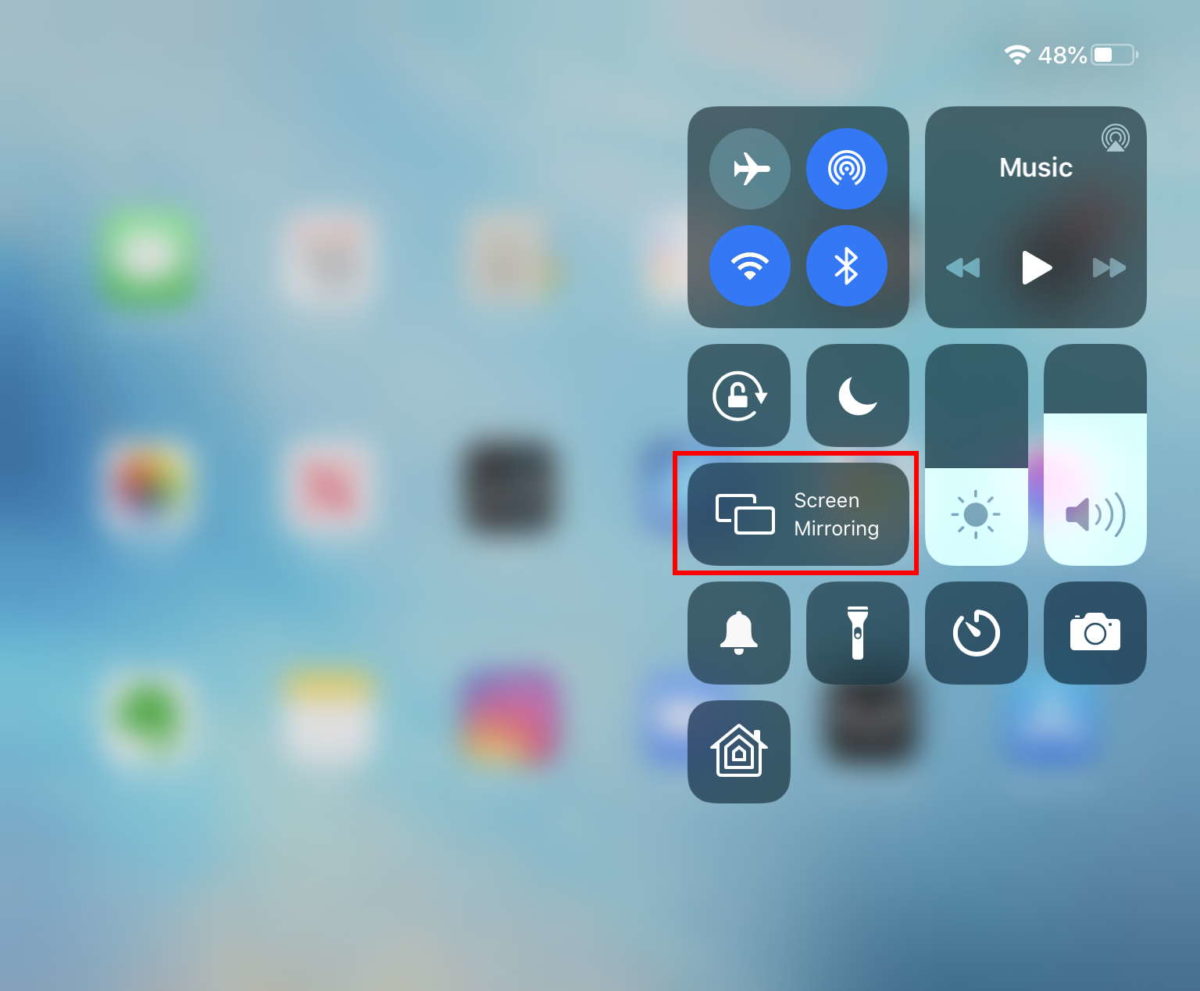
Once you see the Control Center, tap the Screen Mirroring button, and then select your Apple TV.
If you don't see your Apple TV in Control Center, try restarting it. If you still don't see anything, see the troubleshooting guide at the end of this article.
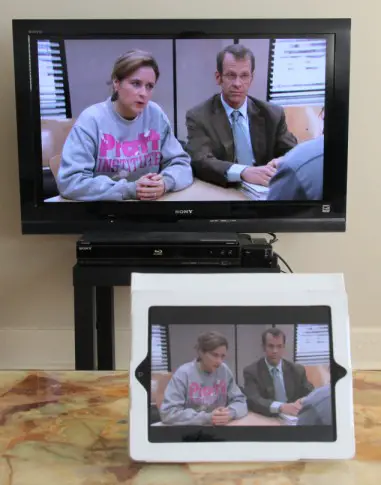
Please note,If you want the TV to fill the entire screen, you may have to adjust the TV's scaling settings. This sacrifices some resolution, but it's not bad at all on most websites I checked (still much better than my old SD quality TV). On my Sony remote, this button is labeled "WIDE". Here's the final result:
troubleshooting
If you don't see the AirPlay icon on your iPad, please check the following:
- Make sure you have an iPad 2 or later, an iPhone 4S or later, or an iPad Mini.
- Make sure your Apple TV is version 2 or later (most are).
- Make sure your Apple TV and iPad can access the internet and that they are on the same Wi-Fi network (the Wi-Fi network names should be the same).
- Make sure AirPlay is “turned on” on Apple TV. Go to Settings -> AirPlay.
- Try restarting your wireless router, iPad/iPhone, and Apple TV.
- Turn on your iPad and Apple TV and wait a few minutes. I've seen it take a while for the AirPlay icon to appear.
- If all else fails, try searching "AirPlay router settings" on Google. Some routers require special settings for AirPlay to work properly. Here's an example:
https://discussions.apple.com/thread/3846783?start=0&tstart=0

 Chinese (China)
  English
  Chinese (Taiwan)
  Russian
  Japanese